How to Connect Your Telegram Channel or Group to PostFast
Schedule and publish posts to your Telegram channels and groups directly from PostFast. This guide walks you through the full setup process.
Prerequisites
- A Telegram channel or group where you are an admin
- A PostFast account with an active workspace
Step 1: Add the PostFast Bot as an Admin
For Channels
- Open your Telegram channel
- Tap the channel name (avatar) at the top
- Tap Edit
- Go to Administrators
- Tap Add Admin and search for
@postfastapp_bot - Set the following permissions:
- Manage Messages — Post Messages
- Edit Messages
- Manage Stories — Post Stories
- Uncheck all other permissions
- Tap Done
For Groups
- Open your Telegram group
- Tap the group name (avatar) at the top
- Tap Edit
- Go to Administrators
- Tap Add Admin and search for
@postfastapp_bot - You can leave all permissions unchecked — the bot only needs to be an admin to post
- Tap Done
Step 2: Connect in PostFast
- Go to your Accounts page in PostFast
- Click Add Account
- Select Telegram from the platform list
- Enter your channel or group identifier (see below)
- Click Connect
Finding Your Channel or Group Identifier
Public channels and groups
If your channel or group has a public username (e.g. @mychannel), simply type it in the input field. Usernames always start with @.
Private channels and groups
Private channels and groups don't have a public username. To connect them:
- Open the channel or group in Telegram
- Right-click (or long-press on mobile) on any message
- Select Copy Message Link
- You'll get a link like:
https://t.me/c/1234567890/5 - Paste the full link into the input field in PostFast — we'll extract the chat ID automatically
Channels vs Groups: What to Expect
| Channels | Groups | |
|---|---|---|
| Post attribution | Posts appear as the channel itself — no bot name shown | The bot name (@postfastapp_bot) is visible next to messages |
| Can hide bot name? | N/A — already hidden | No — this is a Telegram API limitation that applies to all scheduling tools |
| Best for | Broadcasting content to subscribers | Community discussions with scheduled announcements |
If bot attribution is a concern, we recommend using channels for content publishing.
Supported Content
- Text: Up to 4096 characters (Telegram truncates automatically)
- Media: Up to 10 images or videos per post, mixed media allowed
- Links: Fully supported with automatic link previews
Troubleshooting
"The bot is not an admin of the channel or group"
The bot needs to be added as an administrator before you can connect. Follow Step 1 above to add @postfastapp_bot as an admin.
"Channel or group not found"
- Make sure the bot has been added as an admin before trying to connect
- Double-check the username starts with
@(e.g.@mychannel, notmychannel) - For private channels/groups, make sure you're pasting the full message link
"The bot is not a member of this channel"
The bot was removed or was never added. Go to your channel/group admin settings and add @postfastapp_bot as an administrator again.
Content Policy
To protect our platform, we forbid the following:
- Spam or unsolicited messages
- Scraping or data collection
- Impersonation
- Prohibited content (terrorism, malware, illegal goods, doxing)
Violations of Telegram's Bot Terms of Service may result in your account and all associated accounts in PostFast being permanently banned.
Related guides
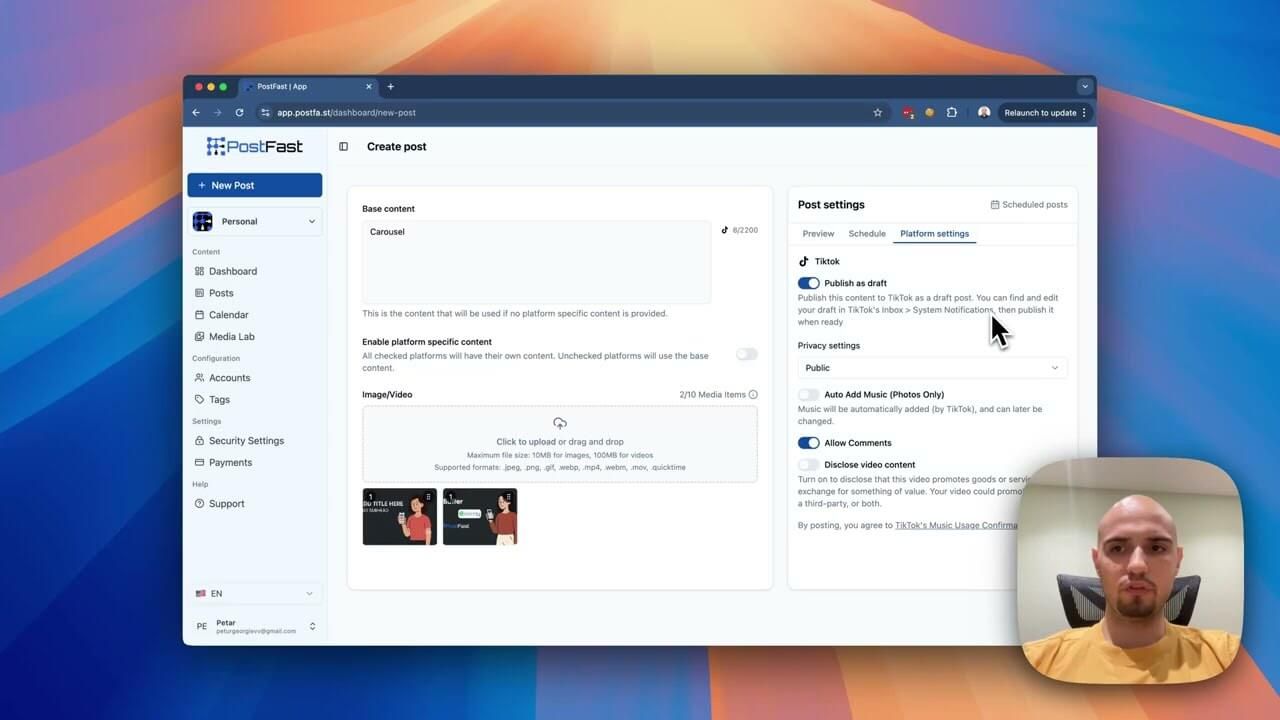
How to publish to TikTok from PostFast (Drafts)
Guide on how to publish TikTok carousels, videos in PostFast. You can schedule them as drafts and make edits in the app itself too!
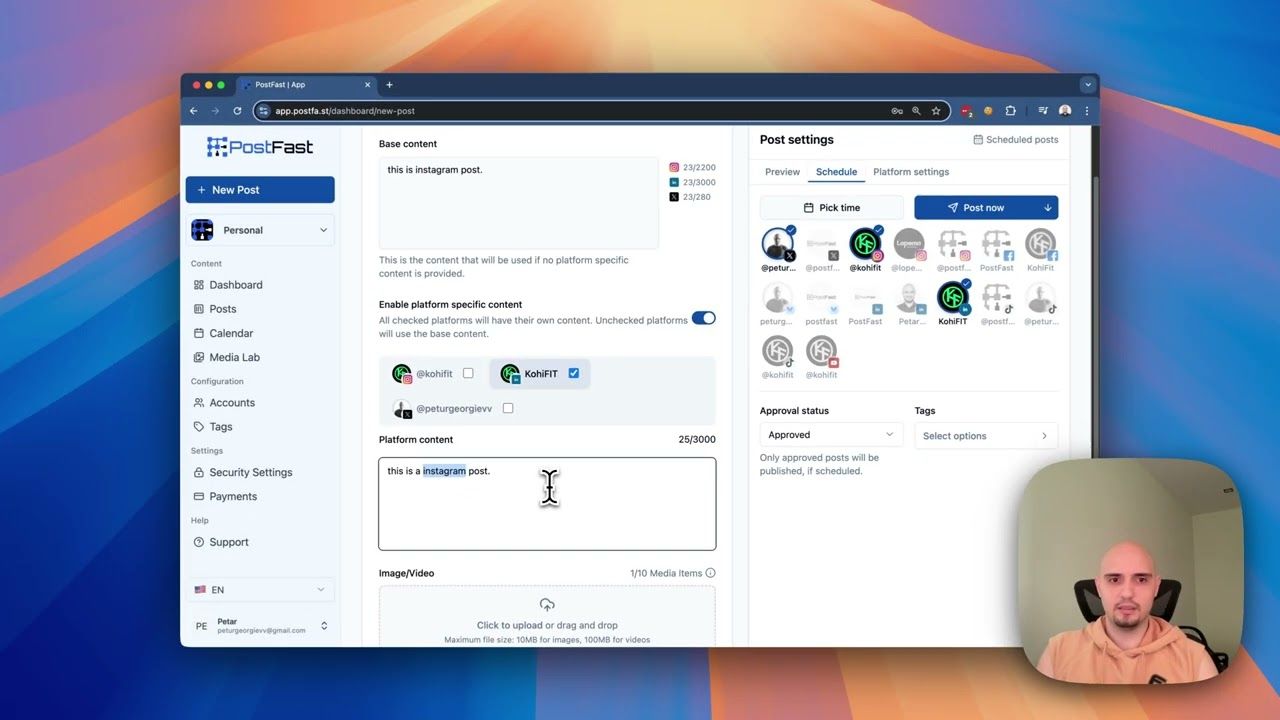
How to schedule a Social Media Post to multiple platforms?
Schedule your social media posts with PostFast in seconds, go to New Post, add content and media, choose social platforms, schedule.
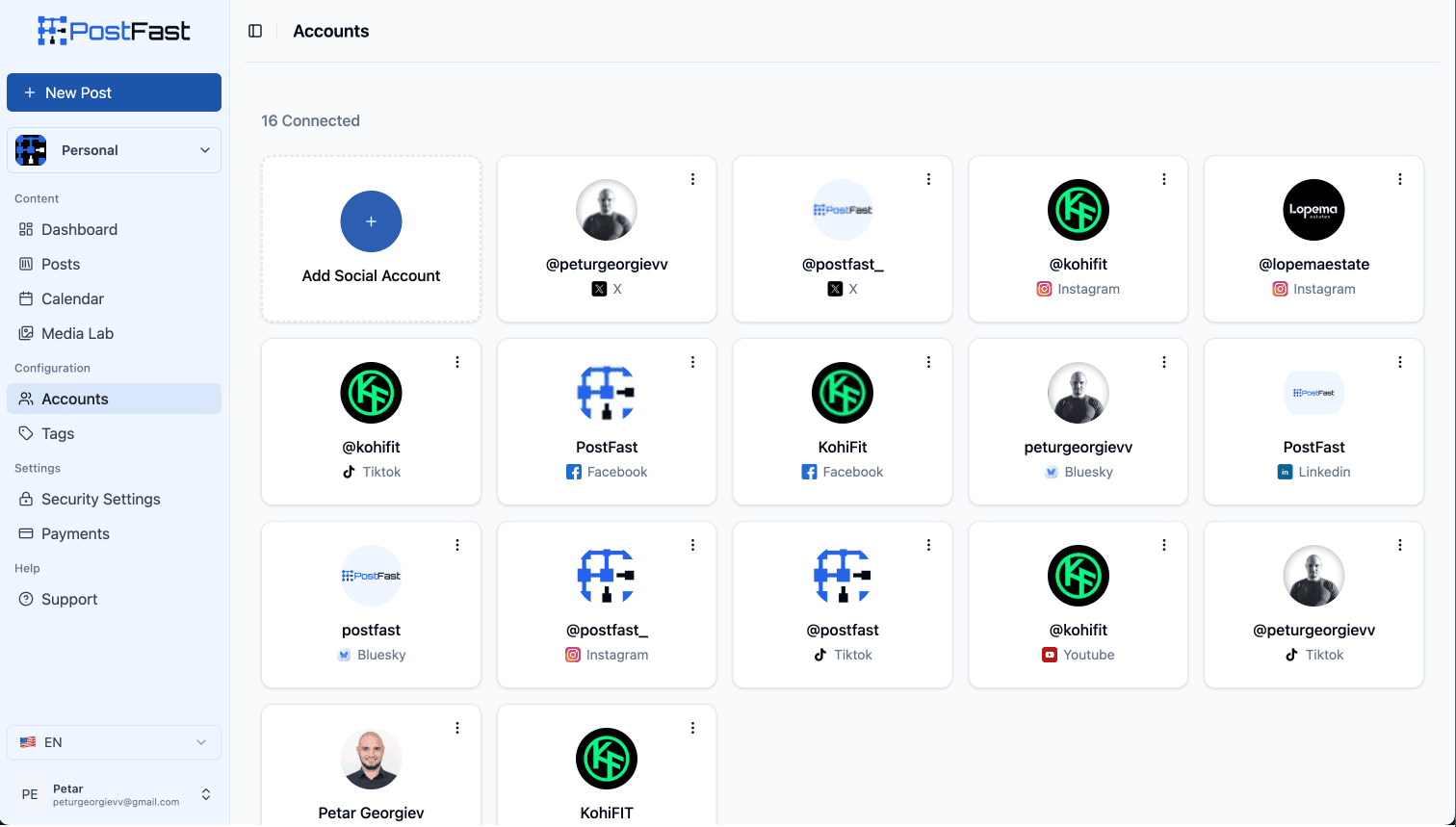
How to add Social Accounts in PostFast
Connect your social accounts to PostFast in three easy steps, go to Accounts, add a social account, and authorize. Start scheduling posts instantly!