A Creator's Guide to 16:9 Resolutions
Master 16 x 9 resolutions with our definitive guide. Learn pixel dimensions, platform specs, export settings, and tips for YouTube, Instagram, and more.
On this page (7)
When people talk about 16:9 resolutions, they’re not referring to one specific size. They're discussing a whole family of pixel dimensions that all share the exact same widescreen shape.
This shape is defined by its aspect ratio. For every 16 units of width, there are exactly 9 units of height. It’s the standard for pretty much every modern screen you look at.
What Is the 16:9 Aspect Ratio?
Before we get into specific pixel counts like 1080p or 4K, let's nail down what the 16:9 aspect ratio actually is. Think of it as a shape, not a size. It's simply the proportional relationship between an image's width and its height, and this particular rectangle has become the universal standard for everything from our TVs to the videos we watch on YouTube.
This widescreen format took over from older, boxier ratios like 4:3 for one simple reason: it’s a much closer match to the human field of vision. The result is a more immersive and natural viewing experience. That’s why it was adopted for high-definition television and eventually became the default for almost all digital video.
Understanding this is key. Any resolution, big or small, can be 16:9 as long as its width and height stick to that specific proportion.
Why This Ratio Is the Standard
The dominance of the 16:9 format gives both creators and viewers a consistent, predictable canvas to work with. It simply works.
- Universal Compatibility: It ensures your content looks right whether it's on a TV, a computer monitor, or a phone held sideways. No weird cropping or black bars.
- Cinematic Feel: The wider format is just more engaging. It’s better suited for dynamic visuals and good old-fashioned storytelling.
- Future-Proofing: As screen resolutions keep climbing from 1080p to 4K and beyond, the 16:9 shape remains the constant. This makes life a lot simpler for anyone in production.
To get a better feel for why this format won out, it helps to see how it stacks up against other options. Checking out a comparison of 21:9 vs 16:9 aspect ratios can provide some useful context on why 16:9 became the go-to choice for most content.
A Quick Reference Guide to Common 16x9 Resolutions
If you're a busy creator who just needs the numbers, this is your go-to reference. Here’s a rundown of the most common 16:9 resolutions so you can grab the exact dimensions for your next project, no guesswork needed.
First, a quick visual. This infographic breaks down what 16:9 actually means: for every 16 units of width, you have exactly 9 units of height. This is what gives us that familiar widescreen shape we see everywhere, from TVs to YouTube.
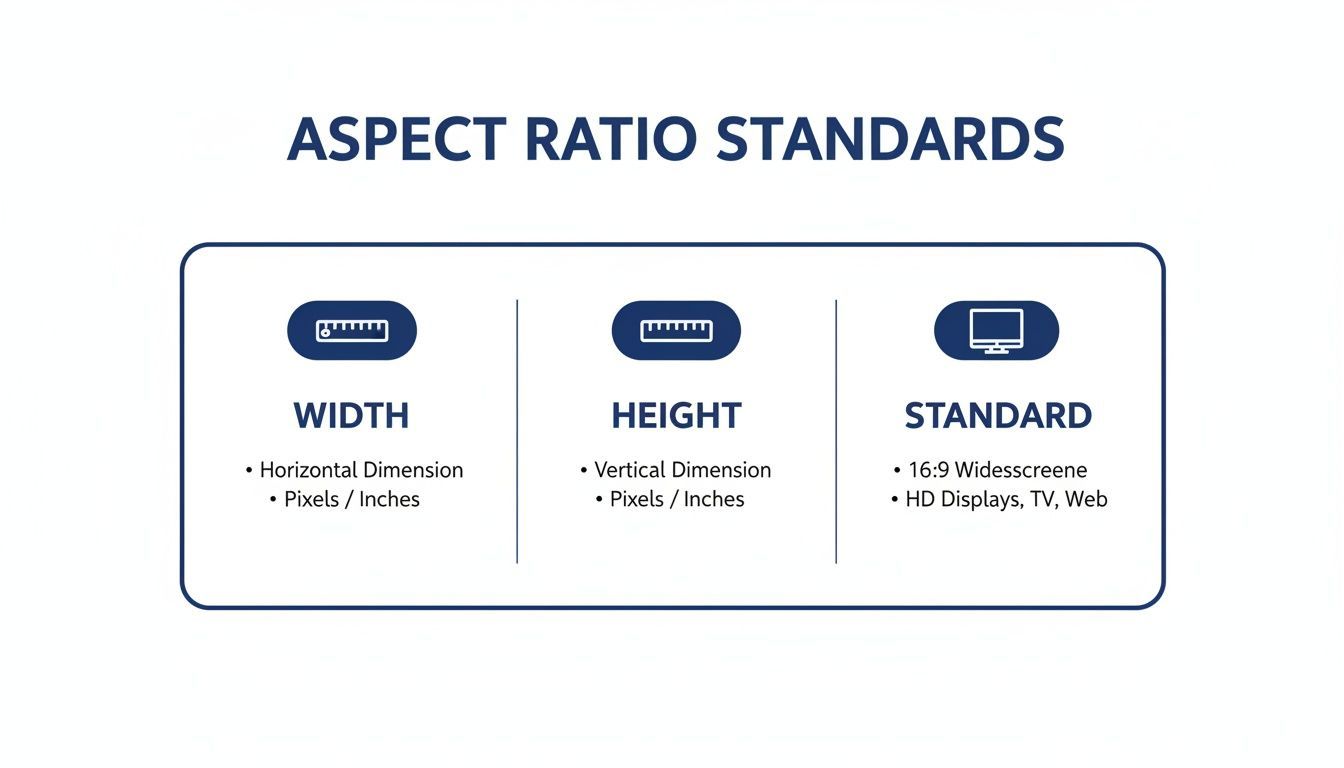
Knowing the right resolution from the start saves a massive amount of time in post-production. When you export at the native resolution for your target platform, like 1080p for most web content, you sidestep nasty compression or scaling issues down the line.
For anyone juggling content across different platforms, keeping up with all the different image and video sizes is a real headache. Our team at PostFast put together a comprehensive social media sizes guide to help you keep everything perfectly sized, every time.
Common 16:9 Resolutions And Their Uses
To make things even easier, the table below organizes the key resolutions by their common names, exact pixel dimensions, and what they're typically used for. Feel free to bookmark this page for a quick lookup whenever you need it.
| Name | Resolution (Pixels) | Common Use Case |
|---|---|---|
| 720p (HD) | 1280 x 720 | Baseline HD for streaming, older devices |
| 1080p (Full HD) | 1920 x 1080 | Standard for web, social media, broadcast TV |
| 1440p (QHD) | 2560 x 1440 | High-end monitors, gaming, detailed graphics |
| 4K (UHD) | 3840 x 2160 | Professional video, streaming, modern TVs |
| 8K (UHD) | 7680 x 4320 | Future-proofing content, cinematic production |
From a quick stream on an old phone to a full-blown cinematic production, this list covers the essentials. Stick to these standards, and you'll ensure your content looks sharp and professional no matter where it's viewed.
Standard and High Definition 16:9 Resolutions Explained
Sure, 4K and 8K get all the attention, but the real workhorses for most digital content are still Standard and High Definition. These accessible 16:9 resolutions nail the balance between quality and manageable file sizes, making them the go-to choice for almost everything you see online.
Even good old Standard Definition (SD) has its moments. The common widescreen SD resolution is 854 x 480 pixels. It won't win any awards for sharpness, but it's a lifesaver in low-bandwidth areas or for tiny embedded videos where crystal-clear detail isn't the point.
The Baseline for Quality: 720p HD
Next up is 1280 x 720 pixels, which you probably know as 720p or just HD. Today, this is pretty much the minimum acceptable quality for any serious video. For anyone on a slower internet connection, 720p offers a smooth stream without the dreaded buffering, so it’s a solid fallback for platforms like YouTube.
The Gold Standard: 1080p Full HD
The undisputed king of online video is 1920 x 1080 pixels, better known as 1080p or Full HD. This resolution just hits the sweet spot. It delivers sharp, professional-looking visuals that look great on everything from a smartphone to a big desktop monitor. It’s the standard for corporate videos, social media content, and high-quality web streaming.
In markets like Bulgaria, the 16:9 aspect ratio is essential for social media, fitting perfectly on platforms like Instagram and Facebook that dominate the local scene. With 4.50 million social media users reported in October 2025, that's 67.1% of the population, giving creators a huge audience to capture. Using a tool like PostFast to schedule content in 16:9 formats, like 1920x1080 for Reels or Stories, is a smart play. You can dig into the numbers in DataReportal’s Digital 2026 Bulgaria report.
When you're exporting 1080p content, it's all about balancing quality and file size. A video bitrate between 8 to 12 Mbps for H.264 codecs is a great starting point for web video. This keeps your content looking crisp without creating a massive file that takes forever to load.
Working With 4K and 8K Ultra High Definition Resolutions
Stepping up to Ultra High Definition (UHD) resolutions like 4K and 8K is a massive leap in content quality. These huge canvases deliver incredible detail, making them perfect for professional video, cinematic projects, or simply creating content that will still look crisp years down the line.
The go-to 4K resolution is 3840 x 2160 pixels, which packs in four times the pixel density of 1080p. This jump in clarity isn’t just for bigger screens; it gives you a ton of flexibility in post-production. You can crop, reframe, or punch in on your footage without seeing any real quality loss, which is a huge win for any editor.
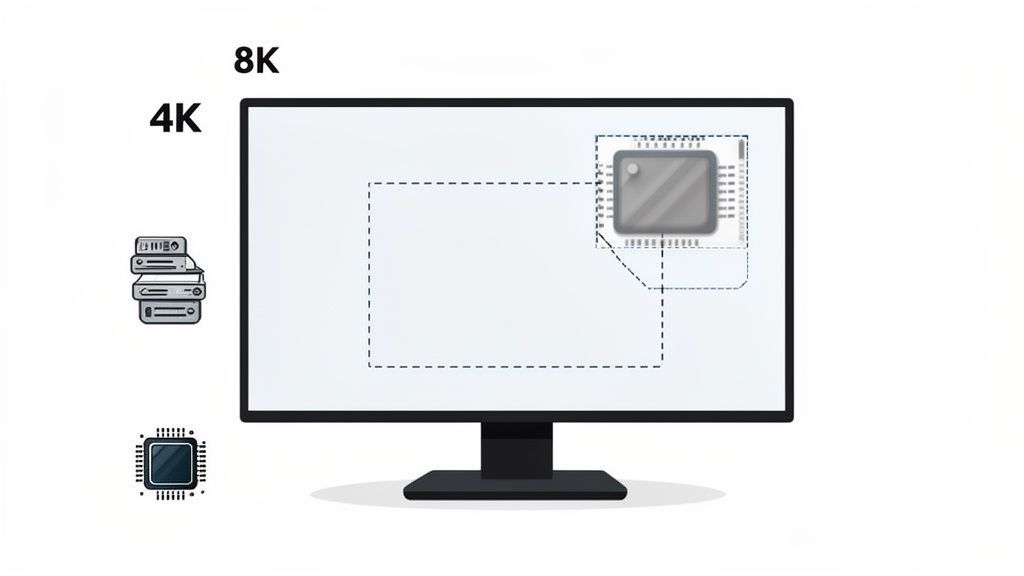
Then you have 8K, pushing the boundaries even further at a staggering 7680 x 4320 pixels. It might feel like overkill right now, but shooting in 8K is the best way to future-proof your work. The level of detail you capture is so immense that it opens up unmatched potential for visual effects and reframing.
The Trade-Offs of UHD
Of course, working with these high-end 16 x 9 resolutions comes with some serious demands. The file sizes are enormous, meaning you'll need some beefy hardware and plenty of storage to keep your workflow from grinding to a halt.
- Hardware: A high-performance computer is non-negotiable. You'll want a fast processor, a solid dedicated graphics card, and lots of RAM to edit 4K, let alone 8K, without constant, frustrating lag.
- Storage: UHD video files chew through storage space like crazy. Fast SSDs or even RAID arrays are pretty much a necessity for managing projects efficiently.
- Software: Make sure your video editing software is up-to-date and can actually handle UHD formats without choking.
When you're looking at hardware, it can be useful to check out resources on the best 4K gaming monitors, as many of their features are also great for content creation. And if you want to share your killer 4K work on YouTube, our guide on a 4K YouTube video downloader is another handy resource.
Ultimately, while UHD is incredibly powerful, it's a strategic choice. You have to weigh its benefits against your project's needs and your technical setup.
How to Optimize 16x9 Content for Social Media Platforms
While 16:9 is a universal standard, every social media platform has its own quirky preferences for landscape content. Nailing the specs means your videos look sharp and professional, saving them from ugly compression artifacts or awkward crops. Honestly, a few small tweaks to your export settings can make a massive difference.
Think of it like tailoring your content for each audience. A video that looks incredible on YouTube might get butchered in the LinkedIn feed. Understanding these subtle differences is the key to keeping your quality consistent across all your channels.
YouTube: Your Primary 16:9 Destination
Let's face it, YouTube is the undisputed king of 16:9 video. For the absolute best results, just upload your videos using the same resolution they were recorded in. Don't downscale if you don't have to.
- Standard HD: If you're working with 1080p footage, aim for a bitrate between 8 and 12 Mbps.
- Crisp 4K: For 4K uploads, bumping that bitrate up to 35 to 45 Mbps will preserve all that stunning detail.
YouTube supports a massive file size of up to 256 GB or 12 hours in length, so you'll rarely bump up against the limits. Just focus on giving it the highest quality version you have, and let the platform's encoders do the heavy lifting. The custom thumbnail follows the same 16:9 shape but has its own size and safe-zone rules: at least 1280 x 720 pixels, under 2 MB.
Facebook and X (Formerly Twitter)
Both Facebook and X are pretty flexible with 16:9 video, but they each have a sweet spot. For both platforms, exporting at 1920 x 1080 pixels is your safest bet for keeping quality high in the feed.
Facebook can handle files up to 10 GB and 240 minutes long, which gives you a lot of room to play. X is much more restrictive, capping files at 512 MB and a max length of 140 seconds for most users. Premium subscribers get up to four hours and 16 GB; the full X video limits by tier list both sets of caps. This means keeping your X videos short, punchy, and to the point is absolutely essential.
Instagram and LinkedIn Landscape Videos
Even though Instagram is famous for its vertical formats, it still supports landscape 16:9 video in the main feed. The ideal resolution here is 1920 x 1080 pixels. Just remember that file sizes need to stay under 4 GB, and videos must be 60 seconds or shorter.
LinkedIn also plays nicely with 16:9 video, making it a great choice for professional presentations, case studies, or brand stories. If you want a full deep-dive on the specs, check out our guide on LinkedIn post sizes.
Social Media 16x9 Resolution Cheat Sheet
To make things easier, here’s a quick-glance table with all the key numbers you need for exporting 16:9 video. Bookmark this page so you can come back to it whenever you're prepping content.
| Platform | Recommended Resolution | Recommended Video Bitrate | Max File Size/Length |
|---|---|---|---|
| YouTube | 1920x1080 or 3840x2160 | 8-15 Mbps (HD), 35-45 Mbps (4K) | 256 GB / 12 hours |
| 1920x1080 | 8-12 Mbps | 10 GB / 240 minutes | |
| X (Twitter) | 1920x1080 | ~8 Mbps | 512 MB / 140 seconds |
| 1920x1080 | ~8 Mbps | 4 GB / 60 seconds | |
| 1920x1080 | 8-12 Mbps | 5 GB / 10 minutes |
Getting these settings right from the start saves you the headache of re-exporting later. A consistent, high-quality look across platforms builds trust and makes your brand look more professional.
The key takeaway here is simple: a single, high-quality 16:9 master video can be adapted for multiple platforms. Using a tool to manage this process is a massive time-saver. For instance, PostFast can take one video file and automatically tweak its settings for each network as you schedule, guaranteeing optimal quality everywhere without the extra work.
This strategy is especially powerful in growing markets. In Bulgaria, for example, Instagram is projected to hit over 2.2 million users by January 2026, while YouTube already leads with 4.37 million. Using a tool like PostFast lets you queue up weeks of perfectly formatted 16:9 posts in minutes, saving you over 10 hours a week while you focus on growing your audience. You can dive deeper into the social media usage in Bulgaria on stats.napoleoncat.com.
Best Practices for Exporting and Scaling Your Videos
You’ve put in all the hard work editing, but the final export is where video quality is often made or broken. Getting your settings right is the difference between a sharp, professional-looking video and one that falls flat. A few key decisions here can save you from common headaches like pixelation or weird color shifts.
The first rule of thumb is simple: always capture footage at a higher resolution than you plan to deliver. It gives you way more flexibility down the line. This brings us to the crucial difference between upscaling and downscaling.
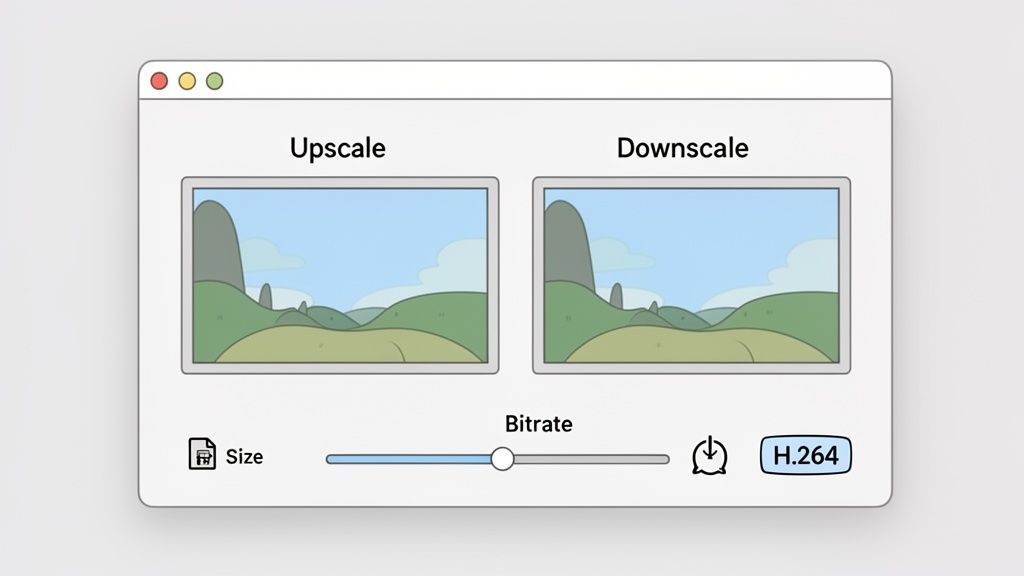
Downscaling is when you shrink a high-resolution video down to a lower one. Think of taking a crisp 4K clip and exporting it as 1080p. The result is almost always a sharper, cleaner image than if you’d just filmed in 1080p from the start.
Upscaling is the opposite, stretching a low-resolution video to fit a bigger frame. Avoid this whenever you can. When you upscale, the software is forced to invent new pixels to fill the gaps, and that leads to a soft, blurry look that screams unprofessional.
Fine-Tuning Your Export Settings
To make sure your final video holds up, you need to get comfortable with a few technical settings. These knobs and dials control the final balance between file size and visual quality for your 16:9 resolution content.
Here are the most important ones to get right:
- Video Codec: For pretty much anything you put online, H.264 is the undisputed king. It offers fantastic compression, which means you get small file sizes without sacrificing too much visual quality.
- Bitrate: This number dictates how much data is used to encode each second of your video. A higher bitrate equals better quality but a bigger file. For a 1080p video on a platform like YouTube, a bitrate between 8 to 12 Mbps is a solid starting point.
- Color Space: For most digital video, Rec. 709 is the standard. Sticking to it ensures your colors look consistent and accurate on different devices and in different browsers. No more washed-out or oversaturated surprises.
Mastering these settings is what separates an amateur-looking video from something polished and pro. The core principle is always to start with the highest quality source you have and downscale to your target resolution. That’s how you get the best results.
Getting these technical details right ensures your vision comes through exactly as you intended. A tool like PostFast can simplify this whole workflow. You just upload a single high-quality master file, and it automatically tweaks the export settings for each social platform. It saves you a ton of time and guarantees your content looks perfect everywhere.
A Few Common Questions About 16x9
Even after you've got the hang of 16:9 resolutions, a few practical questions always seem to come up mid-project. Here are some quick answers to the problems that pop up most often, so you can keep things moving.
Can I Turn My Old 4x3 Video into 16x9?
You can, but you'll have to make a choice. Since that older footage is more square, you've got two main ways to make it fit into a modern, wider 16:9 frame.
- Pillarboxing: This is the safest route. It puts your 4:3 video right in the middle of the 16:9 screen and fills the empty sides with black bars. The good news? You keep every single pixel of the original shot, exactly as it was framed.
- Cropping: The other option is to zoom in on your 4:3 footage until it fills the 16:9 frame horizontally. The big downside is that you’re chopping off the top and bottom of your original video for good.
For most projects, pillarboxing is the way to go because it respects the original filmmaker's composition. Only crop if you're absolutely sure the visual information you're losing at the top and bottom doesn't matter.
What’s the Best Resolution for a Website Background Video?
Stick to 1920 x 1080 pixels (1080p). It’s the sweet spot for a website background video, crisp enough to look professional but not so big that it grinds your page load speed to a halt.
Performance is everything with background videos. Your goal should be a file size under 6MB and a runtime between 5 to 20 seconds. Anything bigger will noticeably slow down your site, which hurts both user experience and your SEO rankings.
And please, make sure the video is muted by default. Nothing makes a visitor click away faster than unexpected, auto-playing audio.
Why Does My 16x9 Video Have Black Bars?
If you’re seeing black bars on a video that you know is 16:9, it’s almost always an aspect ratio mismatch between the video itself and the screen it’s playing on. It's a common thing.
- Wider Screens: Watching a standard 16:9 video on an ultrawide monitor (which might be 21:9) means the screen has more horizontal space than the video. To avoid stretching and distorting the image, the player adds black bars to the left and right. That’s called pillarboxing.
- Taller Screens: The reverse happens when you play a 16:9 video on a vertical phone screen (9:16). The screen is taller than the video, so the player adds black bars to the top and bottom to fill the gap. That’s known as letterboxing.
In short, those bars are usually a good thing. They mean the player is showing your video correctly without messing up the proportions. Your video file is fine.
Keeping track of all these resolutions and platform rules is a massive time sink. We built PostFast to take care of it for you. Upload one high-quality video, and our platform automatically resizes, optimizes, and schedules it for all your social accounts. It just works.
Give our 7-day free trial a spin and see how much time you get back. Check it out at https://postfa.st.
Related
A Guide to Perfect Facebook Cover Photos
Master your Facebook cover photos with our complete guide. Learn the right dimensions, design tips, and creative ideas to make your profile stand out.

Boost Your Reach with the Right LinkedIn Post Size: A Quick Guide
Learn the linkedin posts size for every format, including images, videos, carousels, and profiles, to polish your content and boost engagement. Read now.

The Ultimate Guide to LinkedIn Banner Size and Best Practices
Master the perfect LinkedIn banner size with our complete guide. Learn dimensions, safe zones, and tips to make your profile stand out professionally.

Influencer Marketing Trends: 6 Must-Follow Strategies
Influencer marketing continues to evolve, and 2025 brings exciting developments. Below are six key influencer marketing strategies to keep your brand relevant and engaging.

SaaS Marketing Automation: The Social and Email Stack We Run at PostFast
SaaS marketing automation from our own stack: what we automate on social and in lifecycle email, the event behind each sequence, and the tools by job.