Your Complete Guide to Facebook Cover Photo Size
Master the cover facebook size for Facebook Pages and Profiles with quick tips to optimize visuals and boost engagement.
On this page (15)
Getting your Facebook cover photo size right is simple once you know the key numbers. For the best results on both desktop and mobile, create your image at 820 pixels wide by 360 pixels tall. Using this specific dimension is the secret to making sure the important parts of your image are always visible, without being awkwardly cropped.
A Quick Guide to the Perfect Facebook Cover Photo
Think of your Facebook cover photo as the digital welcome mat for your page. It’s the very first thing visitors see, making it a huge part of your online identity, whether for a personal profile, a business page, or a community group. That large visual space sets the tone and makes an instant impression, but getting it right involves more than just picking a great picture.
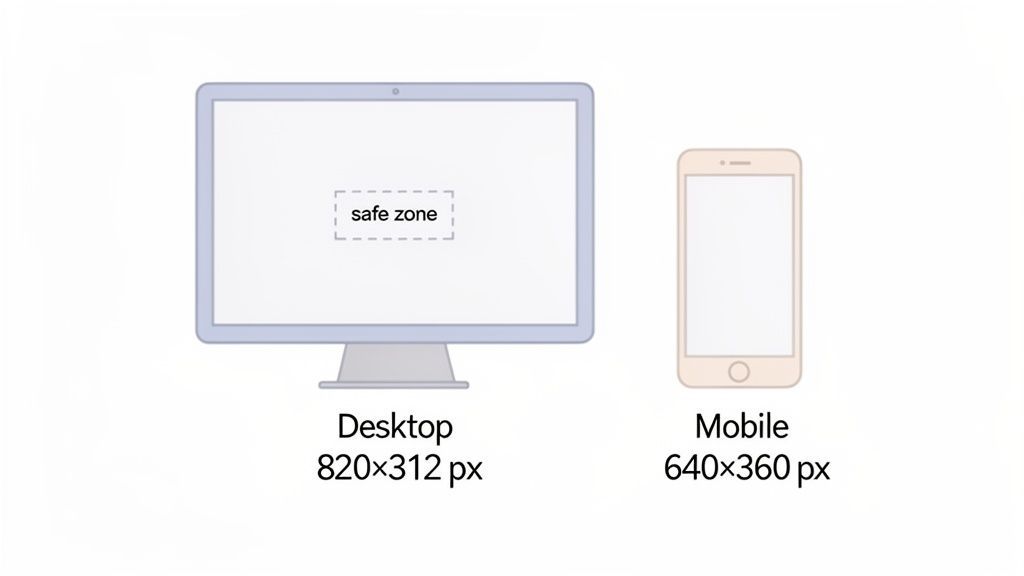
The real trick is how Facebook displays that single image on different screens. On a desktop computer, your cover photo appears wider and shorter. On a mobile phone, that same page looks taller and narrower. This is exactly why uploading a random photo often leads to key text or parts of the image being cut off.
Why the Dimensions Matter
Understanding the correct dimensions and the "safe zones" is what separates a professional-looking page from an amateur one. A well-designed cover photo guarantees that your message, branding, or call-to-action is clear to everyone, no matter how they’re viewing your page.
For businesses, this is critical. Getting your cover image right can dramatically improve first impressions, especially in a market where Facebook has such a massive reach. If you’re curious about social media usage in Bulgaria, for instance, you can find some interesting insights over on DataReportal.
This guide will give you the exact numbers you need for your cover photo for:
- Personal Profiles
- Business Pages
- Community Groups
- Scheduled Events
With these quick-reference details, you can fix your cover photo in just a few minutes and make sure your page always looks professional.
Optimizing Your Facebook Page Cover Photo
Think of your Facebook Business Page cover as a huge welcome banner. It's the first thing people see, so getting the size right is your first chance to make a good impression.
Facebook's official specification is 820 pixels wide by 312 pixels tall for desktop. But here's the catch: that's not the full story.
The real challenge is how it looks on a phone. On mobile, that same image gets cropped to 640 pixels wide by 360 pixels tall. This is a common mistake; the sides of your desktop image get chopped off, but more of the top and bottom becomes visible. If your key information is on the edges, mobile users will never see it.
Understanding the Safe Zones
To make sure your logo, text, or call-to-action is always visible, you need to design for the "safe zone." This is the central area of the image that shows up perfectly on both desktop and mobile. Anything you place outside this middle ground is at risk of being cropped out for a large portion of your audience.
A well-designed cover just works everywhere, giving your brand a consistent, professional look. For a deeper look at creating the perfect banner, check out our complete guide on the official Facebook cover size. Using the right template means you only have to create one powerful image that looks fantastic, no matter how people find your page.
Designing for Mobile and Desktop Safe Zones
Here's the biggest headache with any Facebook cover photo: it looks different on a computer than it does on a phone. Facebook automatically crops your single image to fit each screen, which means the sides of your beautiful desktop design often get chopped off on mobile. At the same time, the mobile view tends to show a bit more of the top and bottom.
This is where you have to be smart about "safe zones." Think of the safe zone as the core central area of your cover photo that is guaranteed to show up, no matter the device. If you place your logo, tagline, or call-to-action right in this spot, you can be sure your message will never get lost in the crop.
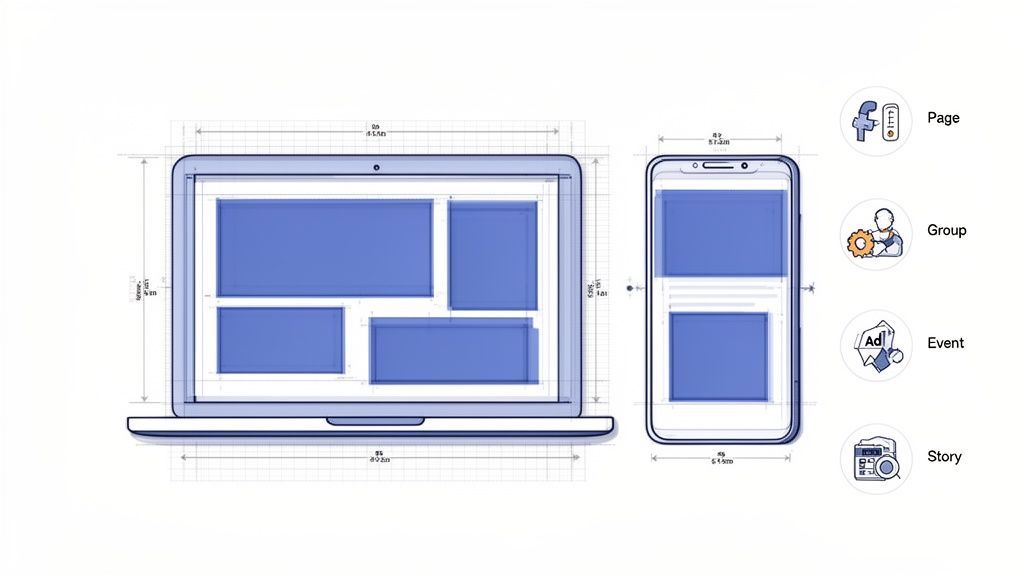
This diagram shows you exactly how your cover photo gets displayed on desktop versus mobile.
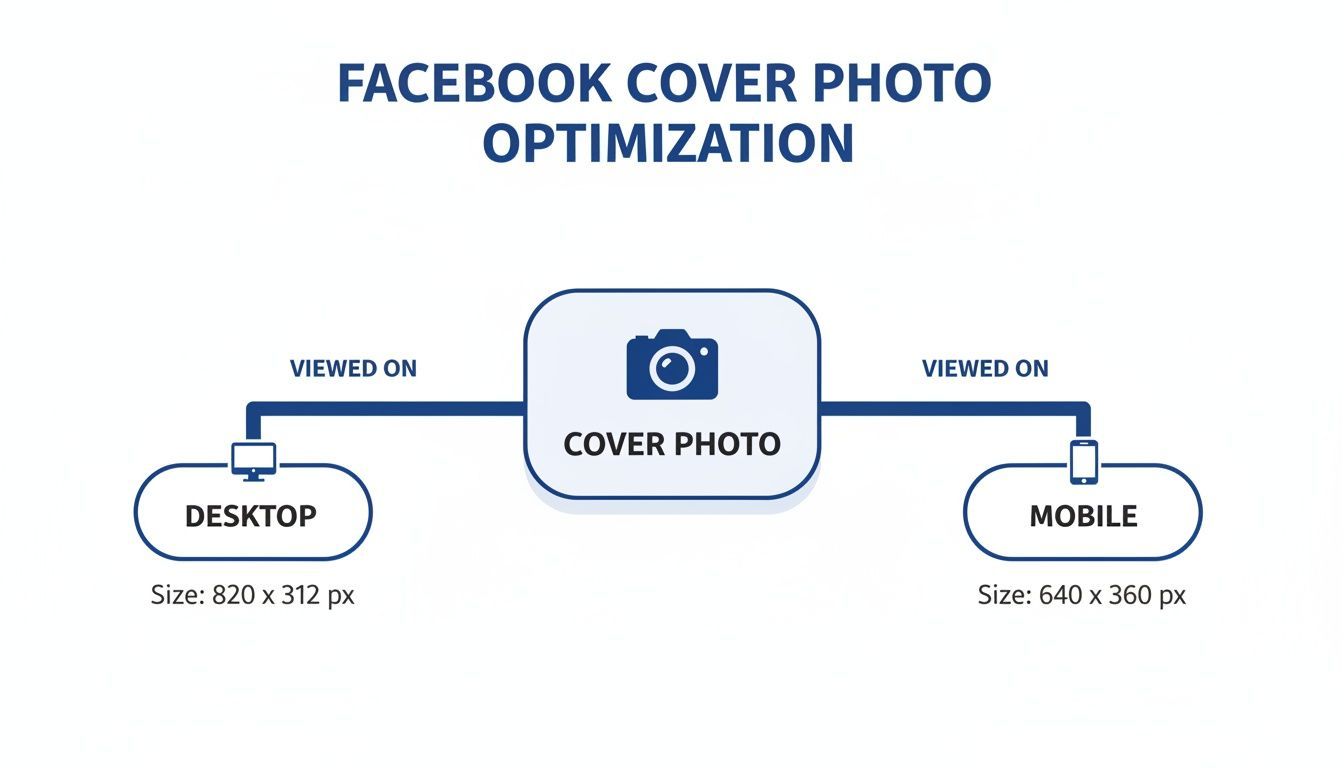
The main takeaway is simple: that central slice is your prime real estate. Everything on the outer edges is at risk of disappearing.
Mobile vs Desktop Display Comparison
To make this crystal clear, here’s a quick breakdown of how a single cover photo’s visible area changes depending on where someone is viewing it.
| Device | Visible Area (Approximate) | Key Considerations |
|---|---|---|
| Desktop | 820 x 312 px | Wider and shorter. The sides are visible, but the top and bottom get slightly trimmed. |
| Mobile | 640 x 360 px | Narrower and taller. The top and bottom are more visible, but the sides are cropped. |
This table highlights the core problem: there's no single view. That’s why starting your design with both in mind is the only way to get a consistently good result.
The Mobile-First Approach
Since most people scroll through Facebook on their phones, it’s a good idea to design for the mobile experience first.
- Design for the taller mobile crop: Start with an image that is 820px wide by 360px tall. This gives you the extra height needed for the mobile view right from the start.
- Keep text and logos central: This is the most important rule. It prevents your key elements from being cut off on the sides when the image appears on a desktop screen.
By designing for the mobile-first safe zone, you create one responsive image that looks sharp everywhere. This keeps your branding consistent and your message clear for every single visitor, which is exactly what you need to grow your audience.
Trying to get assets perfectly sized every time can feel repetitive. Tools like PostFast have built-in editors that use updated templates, so you can design cover photos with the safe zones already marked out. It saves a lot of time. You can learn more about optimising visuals in our other guides, like this one on Facebook profile picture sizes.
Cover Dimensions for Groups and Events
Your cover photo is the first thing people see when they visit your community or event page, so it’s your best opportunity to make a great first impression. The way Facebook handles these images is quite different from Business Pages, which means you can’t just reuse the same creative.
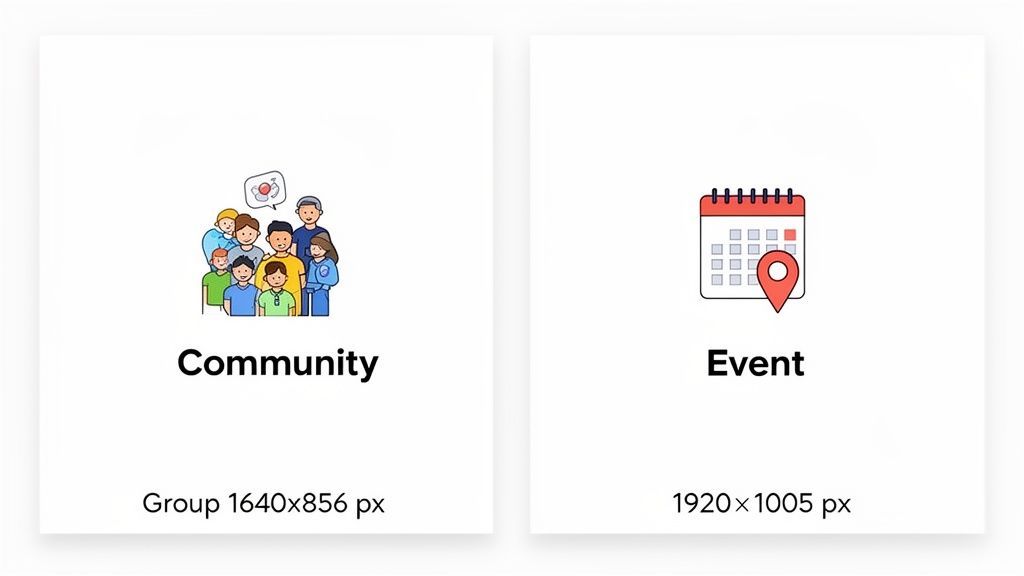
For Facebook Groups, the ideal size is 1640 pixels wide by 856 pixels tall. This gives you a nice, wide banner to welcome new members. Just like with other cover photos, it gets cropped on mobile devices, so you'll want to keep your most important elements, like your group name or a welcome message, right in the center.
Event Cover Photo Specifics
When you're setting up a Facebook Event, aim for a cover photo that's 1920 pixels wide by 1005 pixels tall. Using this size ensures all the details look crisp and professional, no matter how someone is viewing it.
A great event cover isn't just a pretty picture; it's a mini-flyer. Adding the date, time, and location directly onto the image itself can help boost attendance and make things clear for your guests.
Getting the cover size right makes sure your banner grabs attention and tells people exactly what your group or event is all about. For a deeper look, check out our guide on the perfect Facebook group cover photo size. And if you want to skip the guesswork, a tool like PostFast comes with updated templates that get the sizing right every single time.
Choosing the Right File Format and Size
Getting the dimensions right is the first big step, but a pixel-perfect design is no good if it ends up blurry or takes forever to load. The final piece of the puzzle is picking the right file format and keeping the size down.
If your cover image features a lot of text, logos, or sharp graphic elements, PNG is your best option. It excels at preserving crisp lines and solid colors without creating fuzzy artifacts. For photographs, a high-quality JPG strikes the perfect balance between preserving detail and keeping the file size manageable.
Optimising for Speed and Quality
Whichever format you go with, try to keep the final file size under 100KB. Why? Because smaller files load faster, and a speedy load time is essential for grabbing a visitor's attention. A slow-loading cover can make your entire page feel clunky before anyone has a chance to read your content.
The goal is to find that sweet spot between visual quality and file size. A clear, fast-loading image ensures your page makes a professional impact from the very first glance.
Just as selecting the right image size for your Facebook cover is important, understanding optimal video dimensions is equally crucial for engaging content on other platforms.
Of course, if you're using a tool like PostFast, you can sidestep these technical details entirely. It handles the sizing and optimization for you, letting you focus purely on the creative side of things.
Facebook Cover FAQ
Getting your Facebook cover just right can bring up a few tricky questions. Here are some quick answers to the most common things that people wonder about.
Why Does My Facebook Cover Look Blurry?
Blurriness usually comes down to one of two things. First, Facebook compresses every image you upload, which can soften the details. To combat this, always upload a high-quality PNG file if your cover has sharp text or a logo. If it's a photograph, a clean, well-saved JPG is your best bet.
The second culprit is size. If you upload a small image and let Facebook stretch it to fit the cover space, it will always look blurry. Make sure you start with a canvas that matches the recommended dimensions from the beginning.
Can I Use a Video for My Facebook Cover?
Yes, you can. On a Facebook Business Page, you can swap the static image for a cover video. It’s a great way to grab attention and tell a more dynamic story right at the top of your page.
Just make sure your video fits the specs for a smooth upload:
- Keep it between 20 and 90 seconds long.
- The ideal resolution is 820 by 462 pixels.
What's the Best Tool to Create a Facebook Cover Photo?
You have plenty of great options. For most people who want a polished result without a steep learning curve, tools like Canva are perfect because they have ready-to-go templates for every cover size.
If you're a designer looking for complete control over every pixel, Adobe Photoshop is still the industry standard. But the most efficient route is often a social media tool with a built-in editor. That way, you can design, schedule, and publish all in one place.
Stop wasting time guessing dimensions. PostFast has updated templates for every platform built right in, so your visuals are always perfectly optimised. Start your free trial today!
Related
Facebook scheduling with PostFast
Pages, Reels, Stories, carousels
The Perfect FB Cover Photo Size: A Guide for Creators
Master the correct fb cover photo size for desktop and mobile. Our guide explains dimensions, safe zones, and tips for a professional Facebook presence.
Banner Size Facebook: A Guide to Perfect Facebook Banner Dimensions
Learn the banner size facebook guidelines, recommended dimensions, and tips to optimize your Facebook visuals and ads. Click to boost engagement.
The Ultimate Facebook Profile Image Size Guide
Master the correct Facebook profile image size for a pixel-perfect look on desktop and mobile. This guide covers dimensions, safe zones, and best practices.
A Global Team's Guide to the Time in US EST Now
Discover the precise current time in US EST and how it affects global teams. Quick, practical guides and simple conversions for time in us est now.

SaaS Marketing Automation: The Social and Email Stack We Run at PostFast
SaaS marketing automation from our own stack: what we automate on social and in lifecycle email, the event behind each sequence, and the tools by job.