A Creator's Guide to Safely Downloading Your YouTube Videos
Learn safe and legal ways to download from YouTube videos you own. Turn your content into powerful social media posts and grow your audience.
On this page (5)
For any creator or social media manager, the ability to download from YouTube videos is more than just having a backup. It's a strategic move that multiplies the value of your content, turning a single long-form video into a powerful asset that can fuel your entire social media presence.
Why Downloading Your Videos Unlocks Content Gold
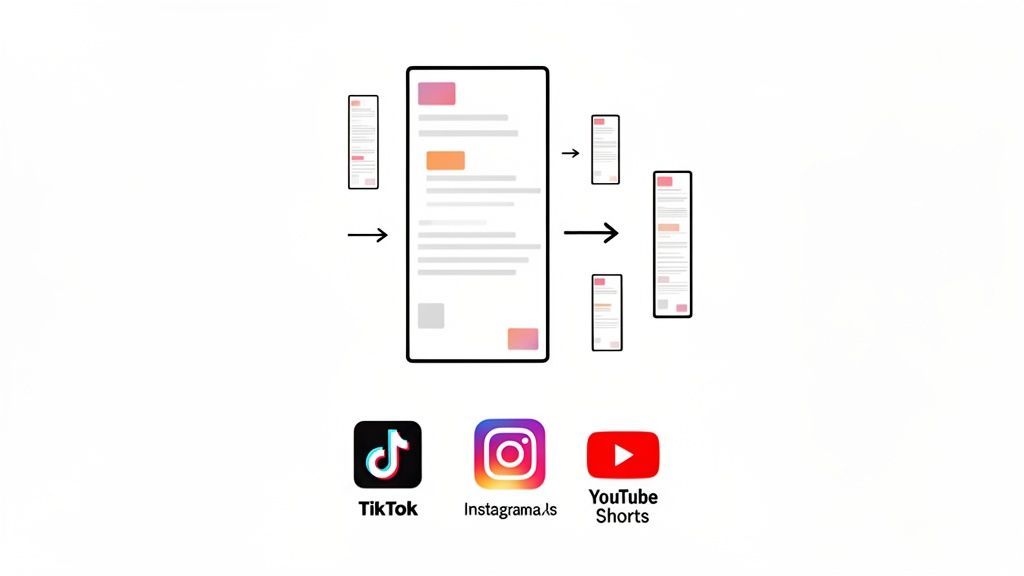
Think of your YouTube channel as a content library. Every video you've created is packed with valuable moments, insights, and engaging snippets just waiting to be rediscovered.
Leaving those moments only on YouTube is like owning a great book but only ever reading the first chapter. Downloading your own videos opens the door to content repurposing, a seriously smart strategy that saves you time while massively expanding your reach.
Instead of constantly chasing new ideas, you can mine your existing work for fresh material. It is all about working smarter, not harder, by turning one big content effort into a week's worth of posts.
Maximize Your Content's Lifespan
A single 20-minute video can easily be the source for dozens of smaller pieces of content. When you download that original file, you get full control to slice it into compelling micro-content that’s perfect for other platforms.
Here are a few ways this plays out:
- That detailed product review you filmed? It can become a series of 30-second feature highlights for Instagram Reels.
- Your in-depth tutorial can be chopped into five quick-tip videos for TikTok.
- The most impactful quotes or data points can be pulled and turned into sharp, visually striking graphics for Facebook or LinkedIn.
This approach keeps your brand visible and active across all your channels without the burnout that comes from constant creation. You’re just giving your best content more chances to find a new audience.
The real power of downloading your videos is efficiency. It shifts your focus from a constant content treadmill to a sustainable system where one piece of content works for you everywhere.
Building a Cohesive Brand Presence
When you repurpose content, you're also reinforcing your brand's message and expertise. Each clip, graphic, and quote serves as another touchpoint, creating a consistent and memorable experience for your audience, no matter where they find you.
This is especially true in markets with high video consumption. Take Bulgaria, for example, where YouTube's audience hit an impressive 79% of all internet users back in 2023. This massive engagement shows the huge opportunity for creators to download from YouTube videos and redistribute that content to capture attention elsewhere.
With a tool like PostFast, you can easily schedule these repurposed assets across all your platforms from one dashboard, reaching a much wider audience with less effort. If you're curious about the global appetite for video, you can see how different countries engage with content to spot your own opportunities.
When you need a copy of your own work, the safest and most direct path is always through YouTube's own tools. This isn't just about following rules; it's about getting a clean, high-quality file without compromising your account's security.
This is the foundational step for anyone serious about repurposing their long-form videos into clips for other platforms. Let's walk through the exact, official ways YouTube lets you access your content.
Download Your Content From YouTube Studio
YouTube Studio is your command center, and it has a very simple feature for saving your own videos. This is the method for getting a perfect copy of the original file you uploaded, with no loss in quality.
Here’s how you do it:
- Head over to your YouTube Studio dashboard.
- Click Content in the left-hand menu. This brings up your full video library.
- Find the video you want and hover over it. A three-dot menu icon will pop up.
- Click that icon and select Download.
The video file saves right to your computer. That's it. Having that original, high-res file is crucial for making sure your repurposed clips look sharp and professional everywhere else you post them.
This isn't just about convenience. It’s the only official way to download videos you’ve created, guaranteeing you get the exact file you uploaded, with no watermarks or compression oddities.
Understanding YouTube Premium Downloads
You’ve probably seen the download button in the YouTube mobile app. It’s a great feature for YouTube Premium subscribers, but it’s vital to know what it’s for, and what it’s not for.
Premium downloads are built for one thing: offline viewing. When you download a video this way, the file is encrypted and locked inside the YouTube app. You can't move it, you can't edit it, and you certainly can't upload it somewhere else.
It's a fantastic perk for catching up on subscriptions during a commute, but it’s not a tool for content creation or repurposing. For creators, the YouTube Studio method is the only game in town.
The Clear Line: Your Content vs. Theirs
This all boils down to a critical distinction: downloading your own videos versus downloading content made by other people.
Accessing your videos through YouTube Studio is completely fine because you own the copyright. You're just grabbing a copy of your own asset.
Downloading someone else's video without their explicit permission, on the other hand, is a direct violation of YouTube's terms of service and can get you into hot water with copyright law. This is why all those third-party download sites operate in a legal gray area and often come with security risks.
Respecting this boundary is key to keeping your channel healthy and being a good citizen in the creator community. Always focus on the content you have the rights to. For those juggling multiple channels or working with a team, our guide on connecting your YouTube account can help manage everything securely. It keeps your whole team efficient and ensures your repurposing strategy is both effective and compliant.
Choosing the Right Video Format and Quality
So, you've downloaded your YouTube video. What's next? The technical choices you make right now about format and quality will make or break how your content looks on other platforms. Get this right, and you'll avoid frustrating upload errors and make sure your work looks as sharp as you intended.
Think of it like choosing the right fuel for a car. A high-performance engine needs premium fuel, but putting that same fuel in a standard car is a waste. In the same way, a massive 4K file is complete overkill for a tiny Instagram Reel, while a low-quality export will look blurry and pixelated on a larger screen.
This is your practical guide to balancing quality with efficiency, so your repurposed content always hits the mark.
Understanding Common Video Formats
When you export your video, you’ll mainly run into two big players: MP4 and MOV. They might seem similar, but their differences really matter for social media.
- MP4 (MPEG-4 Part 14): This is the gold standard for web video. It hits the sweet spot between quality and file size, making it compatible with just about every social platform, device, and editing app out there. For maximum compatibility, MP4 is almost always your best bet.
- MOV (QuickTime File Format): Developed by Apple, MOV files often offer slightly higher quality but at the cost of much larger file sizes. They work perfectly in the Apple ecosystem, but they can sometimes cause headaches and upload failures on other platforms.
For creators who value a smooth workflow, just stick with MP4. You won't have to second-guess whether your file will work on Instagram, TikTok, or LinkedIn. It just will.
The official download methods are always the best place to start, as they give you the cleanest source file to work with.
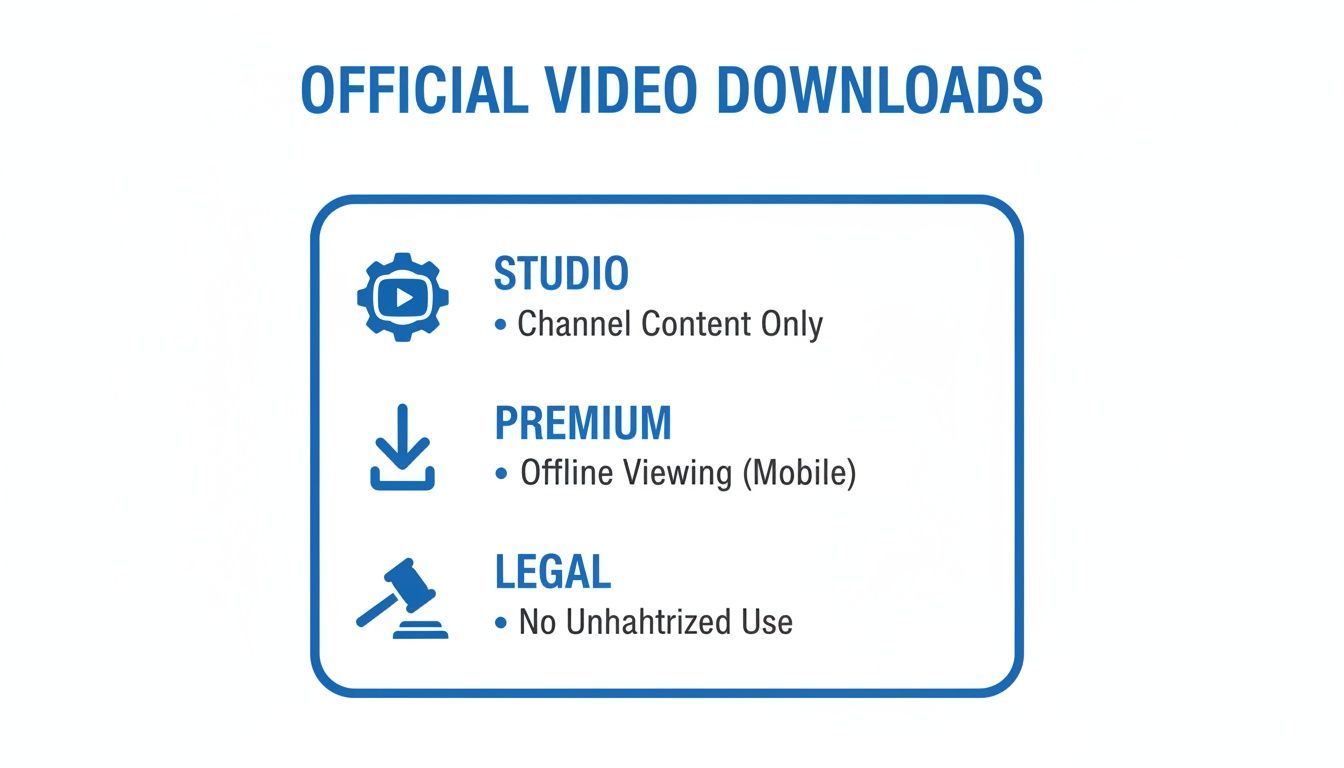
Starting with a high-quality original from a source like YouTube Studio is the key to making sure your repurposed clips look professional everywhere else.
Balancing Resolution and Bitrate for Social Media
Beyond the file format, you’ve got to think about resolution and bitrate. These two settings control how sharp your video looks and how big the final file is.
Resolution is just the number of pixels in your video (like 1080p or 4K). Bitrate is the amount of data used to encode the video each second. A higher bitrate usually means better quality, but also a bigger file.
For most social media clips, exporting at 1080p (1920x1080 pixels) is the sweet spot. Platforms compress video heavily anyway, so uploading a massive 4K file rarely gives you a visible quality boost but always leads to much longer upload times.
Let's walk through a real-world scenario. You have a 10-minute, 1080p YouTube video, and you want to turn a piece of it into a 30-second Instagram Reel.
- First, you'd find the most engaging 30 seconds and clip it out.
- Next, you’d change the aspect ratio from a wide 16:9 to a vertical 9:16. If you need a refresher, you can find a deep dive on the correct YouTube dimensions for video and how they adapt to other platforms.
- Finally, when you export, you'd choose the MP4 format, set the resolution to 1080x1920, and pick a moderate bitrate. This makes the clip look crisp on a phone without creating a huge file that takes ages to upload.
Video Settings Quick Guide for Social Media
Choosing the right settings can feel a bit technical, but most platforms follow similar rules. Here’s a quick-reference table to help you get it right every time.
| Platform | Recommended Format | Recommended Resolution | Key Consideration |
|---|---|---|---|
| Instagram/Facebook | MP4 | 1080x1920 (Reels/Stories), 1080x1080 (Feed) | Mobile-first is key; vertical video dominates. |
| TikTok | MP4 | 1080x1920 | Keep it vertical. The platform heavily compresses, so don't overdo the bitrate. |
| YouTube Shorts | MP4 | 1080x1920 | Same as TikTok and Reels. Stick to vertical for best results. |
| MP4 | 1920x1080 (Landscape) or 1080x1080 (Square) | Square video often performs best in the feed as it takes up more screen space. |
This approach is all about being strategic. Instead of just hitting "export" with the highest possible settings, you're tailoring the file for its final destination. It saves you time, storage space, and a lot of potential frustration.
This kind of efficiency is exactly where a tool like PostFast shines. Once you have these perfectly optimized clips, you can schedule them across all your channels in one go and get back to creating.
Digging into Advanced Tools for Power Users
While YouTube Studio handles the basics beautifully, there are times when you need more horsepower. For developers, media archivists, or creators wrangling enormous content libraries, advanced tools offer a level of control and automation that the standard interface just can't touch.
We're not talking about tools for grabbing other people's content. This is about sophisticated management of your own video assets. Think building custom workflows, automating backups, and handling thousands of files in bulk, all things that would take forever to do by hand.
It’s the difference between driving a car and building one from the ground up. Driving gets you where you need to go, but building it gives you total control over every nut and bolt. For those who need that deeper level of customization, command-line utilities are the way forward.
The Power of Command-Line Utilities like yt-dlp
When you absolutely need maximum flexibility to download from YouTube videos you own, a command-line tool like yt-dlp is your best bet. It’s an open-source project that gives you ridiculously granular control over the whole process. You can specify the exact format and quality or even download entire playlists with a single command.
This isn’t a friendly app with buttons and menus. It runs through text commands in a terminal or command prompt, which is why it's a favorite among developers and tech-savvy creators. Its real magic is in scripting; you can write simple scripts to automate tedious, repetitive tasks.
Here’s a real-world scenario. Imagine a media company running multiple YouTube channels. They need a bulletproof offline archive of every single video they publish for legal and backup purposes.
- Instead of manually downloading each new upload, they use a script built with yt-dlp.
- The script automatically scans their channels for new videos every day.
- When it finds one, it downloads the video in the highest possible quality, renames the file to a clean format like
YYYY-MM-DD-Title-VideoID.mp4, and moves it to a secure server.
That kind of set-it-and-forget-it automation is impossible with standard tools. It guarantees a complete, organized archive with zero human effort, freeing up the team to focus on what they do best: creating great content.
Choosing Safe and Reputable Desktop Apps
If the command line feels a little too intimidating, there are some great third-party desktop apps that offer a solid middle ground. These apps give you a graphical interface, making them much easier to use than yt-dlp, but they still pack more features than a simple web downloader.
You have to be extremely careful here, though. The internet is flooded with sketchy apps that bundle malware, adware, or spyware with their "free" software. A tool that costs nothing can end up costing you dearly in security and privacy.
When you're vetting a desktop app, here’s what to look for:
- A Clean Track Record: Search for reviews on trusted tech sites. Look for tools that have been around for a while and have consistently positive feedback. Steer clear of brand-new, unproven apps.
- A Clear Privacy Policy: A reputable developer will be upfront about what data their app collects, if any. If you can't find a privacy policy, that’s a massive red flag.
- No Bundled Software: Pay close attention during the installation process. Shady apps will try to trick you into installing extra browser toolbars or unrelated programs. A good app installs only itself.
The safest bet is to stick with well-known, open-source options whenever possible. Their code is public, meaning security experts can look it over to verify that nothing malicious is going on behind the scenes.
Ultimately, your choice between a command-line utility and a desktop app comes down to your technical comfort level and your specific needs. The goal is to find a solution that fits your workflow for managing your own content library. And once you have your files, exploring advanced video effects can take your repurposed content to the next level, turning a simple download into a polished, professional asset.
Turning Your Download Into a Content Campaign
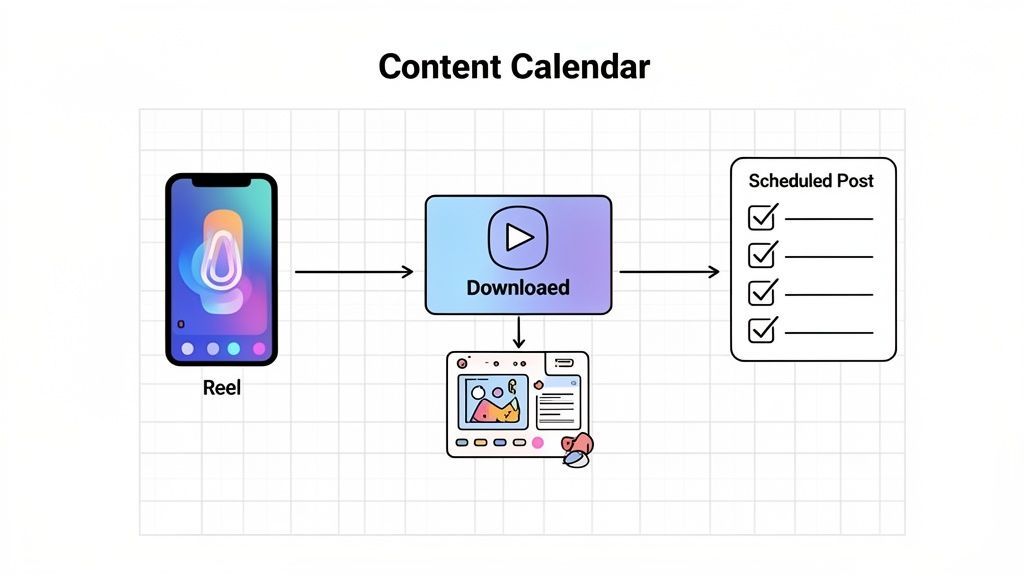
This is the moment a simple video file transforms from a backup into a strategic asset. You've got the raw material. Now it’s time to spin that single piece of content into a full-blown social media campaign that pulls its weight across all your platforms.
The whole idea is to be ruthlessly efficient. Instead of inventing ten new posts from scratch, you strategically mine one great video for its most valuable moments. It’s all about squeezing every last drop of value from the effort you’ve already invested.
Pinpointing Your Most Clip-Worthy Moments
Let's be honest, not every second of your long-form video is a banger. The first job is to become a content gold miner, sifting through your footage to find the nuggets that can truly stand on their own.
These are the moments that pack a punch. Keep an eye out for:
- Quick Tips: Any segment where you drop a single, actionable piece of advice.
- Strong Opinions: A powerful quote or a bold statement that’s bound to get people talking.
- Key Data Points: That moment you reveal a surprising statistic or an important finding.
- Emotional Peaks: Bursts of humor, surprise, or genuine connection that feel authentic.
- Visual Highlights: A killer demonstration or a particularly well-shot sequence.
Once you have your files, exploring different content repurposing strategies is how you turn them into a real campaign. As you watch your video, jot down the timestamps for these key moments. Try to find at least three to five potential clips from a single video.
Your goal isn't just to chop the video into random pieces. It's about isolating self-contained ideas that deliver value on their own in under 60 seconds.
This strategy is especially powerful where YouTube audiences are massive. In early 2023, for instance, YouTube had a staggering 4.42 million users in Bulgaria, reaching 65.7% of the entire population. That huge, engaged audience, split evenly at 50% female and 50% male viewers, is precisely why creators there should be downloading their YouTube videos and repurposing them everywhere.
Tailoring Your Clips for Each Platform
A one-size-fits-all approach is a recipe for low engagement. The clip you make for Instagram Reels needs a different touch than the one you post on LinkedIn. You have to adapt the format and style to fit where people are watching.
Think about the tweaks each clip will need:
-
Reframe for Vertical: Most short-form content is watched on a phone. That means your landscape 16:9 YouTube video has to be reframed to a vertical 9:16 format. This usually involves focusing tightly on the main subject and making sure they stay centered.
-
Add Captions and Text: A huge number of people watch social videos with the sound off. Clear, easy-to-read captions are non-negotiable. Use text overlays to highlight key points or add a punchy headline to grab attention in those first crucial seconds.
-
Create Custom Thumbnails: For platforms like Instagram, creating a custom cover image for your clip makes your feed look way more polished and can tempt more people to actually press play.
Planning your content this way is a game-changer. When you know ahead of time how you'll adapt a video, you start building a library of assets that are always ready to go.
Building a Campaign with a Scheduler
Once you've got your collection of short clips, quote graphics, and soundbites, you have the building blocks for an entire campaign. This is where a social media scheduler becomes your most valuable player.
Instead of posting everything manually, you can map out your entire campaign from one dashboard. This is where a tool like PostFast really shines. You can upload all your repurposed assets, from video clips to image carousels, and plan their release over days or even weeks.
This workflow lets you:
- Hit the Best Posting Times: Smart schedulers analyze when your audience is most active and publish your content automatically at peak times for maximum reach.
- Maintain Consistency: A steady posting schedule is one of the best things you can do for the algorithm. A scheduler makes sure you never miss a beat, even on your busiest days.
- Track Performance: By managing everything in one spot, you can easily see which clips and formats are hitting the mark. That data helps you sharpen your strategy for the next campaign.
Thinking about your content this way changes everything. You're no longer just making one-off videos; you're building a system that fuels your entire social media presence. By mastering efficient cross-platform publishing, you can turn a single download into a conversation that echoes across every channel.
Common Questions About Downloading Videos
Jumping into content repurposing always brings up a few questions. When it comes to downloading your YouTube videos, it pays to know the score. Here are some straight answers to the things creators ask most often.
Is It Legal to Download From YouTube Videos?
Yes, it's completely legal to download your own stuff. You made it, you own it, and you can do what you want with it. Grabbing a copy of your original upload directly from YouTube Studio is the safest and most legitimate way to get your hands on your work.
The story changes completely when you're talking about someone else's content. Downloading videos from another creator's channel without their explicit permission is a clear violation of YouTube's terms of service. It can also land you in hot water for copyright infringement. This guide is strictly about the right way to access your own work for repurposing. Always respect other creators' intellectual property.
Will Downloading a Video Reduce Its Quality?
Not if you do it right. When you download your video straight from YouTube Studio, you get the exact, high-quality file you originally uploaded. No quality loss, no weird compression. It's the best method for making sure your source material is as crisp as possible.
Third-party tools, on the other hand, can be a real mixed bag. A lot of them compress files or cap your resolution options to save on their server costs. If you absolutely have to use one, always pick the highest resolution available (like 1080p or 4K) to keep as much detail as you can. A high-quality source file is non-negotiable for creating professional-looking clips.
A classic mistake is grabbing a lower-quality download just to save a few seconds. This always backfires. The repurposed clips end up looking pixelated and cheap on social feeds, which can really damage your brand's credibility.
What Are the Risks of Using Third-Party Download Websites?
The risks that come with free online downloaders are serious, so don't take them lightly. These websites are often minefields of aggressive pop-ups, shady ads, and dodgy links designed to trick you into installing malware or adware on your machine.
These platforms are a real threat to your digital security and could compromise your personal data or even your entire computer. If you have no other choice, stick to reputable desktop apps that have a long track record of good reviews and a clear privacy policy. And, of course, always have solid antivirus software running just in case. Your content and your computer are too valuable to risk on a sketchy free tool.
How Should I Repurpose a Downloaded YouTube Video?
The smartest play is to break your long-form video into smaller, bite-sized pieces. Don't just dump the entire video on another platform. Your goal is to find three to five key moments that can stand on their own as valuable content.
- Chop them into short, vertical clips (under 60 seconds) that are perfectly formatted for Instagram Reels, TikTok, and YouTube Shorts.
- Pull a few high-quality still frames from your video and turn them into an engaging image carousel with text overlays to explain a concept.
- Isolate a powerful quote or a key piece of data and design a simple, shareable graphic around it.
A social media scheduler is the final piece of the puzzle. It lets you plan out the release of all this new content, extending the life of your original video and getting the most impact out of your hard work.
Turning one video into a whole campaign takes a bit of planning and the right tools. With PostFast, you can upload all your repurposed clips and graphics, then schedule them across every platform from one simple dashboard. Save time, stay consistent, and watch your audience grow. See how it works at https://postfa.st.
Related articles

Best Time to Post on Social Media in 2026: 61,008 Posts Scored Against Their Own Normal
61,008 posts with clean metrics, each scored against its account's normal: Instagram 3 PM local, Facebook 3 to 5 PM, YouTube 1 PM or evenings, TikTok flat.

PostFast MCP Server for Claude, ChatGPT and Cursor: Launch Notes and Changelog (2026)
The launch note for PostFast's MCP server: npm release March 2026, ChatGPT and Claude connectors June 2026, inbox tools August 2026. Setup, tools and changelog.

Can You Schedule Posts on Bluesky? How to Schedule Bluesky Posts in 2026
Yes, with a scheduling tool: Bluesky's own app has no scheduler. What Bluesky offers, the 300-grapheme and media limits, and how to schedule with PostFast.

Can You Schedule Posts on LinkedIn? How to Schedule LinkedIn Posts for Profiles and Pages in 2026
Yes. LinkedIn schedules posts 10 minutes to 3 months ahead (1 hour on Pages). Desktop, mobile, and Page steps, plus where PostFast goes further.

How to Schedule Pinterest Pins in 2026: Pinterest's Scheduler vs PostFast, Step by Step
Two ways to schedule Pinterest Pins: Pinterest's own scheduler (30 days ahead, 10 Pins queued) and PostFast for image, video, and multi-image Pins from desktop.

Best Social Media Schedulers in 2026: 11 Tools Compared on Price, Platforms, and Automation
Eleven social media schedulers compared on September 2026 pricing, platforms, auto-publishing, and API or MCP automation, using each vendor's own pricing page.