Your Guide to the Perfect Instagram Profile Picture Size
Get the recommended Instagram profile picture size for a flawless look. Our 2026 guide covers dimensions, cropping, and tips to make your profile stand out.
On this page (6)
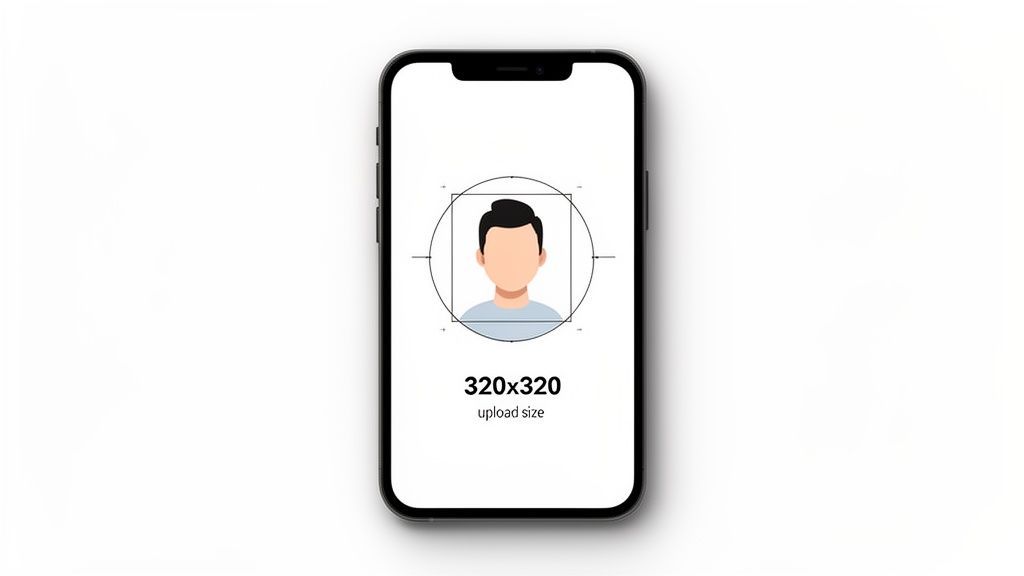
For the best results, your Instagram profile picture should be uploaded as a square image that’s 320 x 320 pixels. Instagram will shrink it down in different places, but uploading at this size is the secret to keeping it looking sharp everywhere, from your main profile page to that tiny circle in the Stories ring.
Your Guide to the Perfect Instagram Profile Picture
That tiny circle with your photo is your brand’s digital handshake. It’s the first thing people see. Getting the size right is the difference between looking professional and dealing with a blurry, awkwardly cropped mess. The logic is simple: give Instagram a high-quality file, and it has enough information to look good no matter how small it gets resized.
This guide gets straight to the point, giving you the exact numbers you need. We’ll start with the most important concept: the difference between the size you upload and the size Instagram displays. Once you get that, you’re halfway there.
This quick visual breaks down the only two sizes you really need to worry about.
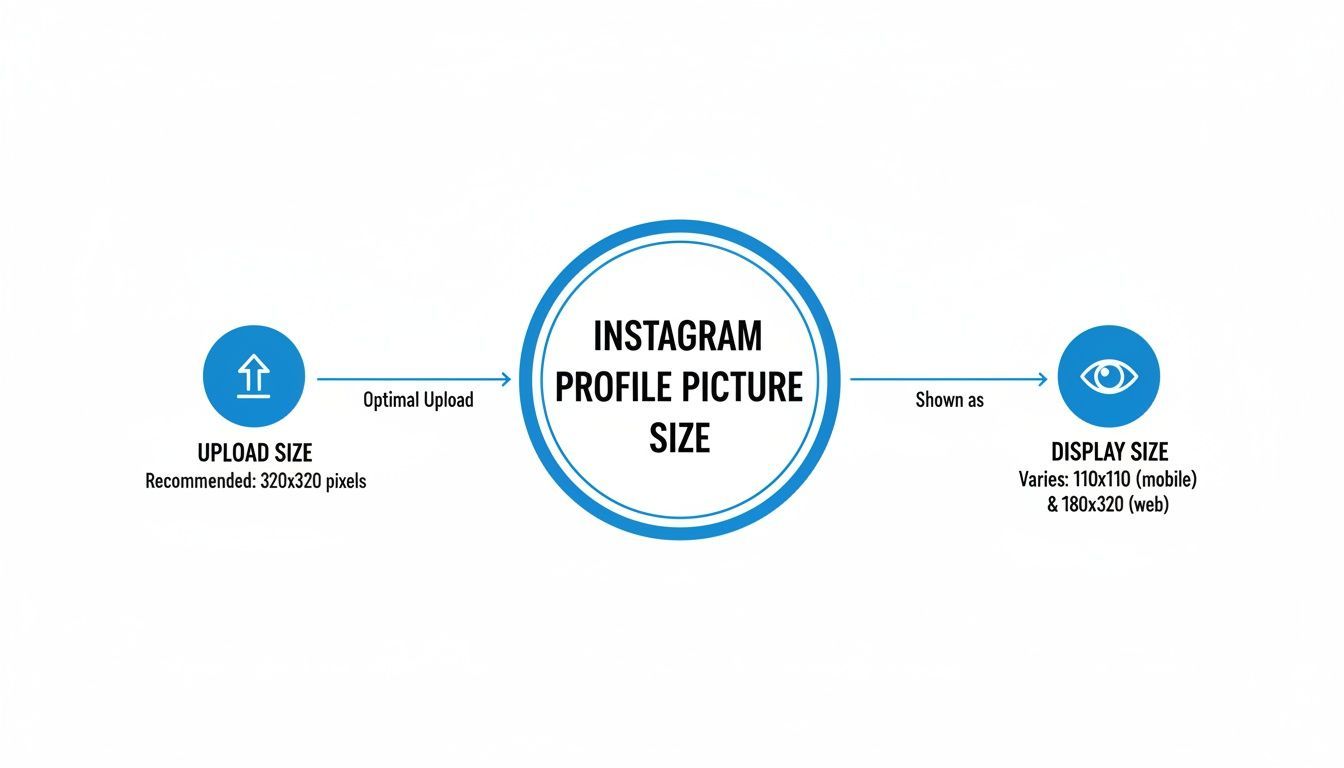
The main takeaway here is that you give Instagram a larger 320 x 320 pixel file so the smaller 110 x 110 pixel version that people see on your profile stays crisp and clear.
Instagram Profile Picture Specifications at a Glance
To save you any guesswork, here’s a quick-reference table with the exact specs you need. Sticking to these will ensure your profile picture always looks its best.
| Specification | Recommendation |
|---|---|
| Recommended Upload Size | 320 x 320 pixels (a perfect square) |
| Display Size (Mobile) | 110 x 110 pixels |
| Aspect Ratio | 1:1 |
| File Format | PNG for logos and graphics; JPEG for photos |
| Minimum Resolution | 72 DPI (though higher won't hurt) |
These are the core numbers to remember. Keep them handy, and you’ll avoid any quality issues.
Key Dimensions and Requirements
Let's break those numbers down a bit more so you know exactly what to tell your designer or what to set up in your own design software.
-
Upload Size: Always aim for a 320 x 320 pixel square image. This is the source file Instagram stores, so it gives you the best possible quality from the start.
-
Display Size: On your main profile page, your picture is shown at 110 x 110 pixels. It appears even smaller in places like comments, DMs, and the Stories feed.
-
Aspect Ratio: It has to be a 1:1 aspect ratio. If you upload a rectangle, Instagram will force you to crop it into a square, which can ruin the composition you intended. Cropping the square yourself first, in a free browser cropper that outputs 1080 x 1080, keeps the framing in your hands.
-
File Format: You can use JPEG or PNG files. For photos of people, a high-quality JPEG is perfectly fine. If you’re using a logo or any graphic with sharp lines and text, a PNG is almost always the better choice as it handles compression without losing clarity.
Your profile picture is a small but powerful piece of your brand. It follows your account everywhere, so getting the quality right isn’t just a nice-to-have, it’s essential for looking credible. A blurry photo can instantly make a brand feel less professional.
Why Image Quality Matters More Than You Think
A blurry profile picture is more than just a minor flaw, it’s a credibility killer. That tiny circle is your brand's face, attached to every post, comment, and story. A sharp, clean image builds trust instantly. A fuzzy one makes your whole operation feel amateur.
It’s not just about looking good; it’s about perception. We’re wired to trust clarity. A crisp photo signals professionalism and attention to detail, telling potential followers that you’re serious about what you do.
How Instagram's Compression Works
Ever upload a great-looking photo only to see it turn into a pixelated mess? You can thank Instagram’s compression algorithm for that. To keep its servers running fast, Instagram compresses every image. The trick is understanding how it treats different files.
If you upload an image smaller than 320 x 320 pixels, Instagram has to stretch it to fit. That stretching is exactly what causes the blurriness and pixelation. It’s like blowing up a tiny passport photo to fit a poster, the quality falls apart.
Always start with an image that is at least 320 x 320 pixels. This gives Instagram’s algorithm enough data to work with, so your picture stays sharp everywhere it appears, from your main profile page to that tiny circle in the Stories feed.
This detail is especially important in growing markets. By early 2025, Instagram is projected to have 1.75 million users in Bulgaria alone, where 31.5% of adults are already active. In a crowded feed, a high-quality profile picture is one of the easiest ways to stand out and look professional.
Good Quality Drives Good Engagement
A sharp profile picture isn’t just for show; it directly affects how people interact with your account. When your photo is clear, it reinforces your brand identity, making you instantly recognizable as users scroll. That familiarity builds trust and encourages more engagement over time.
Maintaining that level of quality is also about the bigger picture. It's about how your profile photo fits with your overall aesthetic, a key point often raised in discussions around Instagram layout ideas.
For social media teams managing several brands, consistency is everything. Having a shared asset library is a lifesaver. This is where a tool like PostFast shines. Teams can store and access approved, high-resolution profile pictures, ensuring every account uses the correct, on-brand image without having to hunt for files. It’s a simple way to lock in brand identity across the board.
How to Upload and Optimize Your Profile Picture
Got your perfectly sized, high-quality image ready? Let's get it onto your profile. The upload process itself is easy, but the real trick is positioning it correctly within Instagram's circular frame.
You need to make sure the most important part of your picture, your face or the core of your logo, is dead center. A little attention here prevents any awkward cropping later.
Changing Your Profile Picture on Mobile
If you're like most people, you run your Instagram from your phone. Thankfully, updating your profile picture from the app only takes a moment.
Here’s the step-by-step:
- Open the Instagram app and tap your current profile picture in the bottom-right corner to go to your profile.
- Tap the “Edit Profile” button sitting just below your bio.
- On the next screen, hit “Edit picture or avatar.”
- Choose “New profile picture” and select your prepared 320 x 320 pixel image from your phone’s gallery.
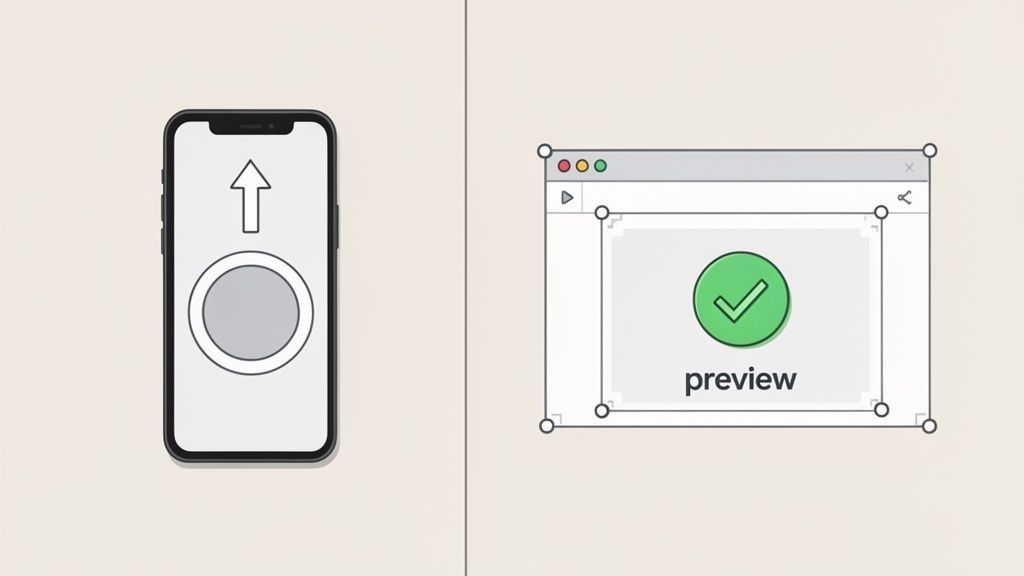
- Instagram will pop up a circular preview. This is your chance to pinch, zoom, or drag the image to frame it perfectly. Leave a bit of ‘safe space’ around your subject so it doesn’t get cut off.
- Once you’re happy, tap “Done” or the checkmark to save it.
Changing Your Profile Picture on Desktop
Managing your account from a computer? The process is just as simple. This is usually the go-to method for brands and social media managers who keep their assets on a desktop. If you also run the posting calendar from a computer, our guide to Instagram scheduling from a browser covers the three ways to do it.
Follow these steps on the website:
- Head to Instagram.com and log in.
- Click your profile picture in the top-right corner, then select “Profile” from the menu.
- Click right on your current profile picture. A pop-up will give you the option to “Upload photo.”
- Pick the high-quality image file from your computer.
- Just like on mobile, you'll see a circular preview. Adjust the image until it looks right.
- Click “Save,” and your new picture is live.
The most important step is that final preview. Before you hit save, double-check that your logo is centered and isn't kissing the edges, or that your headshot is framed well. This final check stops weird cropping in its tracks.
For teams juggling multiple client accounts, keeping all the different profile photos organized can be a real headache. That's where a central library in a tool like PostFast shines. You can store all your approved, correctly sized assets in one spot, ready for a quick update. For more on ideal dimensions for all your posts, check out our complete guide to Instagram sizes. This kind of simple organization saves a ton of time and keeps branding consistent across every profile you touch.
Common Profile Picture Problems and How to Fix Them
You’ve followed all the rules for the perfect Instagram profile picture size, but something still looks off. That crystal-clear image on your computer is suddenly blurry on your profile, or the perfect composition gets butchered by an unexpected crop. It’s a common frustration, but the good news is that these problems are usually simple to fix once you know what’s causing them.
This is your troubleshooting guide. We’ll walk through the most frequent issues and give you straightforward, practical solutions to get your profile picture looking sharp every single time.
Fixing a Blurry or Pixelated Picture
This is the number one complaint. You upload a high-resolution photo, but it ends up looking fuzzy or pixelated on your profile. The cause is almost always Instagram’s compression fighting with a file that’s just too small.
-
The Cause: If you upload an image smaller than 320 x 320 pixels, Instagram has to stretch it to fit. This stretching process kills the quality, causing blurriness. Even a great photo will look bad if its dimensions are too tiny.
-
The Fix: Always start with a file that is at least 320 x 320 pixels. For best results, use a larger square image, like 1080 x 1080 pixels. This gives Instagram more data to work with, so when it compresses the file, it stays sharp.
Think of it like this: if you try to blow up a tiny photo, it gets grainy and indistinct. But if you shrink a large, clear original, all the important details remain crisp and clean.
Dealing with Unwanted Cropping
Another common headache is when Instagram crops your image awkwardly, cutting off the top of your head or the edges of your logo. This happens because every profile picture is forced into a circle.
-
The Cause: You’ve placed important parts of your image too close to the corners of your square canvas. When Instagram applies its circular mask, those corners are simply chopped off.
-
The Fix: When you’re creating your image, imagine a circle drawn inside your square. Keep your main subject, your face, your logo, your product, safely inside that central area. Leave plenty of breathing room around the edges to act as a buffer. This ensures that when the circle crop happens, nothing important gets lost.
Why Your Colors Look Different
Ever upload an image with vibrant colors, only to see them look muted or just plain wrong on your profile? This is another side effect of Instagram's compression.
-
The Cause: The platform's compression algorithms can sometimes struggle with certain color gradients and file types. JPEGs are fine for photos but can sometimes lose color accuracy when used for graphics with large blocks of solid color.
-
The Fix: If you’re uploading a logo or a graphic, always use a PNG file. PNGs are much better at preserving sharp lines and solid colors, so your branding looks exactly how you intended. For photos, make sure you’re exporting them in the sRGB color profile, as this is the web standard that phones and computers display correctly.
For teams managing multiple brand accounts, keeping track of the right logo files and approved headshots can be a pain. Using a central asset library, like the one in PostFast, means everyone on your team is pulling from the same pre-approved, correctly formatted PNGs and JPEGs. It eliminates these common issues before they even start.
Best Practices for a Standout Profile Picture
Getting the dimensions right is just the first step. A truly great profile picture needs to do more than just fit inside the circle, it has to grab attention and tell people who you are in a fraction of a second.
This is where the creative strategy comes in. Whether you’re a solo creator or a global brand, your goal is the same: be instantly recognizable. A little thought here can turn your profile from another face in the crowd into a hard-working branding tool.
Choose Your Subject Wisely
The first big choice is what to actually show. A face or a logo?
- For Individuals and Creators: A clear, high-quality headshot is almost always the right move. People connect with people. A friendly, professional photo builds trust and makes your brand feel human.
- For Businesses and Brands: A crisp, clean logo is your best bet. Your logo is the visual shorthand for your entire company, so using it here reinforces your brand everywhere else.
No matter what you choose, keep it simple and bold. A busy image just turns into an unreadable smudge when it’s shrunk down in the feed.
A standout profile picture is your silent brand ambassador. It should be bold enough to be recognized in a fast-scrolling feed and clear enough to communicate who you are without a single word.
Use Color and Contrast to Your Advantage
Your profile picture shows up everywhere, usually surrounded by dozens of others. To stand out, you need high-contrast colors that pop. A bright, vibrant background makes your logo or headshot much more noticeable against Instagram’s mostly white interface.
Think about your brand's colors. Can you use a bold, on-brand color to frame your image? This simple trick makes your profile picture feel connected to your grid aesthetic while also catching the eye.
You can also sync your profile picture with what you've got going on. Running a holiday sale? Add a subtle festive touch. Supporting a cause? Update your image to show solidarity. This keeps your profile feeling fresh and relevant.
If you want to experiment, AI image tools can help you generate unique, high-quality options that follow all the best practices.
For teams managing multiple brands, keeping all your profile pictures and logos in one place is a huge time-saver. With PostFast, you can create a central library for all your brand assets. This lets you store and quickly deploy campaign-specific profile pictures, making sure every update is on-brand and consistent across all accounts without the usual chaos.
Frequently Asked Questions About Profile Pictures
Even with the right specs, a few common issues always seem to trip people up. Here are quick, direct answers to the questions we get asked most about Instagram profile pictures.
What Is The Best Aspect Ratio For An Instagram Profile Picture?
The perfect aspect ratio is 1:1. Your image needs to be a perfect square.
Instagram forces your picture into a circle, and starting with a square file is the only way to avoid weird stretching or distortion. If you upload a rectangle, Instagram makes you crop it into a square anyway, which usually cuts off important parts of your design.
By uploading a 320 x 320 pixel square image, you keep total control over how it's framed. No surprises.
Should I Use A PNG File For My Profile Picture?
Yes, a PNG is almost always your best bet, especially for logos, text, or any graphic with sharp lines.
PNG files keep solid colors and crisp edges looking sharp after Instagram runs its own compression. This is the secret to stopping your logo from looking soft or fuzzy. While a high-quality JPEG is fine for a headshot, PNG is the go-to for any kind of graphic.
If your logo looks blurry after uploading it, the first thing to check is the file type. Exporting it again as a high-quality PNG at 320 x 320 pixels usually fixes the problem instantly.
How Often Should I Change My Instagram Profile Picture?
For most brands, the answer is: almost never. Consistency is everything. Your profile picture is a huge part of your brand recognition, and changing it too often will just confuse your audience.
There are, however, a few strategic exceptions:
- Major Campaigns: Sync your profile pic with a new product launch or a big event.
- Seasonal Moments: Add a subtle festive twist for a holiday to show you're on the ball.
- Supporting a Cause: Temporarily update your image to show solidarity with a social movement.
For personal accounts, change it whenever you feel like it. But for agencies managing multiple client accounts, this is where a tool like PostFast comes in handy. You can store all approved profile picture versions in a central asset library and schedule updates to go live at the exact moment a campaign kicks off.
Why Does My Profile Picture Look Blurry In Instagram Stories?
It looks blurry because the file you uploaded was too small. This is a classic problem that comes down to using the wrong Instagram profile picture size.
Instagram stores your image at 320 x 320 pixels, but it displays it at smaller sizes around the app, like 110 x 110 pixels on your profile feed. If you upload a file smaller than 320 x 320, Instagram has to stretch it to fit. That stretching is what causes the pixelation.
Always start with a high-quality image that's at least 320 x 320 pixels. This gives it enough data to look sharp everywhere, from your main profile page down to the tiny circle in the Stories ring. For a full breakdown of all platform dimensions, check out our guide on the correct dimensions for an Instagram profile picture.
With a smart scheduling tool like PostFast, you can manage all your visual assets, including every version of your profile picture, from one central dashboard. Keep your branding tight and save hours every week by planning and publishing content across all your social platforms without the hassle. Start your free trial today.
Related
Instagram scheduling with PostFast
Feed posts, Reels, Stories, carousels
Schedule Instagram Carousels and Reels Without Busywork
Schedule Instagram carousels, Reels, Stories, and feed posts with PostFast. Batch once, set covers, and cross-post to Facebook and TikTok without extra work.
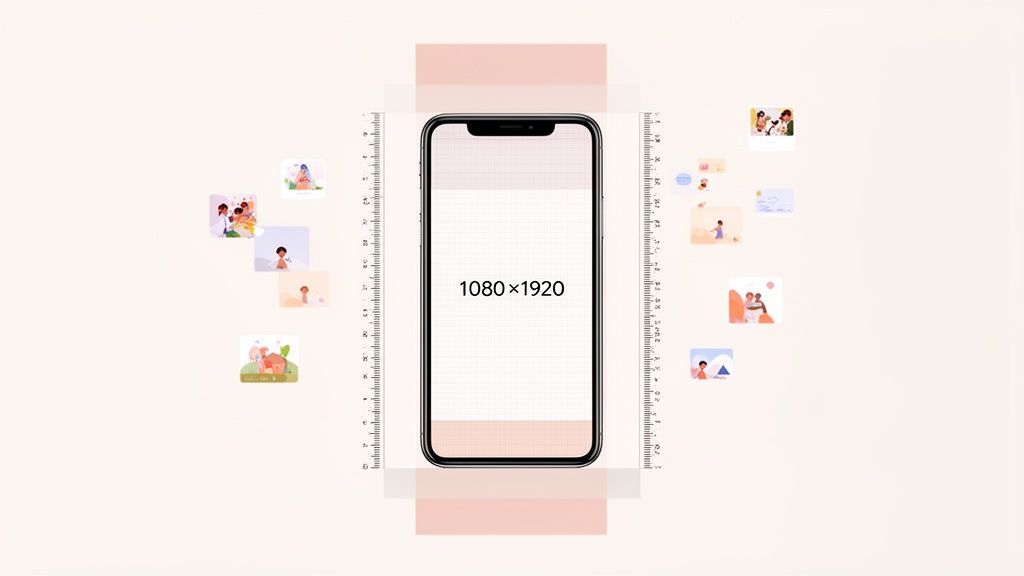
Master the Instagram Story Size: Your Complete 1080x1920 Guide
Discover the instagram story size you need for flawless 1080x1920 videos. Learn dimensions, safe zones, export tips, and boost engagement today.
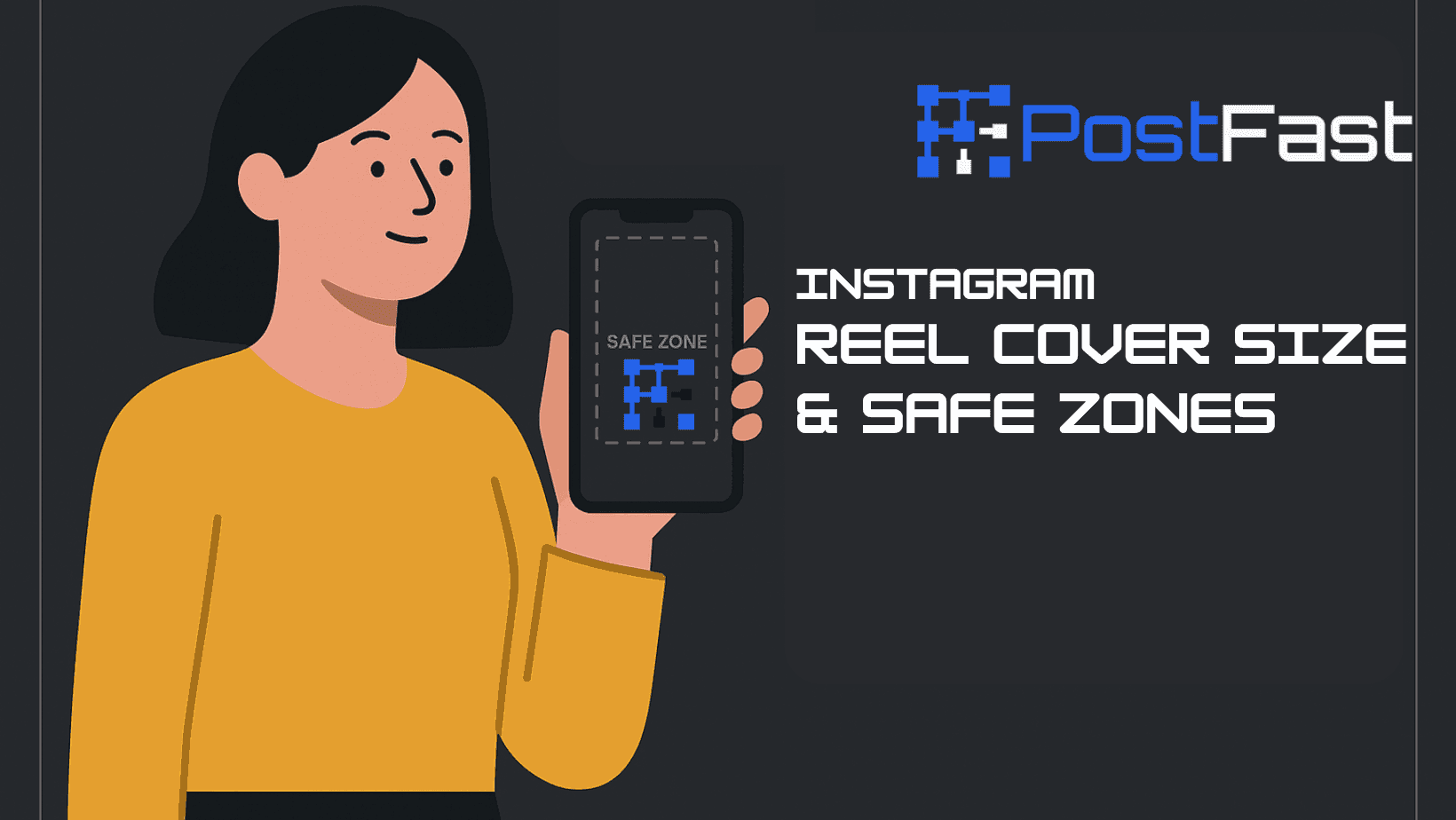
Instagram Reel Cover Size & Safe Zones (2026)
Exact Reel cover sizes, safe zones, and a quick PostFast workflow so your thumbnails look clean in the grid and Reels tab.
The Ultimate Guide to Instagram Stories Size
Master the correct Instagram Stories size with our guide to dimensions, aspect ratio, and safe zones. Create pixel-perfect content that looks professional.
Can ChatGPT Post to Instagram and Facebook? Yes, Here Is How
Yes, with a connected app. Use PostFast to schedule Instagram and Facebook posts, Reels and Stories from ChatGPT, with approval before publishing.