How to Schedule Instagram Posts from Desktop in 2026: Every Method That Works
Three ways to schedule Instagram posts from a desktop in 2026: Meta Business Suite, Instagram's own scheduler, and PostFast. Steps, limits, and a checklist.
On this page (9)
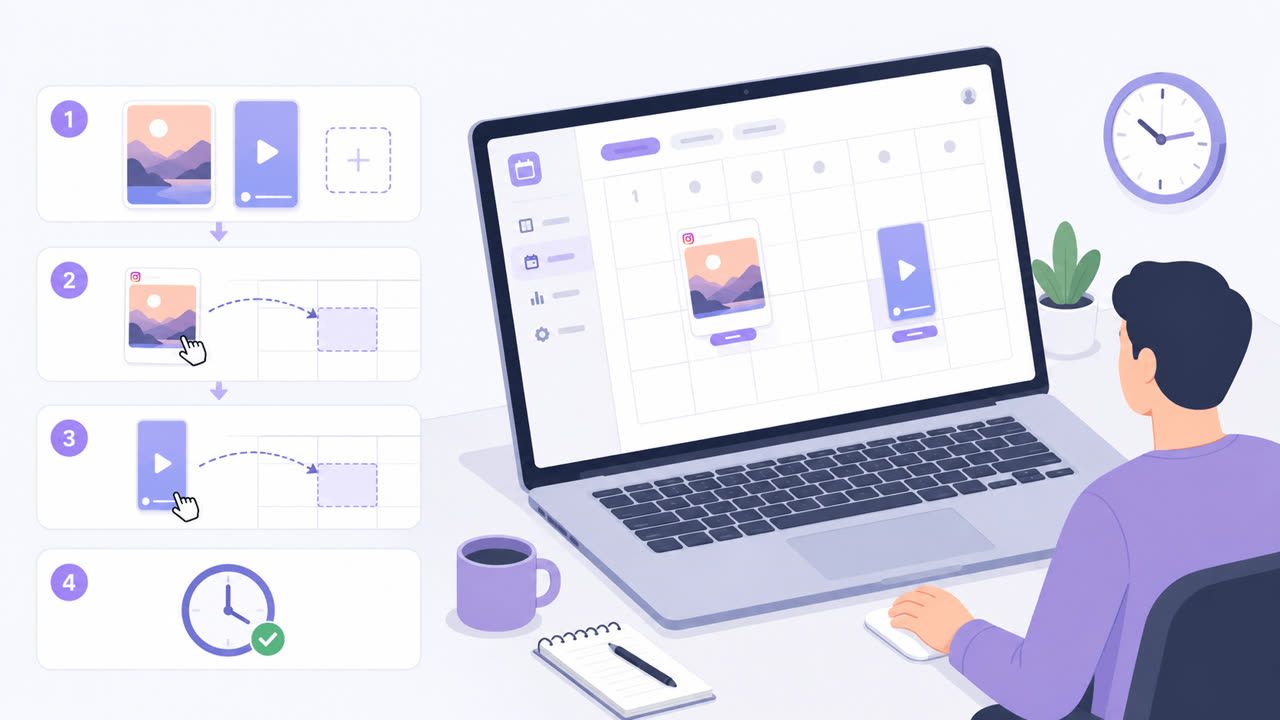
Yes, you can schedule Instagram posts from a desktop, and you have three real options in September 2026: Meta Business Suite (Meta's free platform; you need content permission for the Page or Instagram account in your business portfolio), the Instagram app's built-in scheduler (which Instagram documents as an in-app flow, so it is not a desktop tool), and a web-based scheduler such as PostFast that publishes feed posts, carousels, Reels, and Stories automatically from any browser.
This guide walks through each method with the exact steps, what each one can and cannot schedule, and the checklist that keeps a scheduled Instagram post from failing. Every limit below was checked against Instagram's and Meta's own help pages and PostFast's documentation on September 2, 2026.
Can you schedule Instagram posts from a computer? The short version
| Method | Cost | Account needed | Desktop scheduling | Formats and publishing |
|---|---|---|---|---|
| Meta Business Suite | Free | Full control or content permission for the Page or Instagram account in a business portfolio | Yes | Feed, carousels (up to 10 photos), Reels via Create reel, Stories via Create story. Publishes automatically |
| Instagram app scheduler | Free | Public account | No, documented as an in-app flow | Feed and Reels. Carousels not specified, Stories not documented. Publishes automatically |
| PostFast | From €12/month (€10 on yearly billing), 7-day free trial | Instagram Business or Creator account, no Facebook Page required | Yes, any browser | Feed, carousels (up to 10 images or videos), Reels, Stories. Publishes automatically |
The rest of the article covers each row in detail. If you only want the fastest desktop route with cross-posting to TikTok, Threads, and the other platforms, skip to Method 3.
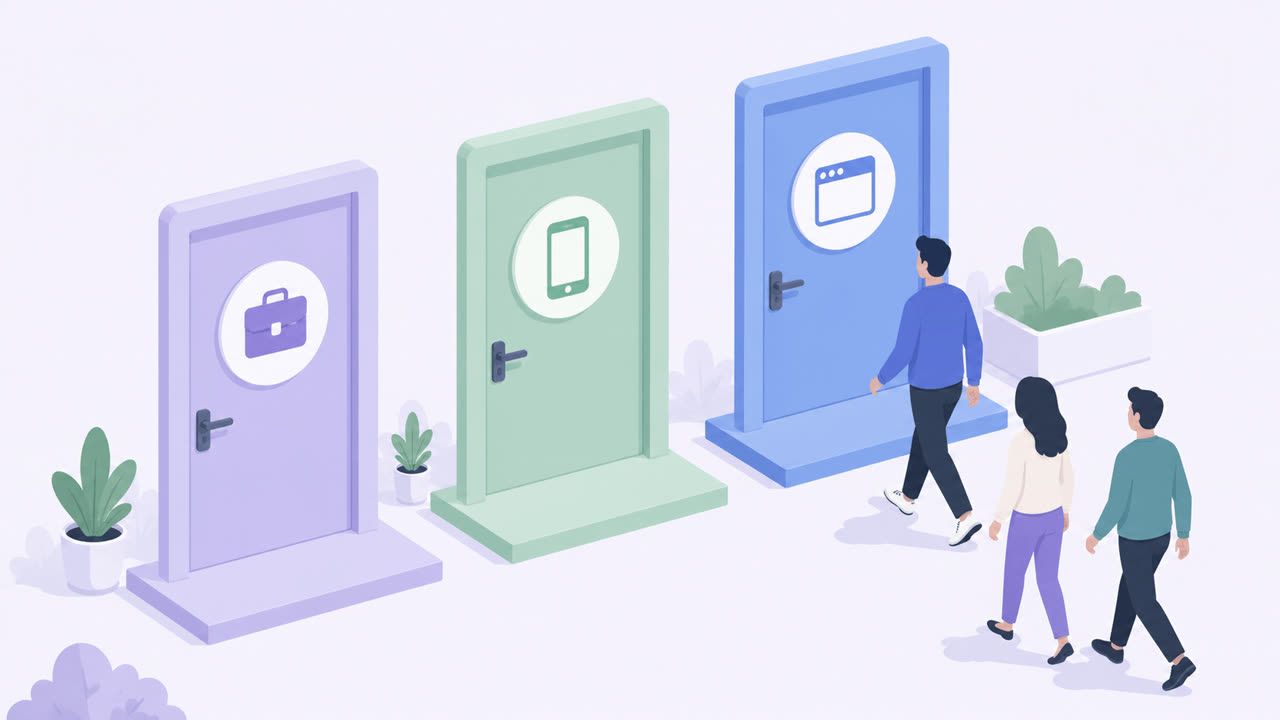
Method 1: Meta Business Suite, the free desktop option from Meta
Meta Business Suite is Meta's free platform for managing Facebook, Instagram, Threads, and WhatsApp from one place, and it is where Meta puts desktop scheduling for Facebook and Instagram. Its help center lists the requirements and steps.
What you need
- Full control of the Page or Instagram account, or content permission for it, in your Meta business portfolio
- The Facebook Page and Instagram account connected in the same portfolio if you want to cross-post between them
How to schedule a post in Business Suite on desktop
- Open Meta Business Suite and click Create post from the home page or the Content tab.
- Under Post to, pick the destination: your Facebook Page, your Instagram profile, or both.
- Under Media, add your photos. Meta notes the limit for an Instagram post is 10 photos.
- Under Post details, write the caption. You can customize the text for Facebook and Instagram separately and add hashtags, a location, or a feeling.
- Under Scheduling options, choose the date and time. The Active times button suggests slots based on when your followers were active over the last 28 days.
- Click Schedule (or Publish, or Finish later to keep a draft).
To manage what you scheduled, open Content, then the Posts & reels tab, and use the Scheduled, Drafts, Published, Expiring, and Expired filters. From a post's menu you can edit, reschedule, move to drafts, delete, add a collaborator, or toggle remixing.
What to know before relying on it
- Reels and Stories have their own buttons. On desktop, Create reel schedules a Reel for Facebook or Instagram (with a thumbnail for video reels; Meta notes you cannot create an Instagram reel from photos there), and Create story schedules up to 10 photos or videos as a Story, with the same date-and-time scheduling. The "Create post" button covers feed posts and carousels.
- The mobile app schedules too. In the Business Suite app, go to Content, pick Posts, Reels, or Stories, tap Create, add your text and media, then tap Schedule for later. Scheduled items show up in Planner.
- It is Meta-shaped. Business Suite covers Meta's own platforms. It can cross-post a Facebook or Instagram post to Threads from desktop, if your Threads account is in the portfolio with the same username as your Instagram account, but TikTok, LinkedIn, YouTube, Pinterest, and the rest need another tool.
Method 2: Instagram's own scheduler, and why it is not a desktop tool
Instagram's help page spells out the limits of its built-in scheduler:
- You need a public account
- You can schedule up to 25 posts a day, up to 30 days in advance
- Scheduled content keeps the privacy and audience settings it had when you scheduled it
The steps are app steps: Create, choose Post or Reel, pick your media, add the caption, open More options, turn on Schedule this post (or Schedule this reel), pick the date and time, then tap Schedule. Scheduled items live under Scheduled content in your profile menu, where you can edit, reschedule, share now, or delete.
Two things matter for desktop users. First, the help page's "Computer" tab shows the same tap-based instructions, and Meta does not document a scheduling option inside instagram.com. Second, the 30-day window is short if you plan a quarter at a time. If you write captions on a laptop and schedule on a phone, the native scheduler is fine; if you want to stay at your desk, use Method 1 or 3.
Method 3: Schedule Instagram posts from any browser with PostFast
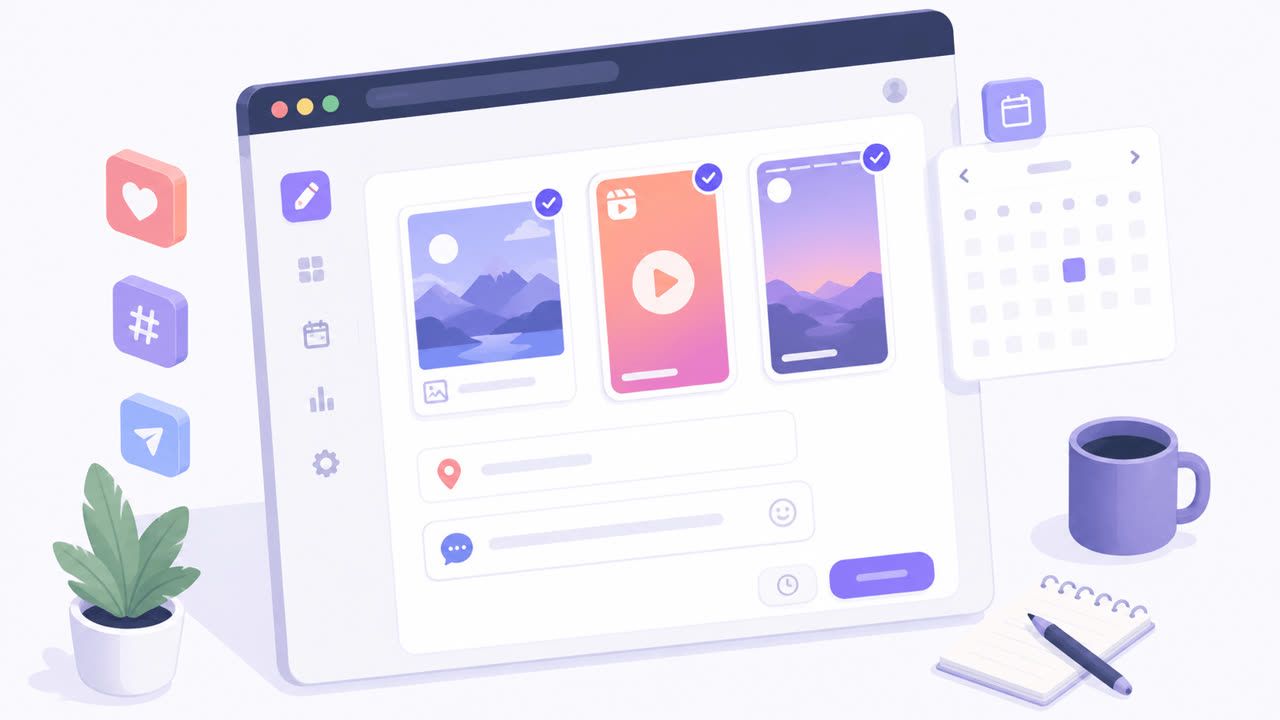
PostFast is a web app, so the whole workflow happens in a desktop browser (it is responsive on mobile too). It connects to Instagram Business and Creator accounts directly, without a Facebook Page, and it publishes automatically: feed posts, carousels, Reels, and Stories go out at the scheduled time with no "finish this on your phone" notification.
Step by step
- Connect the account. Sign up, add Instagram, and approve the connection. Personal accounts cannot connect because Instagram's API only allows Business and Creator accounts; switching takes a minute in Instagram's settings.
- Create a post and select Instagram. Write the caption (Instagram allows up to 2,200 characters) and add media. A single image or video becomes a feed post; add up to 10 images or videos for a carousel.
- Choose where it publishes. PostFast lets you pick Feed, Story, or Reel for each post, and whether a Reel also shows on your profile grid.
- Add the extras if you need them. An automatic first comment for hashtags, collaborator invites by username, a location tag (on single images, videos, Reels, and Stories; PostFast's documentation notes that Instagram does not support location tags on carousels), a custom Reel cover image, and Instagram's AI info label if the media was AI-generated. Reels can also go out as trial reels, shown to non-followers only.
- Pick the date and time. PostFast schedules up to a year ahead on every plan.
- Schedule. If your team reviews content first, save it as pending approval instead and approve it later.
Why desktop users tend to stay here
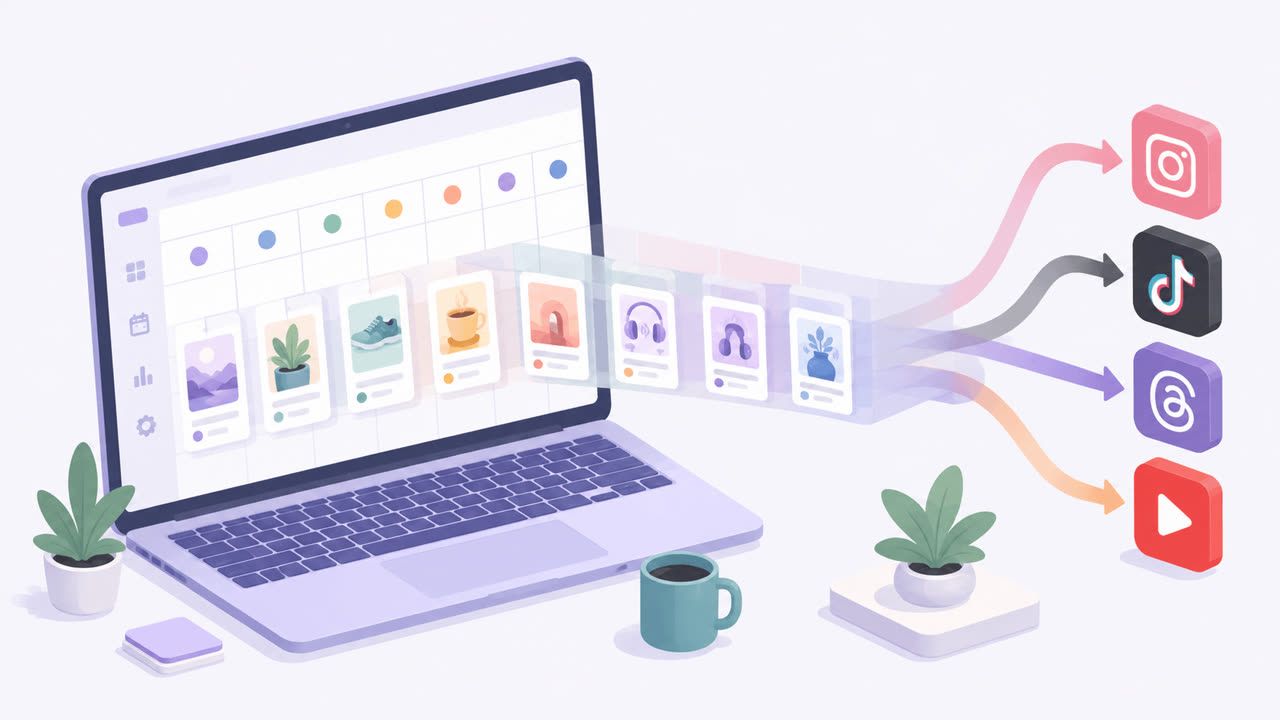
- One editor for every platform. The same post can go to TikTok, Threads, Facebook, LinkedIn, YouTube Shorts, and the rest, and you can customize captions, hashtags, and media for each platform. Instagram is one checkbox among 11 platforms.
- Batching works. A week or a month of content fits in one sitting, and the calendar shows the whole plan.
- Automation on top. The public API accepts up to 15 posts per request, and the MCP server lets an AI assistant such as Claude create and schedule posts if you already draft there.
- Stories included. Stories publish automatically, and you can queue them weeks ahead.
Plans start at €10 per month on yearly billing (€12 monthly), every plan includes all 11 platforms, and the 7-day free trial needs no credit card.
Feed posts, carousels, Reels, and Stories: what each method handles
| Content type | Meta Business Suite (desktop) | Instagram app scheduler | PostFast |
|---|---|---|---|
| Single image or video | Yes | Yes | Yes |
| Carousel | Yes, up to 10 photos | Not specified | Yes, up to 10 images or videos |
| Reel | Yes, Create reel | Yes | Yes, with custom cover and optional grid placement |
| Story | Yes, Create story, up to 10 photos or videos | Not documented | Yes, scheduled weeks ahead |
| First comment | Not documented | Not documented | Yes |
| Location tag | Yes | Not documented | Yes, except on carousels |
| Cross-post beyond Facebook and Instagram | Threads only, from desktop | No | Yes, 11 platforms |
Sizes matter more on Instagram than anywhere else. Keep the Instagram feed sizes, Reels sizes, and Stories sizes pages open while you export.
The desktop scheduling checklist that prevents failed posts
Most "my scheduled post did not go out" cases come down to one of these.
- Use the right account type. Business Suite needs permission for the Page or Instagram account in a business portfolio, PostFast needs an Instagram Business or Creator account, and the app scheduler needs a public account.
- Keep the connection alive. PostFast's own documentation calls disconnected accounts the number one cause of failed posts, and a disabled connection blocks scheduling until you reconnect, so check the accounts page before a big batch.
- Respect the media limits. 10 items per carousel, images up to 10 MB and videos up to 250 MB in PostFast, and the aspect ratios from the size guides above.
- Watch the caption length. 2,200 characters is the Instagram cap. A first comment gets its own 2,200.
- No location tags on carousels. Tag single-media posts only.
- Set the AI label before publishing. Instagram's AI info label applies to the whole post and cannot be added or removed afterwards.
- Mind the schedule window. 30 days ahead in the Instagram app, or 365 days with a Meta One Advanced or higher subscription; up to a year ahead in PostFast on every plan.
- Schedule in your audience's time zone. Our best time to post on Instagram guide has the day-by-day windows.
A desktop workflow for a full week
- Monday, 45 minutes. Export images and clips at the right sizes, write seven captions in one document, and decide which posts get a first comment with hashtags.
- Create the seven posts in PostFast, picking Feed, Reel, or Story for each. Reuse the vertical clips for Reels and carousels and tick TikTok and Threads where the content travels well.
- Schedule Stories separately so they land between feed posts rather than on top of them; the Stories on desktop guide covers the specifics.
- Friday, 10 minutes. Check the calendar, reschedule anything that collides with news, and queue one evergreen post for the gap.
Frequently Asked Questions
Can I schedule Instagram posts from my computer for free?
Yes. Meta describes Business Suite as a free platform, and it schedules Instagram feed posts, Reels, and Stories from a desktop browser as long as you have content permission for the account in your business portfolio. PostFast is free for 7 days and then starts at €12 per month, or €10 per month on yearly billing.
Does Instagram let you schedule posts on instagram.com?
Instagram's help page documents scheduling as an in-app flow (Create, More options, Schedule this post), with a limit of 25 posts a day and 30 days ahead. The same page's Computer tab shows those app steps, and Meta does not document a scheduler inside instagram.com. For desktop, Meta points you to Business Suite.
Can I schedule Instagram Reels and Stories from a desktop?
Yes. Business Suite has Create reel and Create story buttons on desktop with date-and-time scheduling, and PostFast schedules Reels (with a custom cover) and Stories from the browser and publishes them automatically.
How far in advance can I schedule Instagram posts?
The Instagram app allows up to 30 days ahead and 25 posts per day. PostFast schedules up to a year ahead on every plan.
Does a scheduler post automatically, or do I get a reminder?
It depends on the tool. Some schedulers still send a phone notification for certain Instagram formats so you finish the post in the app. Meta Business Suite offers Schedule for posts, reels, and stories, and PostFast publishes feed posts, carousels, Reels, and Stories automatically at the scheduled time.
Do I need a Facebook Page to schedule Instagram posts?
Business Suite works inside a Meta business portfolio, where the Page and Instagram account are managed together. PostFast connects to Instagram Business and Creator accounts directly, with no Facebook Page required.
Plan the week at your desk
Pick the method that fits how you work: Business Suite if you only run Facebook and Instagram, the app if you like scheduling on the phone, and PostFast if you want every platform, every format, and automatic publishing from one browser tab.
Related
Instagram scheduling with PostFast
Feed posts, Reels, Stories, carousels
How to Schedule Instagram Stories on Desktop in 2026
Yes, you can schedule Instagram Stories from your laptop without the mobile app. Step-by-step guide with auto-publish and cross-posting to TikTok and Reels.
How to Connect Claude to Instagram: Post, Schedule, Reply
Connect Claude to Instagram so it can schedule posts, Reels and Stories, answer comments and report post stats. Setup steps, prompts that work, and limits.
How to See Who Views Your Instagram Profile Explained
Learn how to see who views your Instagram profile, what Instagram's tools can show you, and why third-party apps are a risk to your account's safety.
Captions for Instagram: How to Write Them with AI (+ 60 Templates)
Learn how to write captions for Instagram that get engagement. 10 caption formulas, AI prompts, 60 ready-to-use templates, and scheduling tips.
Can ChatGPT Post to Instagram and Facebook? Yes, Here Is How
Yes, with a connected app. Use PostFast to schedule Instagram and Facebook posts, Reels and Stories from ChatGPT, with approval before publishing.