Social Media Post Approval Workflow
One sentence does the work on this page: only posts in the Approved state publish when their scheduled time arrives. Everything else sits on the calendar, at the time you set, and waits for a person.
That gate, the three roles behind it and the per-user permissions that shape it are on every plan, including the 7-day trial. There is no approvals tier to upgrade into and no per-seat fee for the person doing the approving.
Approvals, roles and per-user permissions from Starter up, including the trial. No approvals tier.
Reviewers do not carry a per-head price. Seats come with the plan, up to 30 people per workspace.
Admin, Editor and Client, each a starting point you can adjust permission by permission.
What a social media approval workflow is, and what breaks without one
An approval workflow is the step between a post being written and that post reaching somebody else’s audience. It sounds procedural until you have skipped it once. The version most teams actually run is a screenshot pasted into a chat thread, a “looks good” three days later, and a scheduled post that goes out on Tuesday whether or not the reply ever arrived.
The failure is rarely the writing. It is the join between the review and the queue. Approval happens in one system, publishing happens in another, and nothing connects them. A post approved in WhatsApp still has to be found in the scheduler and released by hand, and a post that was never approved publishes anyway, because the scheduler was never told to wait. When somebody says a client post went live unapproved, this is almost always what happened. Nobody ignored the process. The process had no way to stop the post.
A real approval workflow closes that join. Review status lives on the post, publishing reads that status, and an unreviewed post simply does not go out.
How the gate works: only Approved posts publish
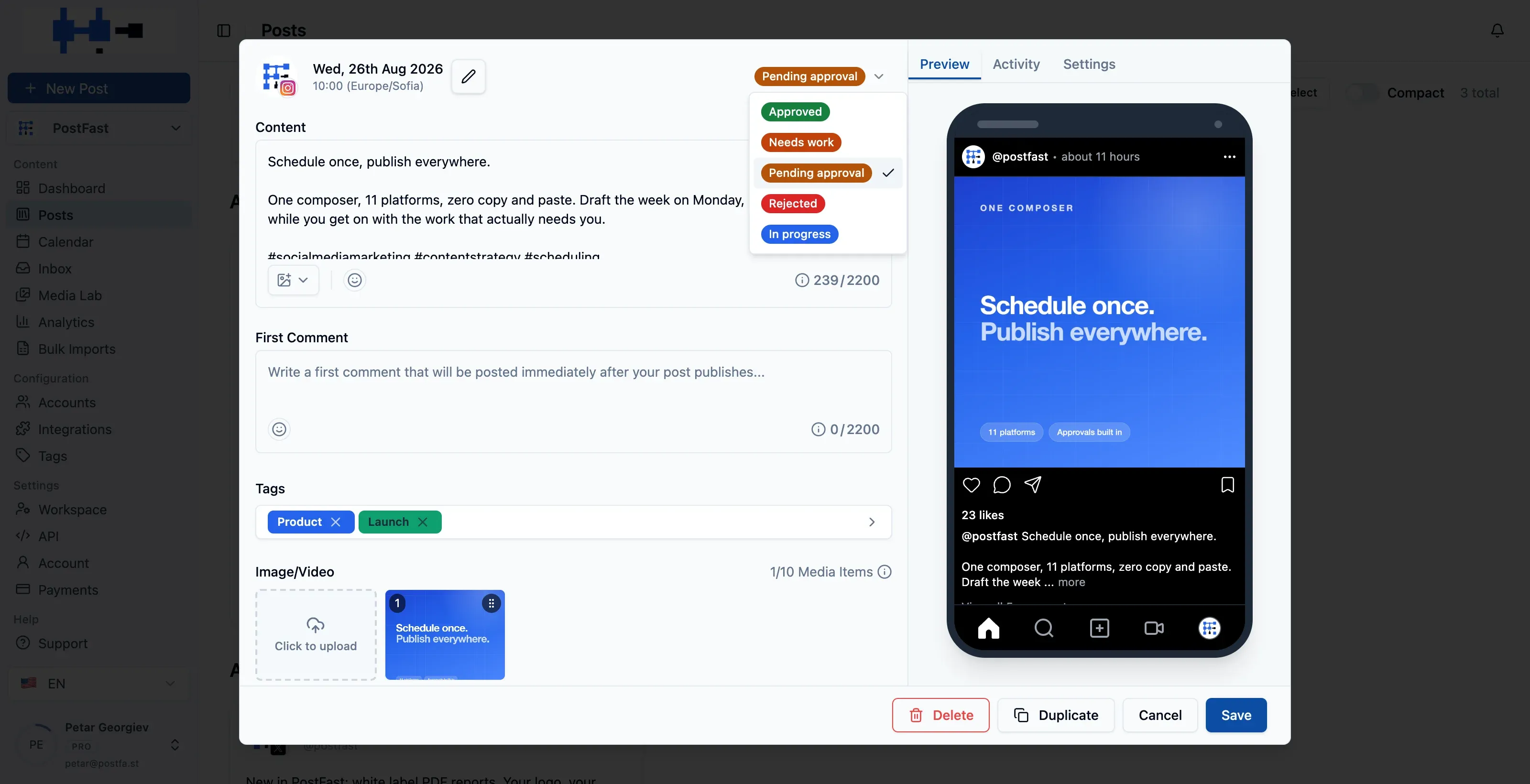
Every post carries an approval status alongside its schedule. When the scheduled time arrives, PostFast publishes the post if and only if that status reads Approved. There is no separate queue to release, no “send to publishing” step after sign-off, and no setting to turn the check off for a particular post. Approval is not an optional stage bolted onto the front of the scheduler. It is a condition the scheduler evaluates.
The composer offers five states. Four of them hold, one of them publishes, and the distinction between the four holding states is for humans rather than for the publisher.
| State | At the scheduled time | What it is for |
|---|---|---|
| Approved | Publishes at its scheduled time | The only state that reaches the platform. Everything else waits. |
| Pending approval | Held | Where anything lands when its author does not hold Approve posts, whatever they picked in the composer. |
| Needs work | Held | A reviewer wants a change. Pair it with a comment so the writer knows what. |
| Rejected | Held | A reviewer has turned it down rather than asked for an edit. |
| In progress | Held | Someone is still working on it, and it is the one state the Client role does not see. |
Those five states are what the app shows. If you drive PostFast through the REST API or an AI assistant instead, the same field is exposed more bluntly:approvalStatustakes APPROVED to publish or PENDING_APPROVAL to hold for review. A post created by a script obeys the same gate as a post typed into the composer.
The three roles, and what each one can do
A workspace has three roles. Admin belongs to whoever created the workspace and cannot be handed out by invitation, so the invite dialog offers only Editor and Client. The role sets the starting permissions and an Admin adjusts them person by person, so two people with the same role can behave differently. Below is the default before any tuning.
| Permission | Admin | Editor | Client |
|---|---|---|---|
| Create, edit, delete and schedule posts | Yes | Yes | No, by default |
| Approve posts | Yes | Yes | Yes, by default |
| View posts and leave regular comments | Yes | Yes | Yes |
| Internal team comments | Yes | Yes | No, by default |
| Read the social inbox | Yes | Yes | Yes, by default |
| Reply and moderate in the inbox | Yes | Yes | No, by default |
| Connect social accounts | Yes | Yes | Yes, by default |
| Generate connect links | Yes | Yes | No, by default |
| Create and update tags | Yes | Yes | No, by default |
| Delete tags | Yes | No, by default | No, by default |
| Workspace settings | Yes | Yes | No, by default |
| Manage members | Yes | No, by default | No, by default |
| API keys and deleting the workspace | Yes | Never | Never |
The row worth reading twice is the second one. All three roles can approve by default, including Client. That surprises people who expect approval to be an administrator’s power, but it is the point of the Client role: the agency drafts and schedules, and the person whose brand it is releases the work.
Two permissions are locked shut rather than merely off. API keys and deleting the workspace are Admin-only and cannot be granted to an Editor or a Client at all, which is what the padlocks in the permissions dialog mean. The dialog also tunes permissions rather than the role itself: to move somebody between Editor and Client, remove them and re-invite with the other role, and expect their per-user overrides to reset. Plan the role, adjust the permissions.
Per-user permissions, and the junior review setup
Approvals are usually described as an agency-to-client mechanism, and that is one use. The other is the person on your own team whose work should be read before it goes out. The setup for that is a single toggle, not a second product.
Open Settings, then Workspace, then the Users tab, and click the shield icon next to the person. The dialog groups every permission into five categories: Posts (create, edit, delete, schedule, approve), Comments (internal team comments), Accounts (connect accounts, generate connect links), Filter Tags (create, update, delete) and Workspace (settings, managing members, API keys, deleting the workspace). Toggle Approve posts off for that one person and save. An Override badge then marks the permission as customised away from the role default, so you can see at a glance who has been adjusted.
What changes for somebody without that permission:
- Everything they create is held at Pending approval, whatever they selected in the composer.
- That covers posts they write directly, posts they duplicate from an existing one, and every row of any bulk CSV import they run.
- Publish now disappears from their composer, because publishing immediately would step around the review.
- Nothing else changes. They still create, edit, schedule, delete, comment and tag exactly as before.
Nobody has to watch the calendar for work that has appeared. Submitting posts for approval raises an Approval requested notification, and it goes only to the people in that workspace who actually hold Approve posts, never to the person who submitted. A batch raises one notification rather than one per post, so scheduling a month does not bury a client under fifty pings. Changing an approval status notifies in the other direction as well.
This is the shape to reach for when a new hire is producing good work at a pace nobody has time to pre-read. Leave them as an Editor with full run of the calendar, take away one permission, and the review becomes structural rather than a habit somebody has to maintain. The full walkthrough lives in roles and permissions in the help centre.
Giving a client access without sharing a password
Two different access problems get muddled together here. One is letting a client review your work, the other is getting their accounts connected. Neither should involve a password changing hands.
For reviewing, invite them. From the Users tab, Add User takes an email, a first and last name, and a role, where the choices are Editor or Client. They receive an emailed invite link. If they already have a PostFast account it is a single Accept; if they do not, they set a password in the same step. Then they are signed out once and asked to log in fresh so the new permissions take effect cleanly. If the email does not arrive, the three-dot menu on their row generates a shareable link you can send through any channel.
For connecting accounts, send a connect link instead. Generate one from Accounts, choose how long it stays valid (1 to 30 days), optionally scope it to specific platforms, and the client authorises their own accounts on each platform’s own login screen. The scope is enforced server-side rather than in the interface, so a link restricted to Instagram cannot be talked into connecting anything else. The client does not need a PostFast account to use one, and PostFast can email the link on your behalf. The same thing exists on the REST API if you would rather generate links from your own onboarding flow.
The honest caveat, since it affects what a roster costs: a client you invite occupies one of that workspace’s user slots. Members are counted regardless of role, so a Pro workspace with four of your staff in it has room for eleven more people, client reviewers included. That is a real limit and the section on cost below prices it out.
One workspace per client, and approving across a roster
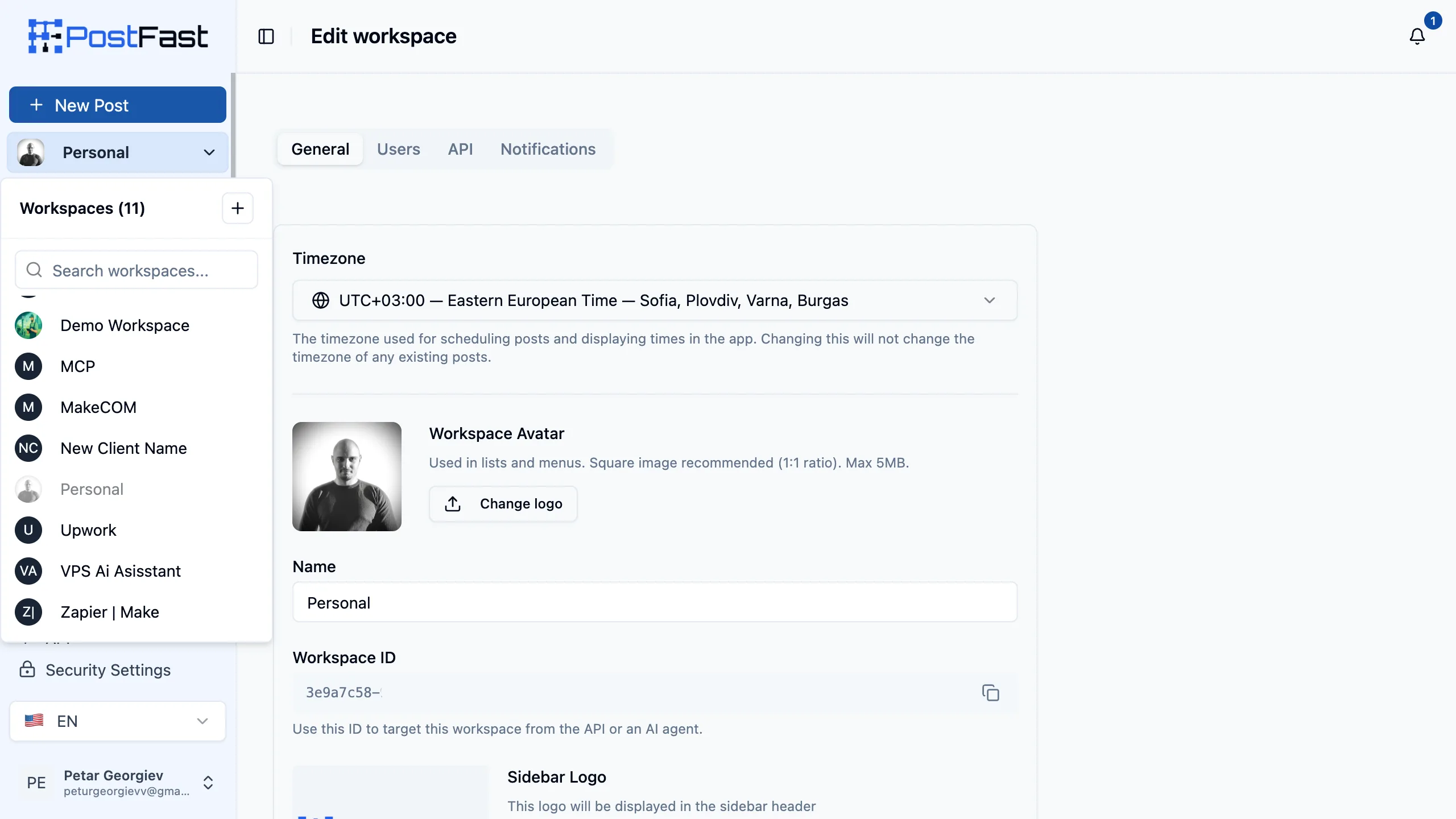
Approvals only stay manageable if each client is separated from every other client, which is what workspaces are for. A workspace holds its own connected accounts, calendar, drafts, analytics, tags and members, and nothing crosses between them. A client invited into one workspace sees that workspace and has no idea the others exist.
Seat limits are counted per workspace rather than across the account, which matters more than it sounds. Pro gives 30 workspaces and 15 people in each of them, so the eleven review slots left over after your four staff are eleven slots in that client’s workspace alone. Winning the next client costs you a workspace, not a re-priced subscription.
Inviting the same person into several workspaces at once is one action: the Add User dialog has an option to add them to other workspaces you manage, and it shows each workspace’s seat count so you can see which are nearly full. Workspaces already at their limit are greyed out and labelled Full.
How It Works
Put the client in their own workspace
One workspace per client, holding that client's connected accounts, calendar, drafts and analytics. Invite them from Settings, Workspace, Users with the Client role.
Schedule the month and leave it unapproved
Draft and schedule as normal. Anything not in the Approved state sits on the calendar at its scheduled time without publishing.
Let the reviewer release it
The client reads the queue, comments on what needs changing, and moves each post to Approved. Only then does it publish at the time already set.
Approvals sit in front of all 11 platforms
The gate is a property of the post, not of a particular network, so it applies wherever that post was going. A carousel bound for Instagram, a Reel, a LinkedIn update and a Google Business Profile offer are all held by the same unapproved status, and released by the same approval.
One post can target several accounts at once. More detail on the cross-platform publishing page and on scheduling.
Approvals on bulk imports, the API and AI-drafted posts
A review gate is only worth having if it cannot be walked around, and the ways around one are the bulk paths: somebody uploads a spreadsheet or wires up an integration, and three hundred posts appear in the calendar having met nobody.
Bulk CSV import takes up to 200 rows and a 10 MB file per upload, covering content, schedule time, target accounts and publicly hosted media URLs. When the person running the import does not hold the Approve posts permission, every row lands at Pending approval. Importing a quarter of content is not a way to bypass a reviewer.
The REST API exposes the same field the composer does. Create a post with approvalStatus set to PENDING_APPROVAL and it waits for a human, exactly as a post typed into the app would. The API is on every plan, including the trial, so a pipeline that drafts content automatically and hands it to a person to release is available at the entry price rather than at an enterprise tier.
AI assistants are the same story with a friendlier surface. Connect ChatGPT or Claude to the MCP server and ask for a client’s week in their voice, and the drafts can land as Pending approval in that client’s workspace. The review step stays where it was. What changes is who does the typing, not who does the signing off, which is the correct division of labour for anything going out under somebody else’s name.
Approvals compared with email, WhatsApp and spreadsheets
Most teams reading this already have an approval process, held together by a chat thread and somebody’s memory. It mostly works, which is why it survives, so it is worth being precise about what it costs rather than dismissing it.
The review is detached from the queue. Approval in a thread has no effect on the scheduler. Somebody has to carry the decision across by hand, and the post publishes on time whether or not they did. Every unapproved post in that model is live by default and held only by a human remembering.
The record is scattered. Who approved what, and when, is spread over an inbox, a phone and a spreadsheet tab. When a client asks why something went out, reconstructing the answer takes longer than the post did.
Context goes missing. A screenshot is not the post. It does not carry the scheduled time, the target accounts, the first comment or the character count, so clients approve something subtly different from what actually publishes.
It does not scale past a few clients. One thread per client times a roster is a full-time job of chasing, and the chasing is unbillable.
Moving the review onto the post fixes the first point outright, and that is the one that causes the incidents. Nothing here stops you nudging a client in a chat. The difference is that the nudge is no longer what holds the post back.
What a social media approval tool costs on PostFast
Approvals are not priced separately. Every plan carries the roles, the per-user permission overrides and the publishing gate, starting at Starter, EUR 10/mo on annual billing (EUR 12/mo monthly). The trial has them too, so you can test a real sign-off loop with a real client before paying anything.
What the plan actually buys is capacity. Seats and workspaces, per plan, on annual billing:
- Starter, EUR 10/mo annual (EUR 12/mo monthly): 1 workspace, 1 user. Enough to schedule, not enough to run a review loop with somebody else.
- Creator, EUR 24/mo annual (EUR 29/mo monthly): 4 workspaces, 5 users per workspace.
- Growth, EUR 40/mo annual (EUR 49/mo monthly): 10 workspaces, 8 users per workspace.
- Pro, EUR 82.50/mo annual (EUR 99/mo monthly): 30 workspaces, 15 users per workspace, 120 social accounts.
- Enterprise, EUR 199/mo annual (EUR 239/mo monthly): 110 workspaces, 30 users per workspace.
The claim to hold onto is no per-seat fee, not unlimited people. Adding a fifth reviewer to a Growth workspace costs nothing extra; adding a ninth is not possible without moving to Pro. And because an invited client counts as a member like anybody else, a workspace with three staff and two client-side approvers has used five of its slots.
Worked through: an agency of five people running ten clients on Pro, one workspace each, pays EUR 82.50/mo on annual billing and has ten more slots in every one of those workspaces for the client’s own reviewers. The full table is on the pricing page, and the agency arithmetic against the per-seat suites is worked out on the agencies page.
Social media approval tools compared
Plenty of schedulers do approvals. What differs is which tier they start on and what a reviewer costs once they do. Every figure below was read from the vendor’s own pricing page on 12 September 2026, on annual billing, and prices drift, so treat the date as part of the number. PostFast bills in euro and the other four publish in US dollars.
| Tool | Cheapest plan with approvals | Price | Reviewer seats | What the approval step is |
|---|---|---|---|---|
| PostFast | Every plan, and the 7-day trial | From EUR 10/mo annual (EUR 12/mo monthly) | Seats are included in the plan, not billed per head: 1 on Starter, 5 on Creator, 8 on Growth, 15 on Pro, 30 on Enterprise, per workspace. An invited client uses one of them. | An approval status on the post itself. Only Approved publishes at the scheduled time. The Client role can approve by default. |
| Buffer | Team | From $10 per channel/mo billed yearly ($12 monthly), with volume discounts above 10 channels | Unlimited team members on Team | Approval workflows plus access levels, both Team only. Priced per channel, so a 20-channel roster is $133.33/mo on yearly billing ($160 monthly) before anyone reviews anything. |
| SocialPilot | Standard for internal, Premium for client approvals | Standard $34/mo annual ($40 monthly), Premium $85/mo annual ($100 monthly) | 3 users on Standard, 6 on Premium, plus unlimited free client seats from Premium up | Content and manager approval workflows from Standard. Client approval workflows and client management start one tier higher, on Premium. |
| Sendible | Plus | $84/mo annual ($99 monthly) | Unlimited users on every tier, including the $30 Core plan | Assign posts for approval from Plus. Custom approval workflows, which force a given user to always need sign-off, only start at Premium, $169/mo annual. |
| Hootsuite | Advanced | $399 per user/mo, annual billing | Billed per seat, so every reviewer adds $399/mo | Post approval workflows and internal comments are both marked as not included on Standard ($99/user) and Professional ($199/user). |
Read on 12 September 2026 from postfa.st/pricing, buffer.com/pricing, socialpilot.co/pricing, sendible.com/pricing and hootsuite.com/plans. Longer write-ups of each: Buffer, SocialPilot, Sendible and Hootsuite.
Where these tools beat PostFast
A comparison where the author wins every row is worth nothing. Four places the tools above are genuinely better, and one thing PostFast does not do at all.
Sendible does not cap users, on any tier. Unlimited users from Core at $30/mo annual upwards, and client dashboards where the client previews and approves are on every tier including that one. If your constraint is the sheer number of people who need to look at something, that is a better fit than a 15-slot workspace. Assignment and approvals as a routed step start at Plus, $84/mo annual.
SocialPilot gives client seats away. From Premium at $85/mo annual, client seats are unlimited and free, and they sit outside the user count rather than eating into it. That is exactly the thing PostFast does not do: our client reviewers consume a workspace slot. If your model is many client-side approvers per account, SocialPilot prices it better.
Buffer is cheaper at small scale. Team is $10 per channel per month billed yearly with unlimited team members, so three channels and six reviewers is $30/mo. Volume discounts cut the rate above ten channels, so a thirty-channel agency is paying $162.50/mo on yearly billing ($195 monthly) rather than a flat multiple, but for a small brand team the entry point is lower than ours.
Hootsuite Advanced bundles more than an approval gate. At $399 per user per month it is the most expensive way on this page to get a sign-off step, and post approval workflows are marked as not included on both cheaper tiers. What that price does buy alongside it is message auto-routing, customer-care coordination and team performance reporting, none of which PostFast has.
And a limitation of ours worth stating plainly. PostFast’s approval is a single gate rather than a routed multi-stage chain. There is no sequence that requires an editor to sign off before the post is passed to the client as a second mandatory stage. Agencies run those two rounds by convention and it works, but the order is not enforced by the product. If a hard multi-step chain with named stages is a procurement requirement, this is the wrong tool and it is cheaper to know that now.
Who it is for
Agencies
A client per workspace, sign-off before anything reaches their audience, and no invoice change when you win the next one. See how agencies run PostFast.
In-house teams
Legal, brand or a manager reads the queue before it publishes, without giving anyone the keys to workspace settings or the billing.
Growing teams
A new hire keeps full run of the calendar with one permission switched off, so their first month is reviewed by design rather than by reminder.
Key Benefits
- Only posts in the Approved state publish, so an unreviewed post is a missed slot rather than a live mistake
- Approvals, roles and per-user permissions are on every plan, including the 7-day trial, with no approvals tier and no add-on
- The Client role reviews and signs off without seeing your internal comments, your settings or any other client's calendar
- Turn Approve posts off for one person and everything they create, duplicate or bulk import waits for a reviewer
- Clients connect their own accounts through a scoped connect link, so no password ever changes hands
- No per-seat fee for reviewers: seats come with the plan, up to 30 people per workspace on Enterprise
Put a gate in front of the next client post
Post approvals start on the Starter plan at EUR 10/mo on annual billing (EUR 12/mo monthly) and are included on every tier above it. Start the 7-day free trial, invite one real client as a Client, and watch a scheduled post sit still until they release it. No credit card, no demo call.
See the full pricing for seats and workspaces per tier, or the roles and permissions guide for the mechanics.
Post Approval FAQs
What is a social media approval workflow?
It is the review step between writing a post and that post reaching an audience. In PostFast it is a status on the post rather than a separate tool: a scheduled post carries an approval state, and only posts in the Approved state publish when their scheduled time arrives. Everything else stays on the calendar, unpublished. The workflow is therefore not something you remember to run. It is the default behaviour of the queue.
Which plans include post approvals?
All of them, including the 7-day free trial. Roles, per-user permission overrides and the approval gate are part of every PostFast plan from Starter at EUR 10/mo on annual billing (EUR 12/mo monthly). There is no approvals tier and no add-on. What changes with the plan is how many people and workspaces you get: 1 user and 1 workspace on Starter, 5 users and 4 workspaces on Creator, 8 and 10 on Growth, 15 and 30 on Pro, 30 and 110 on Enterprise, counted per workspace. Figures from our pricing page, read on 12 September 2026.
Can a client approve posts without a PostFast subscription?
Yes. A client does not buy anything. You invite them into your workspace with the Client role and they get an emailed invite link, set a password, and land in that one workspace. Their PostFast account is free to them; the cost sits on your subscription. Be aware of the trade-off though: an invited client occupies one of that workspace's user slots, so a 15-slot Pro workspace holding four of your staff has room for eleven client-side reviewers, not an unlimited number.
How do I stop a junior from publishing without review?
Leave them as an Editor and turn off one permission. Open Settings, Workspace, Users, click the shield icon next to that person and toggle Approve posts off. From then on everything they create is held at Pending approval whatever they picked in the composer, including posts they duplicate and any bulk CSV import they run. Publish now disappears for them, because publishing immediately would skip the review. They keep creating, editing, scheduling, deleting, commenting and tagging exactly as before. Full walkthrough in roles and permissions.
Do I have to share account passwords with my client?
No, and you should not. Generate a connect link from Accounts, set how long it stays valid (1 to 30 days), optionally restrict it to specific platforms, and send it over. The client authorises their own accounts on each platform's own login screen. They do not need a PostFast account to use one, the scope is enforced server-side so a link limited to Instagram cannot connect anything else, and you can have PostFast email the link for you. The same thing is available on the REST API.
Can several people approve, or does it have to be one person?
Anyone holding the Approve posts permission can approve, and by default all three roles hold it. That is deliberate: on a small team the person who schedules a post is usually also the person allowed to release it. You narrow it by taking the permission away from the people who should not have it, rather than by granting it to the people who should.
Does PostFast support multi-stage approval chains?
Not as a routed pipeline. Approval is a single gate: a post is either Approved, and therefore publishes, or it is in one of the four holding states and does not. There is no built-in sequence that sends a post to an editor first and a client second as two separate required stages. Agencies run those two rounds by convention, but the product does not enforce the order. If a hard multi-step chain is a requirement, say so before you start a trial.
What happens to a post that is never approved?
It stays where it is. The scheduled time passes and the post remains on the calendar in whichever state it was left in, unpublished. Nothing is deleted and nothing goes out late on its own, so an unapproved post is a missed slot rather than a surprise. The failure mode of forgetting to approve is silence. The failure mode of having no gate at all is a client's brand account publishing something nobody signed off.
Do approvals work on bulk imports and posts created by the API?
Yes on both. A bulk CSV import lands at Pending approval when the person running it does not hold the Approve posts permission, so importing 200 rows does not become a way around review. On the REST API, `approvalStatus` is a field you set when you create a post: `APPROVED` publishes, `PENDING_APPROVAL` holds it for a human. That also covers posts drafted through an AI assistant on the MCP server, which is on every plan.
What can a Client see in the workspace?
The one workspace you invited them to, and nothing from any other client. Inside it they can view posts, leave regular comments and, by default, approve. They can also connect a social account and read the comment inbox. What they cannot do by default is read or write internal team comments, reply in the inbox, generate connect links, manage tags, or change workspace settings. Permissions are adjustable per person on top of the role, so you can hand a particularly involved client more, or take approval away from a client who only wants to watch.