Twitter (X) Advanced Search in 2026: Every Operator That Still Works
A practical guide to Twitter (X) Advanced Search in 2026: how to open it, every useful search operator, and copy-paste recipes for brand monitoring, leads, and content ideas.
On this page (7)
Feel like you're shouting into the void on X? You probably are.
Quick naming note: officially this is just "search" on X these days, but everyone still calls it Twitter Advanced Search, so we use both names in this guide. Everything below was re-verified in July 2026.
The standard search bar is fine for a quick lookup, but Twitter Advanced Search is where the real gold is hiding. It’s a powerful, native feature that lets you ditch simple keywords and layer on specific filters to find exactly what you're looking for.
Go Beyond the Basic Search Bar
Using the normal search bar on X often feels like casting a giant net and hoping you catch something useful. You type in a keyword and get a firehose of vaguely related, often irrelevant, posts. For serious marketing, brand monitoring, or finding leads, that's just a waste of time.
Twitter Advanced Search, on the other hand, is like a laser-guided harpoon. It lets you stack multiple filters, like location, sentiment, and user, to pinpoint conversations with incredible accuracy. You stop sifting through noise and start finding signal.
Why It's a Game Changer for Marketers
For anyone in marketing, that kind of precision is everything. It turns X from a simple broadcast channel into a deep well of market intelligence. With just a few clicks, you can spot opportunities your competitors are completely missing.
Here’s a quick look at what becomes possible:
- Monitor Brand Health: Find every mention of your brand, especially the ones that don't @ you. This is crucial for catching both positive and negative feedback before it snowballs.
- Generate High-Quality Leads: Zero in on people asking for recommendations or complaining about a competitor's product. These are warm leads, served on a silver platter.
- Discover Content Ideas: See the exact questions your audience is asking. Use their own words to create content that you know will hit the mark.
- Track Competitor Activity: Keep a real-time pulse on your competitors' announcements, customer service wins (and fails), and campaign chatter.
The real power here is turning passive social listening into active opportunity-finding. It's about understanding the context behind conversations, not just the keywords.
Once you get the hang of it, you can build a repeatable process for turning raw social data into real marketing action. Below you will find every operator that still works in 2026, plus copy-paste recipes you can run today.
Of course, finding these insights is only half the battle. Acting on them is what actually drives results. That’s where a scheduling tool like PostFast comes in handy. You can take what you’ve learned from an advanced search, plan out a week of relevant posts, and schedule them to keep your presence consistent and strategic. It’s the perfect way to turn great research into tangible engagement.
How to Open Advanced Search on X in 2026
Advanced search only works when you are logged in to X.com, and the entry point is easy to miss:
- Type anything into the search bar on X.com and run the search.
- On the results page, look at the upper right: click Advanced search under Search filters. If you do not see it, click More options, then Advanced search.
- Fill in the fields you need and click Search.
The advanced search form covers words (all, exact phrase, any, exclude, hashtag, language), people (from, to, mentioning), places, and date ranges. Everything the form does can also be typed directly into the search bar as operators, which is faster once you know them. That is what the rest of this guide is about.
One thing to know: X does not publish an official list of every text operator. The form fields above are the officially documented surface, and the operators below are the ones that consistently work as of July 2026. If one stops behaving, check it against the form.
Getting to Grips with Core Search Operators
To really get what you want out of X Advanced Search, you need to speak its language. The platform uses a set of specific commands, known as operators, to sift through the millions of posts shared daily. Think of them as the basic ingredients for a powerful search recipe.
Once you get the hang of a few key operators, you can stop wading through noise and start pinpointing the exact conversations that matter to your brand. Mastering these building blocks is the first step toward transforming your searches from generic to genuinely strategic.
Suddenly, you’ll be able to find customer feedback, track competitors, and uncover content ideas with way more precision.
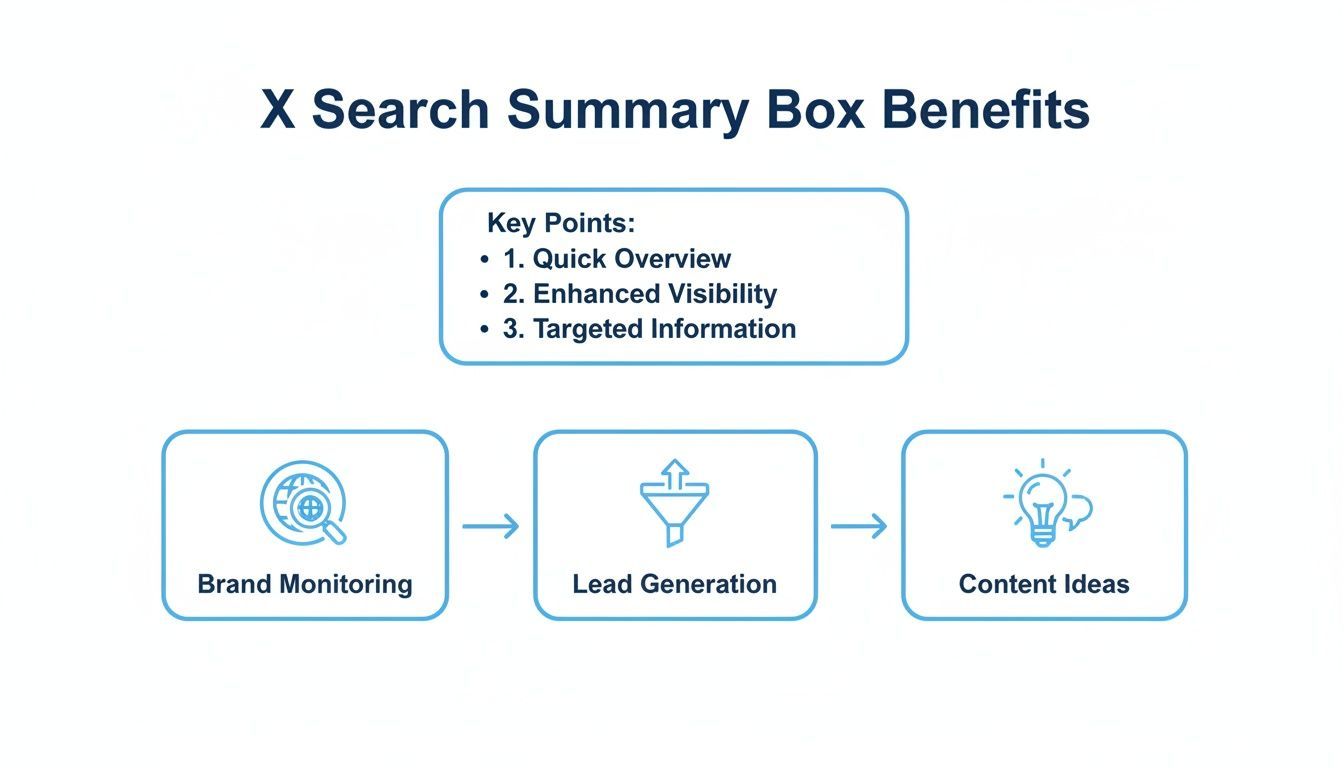
This just shows how a targeted approach can fuel your key marketing activities, turning a simple search bar into a powerful business intelligence tool.
Finding Exact Phrases
When you need to find something specific, wrapping your query in quotation marks is the way to go. This operator tells X to find that exact sequence of words, filtering out any and all variations.
- Operator:
"exact phrase" - What it does: Searches for the exact phrase inside the quotes, in that specific order.
- Example: A marketing agency looking for feedback on a new campaign slogan, "Innovate for Tomorrow," would search
"Innovate for Tomorrow"to see only tweets containing that precise phrase.
Broadening Your Search with OR
Sometimes you need to look for multiple keywords at once. The OR operator is perfect for this. It lets you search for tweets containing either one term or another, but not necessarily both. This is incredibly useful for tracking topics with common synonyms or variations.
For instance, if you’re monitoring discussions about remote work, you could search for "remote work" OR "work from home" OR WFH. This single query captures the most common ways people discuss the topic, saving you from running three separate searches.
Removing Noise with the Minus Sign
Just as important as what you want to find is what you want to exclude. The minus sign (-) is a simple but powerful tool for removing irrelevant terms from your search results, making your findings much cleaner.
Using the minus sign is one of the fastest ways to improve the quality of your search results. It acts like a bouncer, keeping unwanted keywords out of your feed so you can focus on what's relevant.
Imagine you're a software company selling a product called "Fusion." A simple search for Fusion would bring up results about nuclear energy, cooking, and music. To fix this, you would search: Fusion -nuclear -food -music. This immediately refines your results, zeroing in on conversations likely related to your software.
Targeting Specific Accounts
Some of a marketer’s favorite operators allow you to focus your search on specific users. This is where you can start doing targeted monitoring of customers, competitors, and industry leaders.
Here are the essential account-based operators:
from:username: This shows you every single tweet posted by a specific account. It's perfect for quickly reviewing what a competitor has been talking about. For example,from:PostFastwill show you every tweet from our official account.to:username: This operator finds all tweets sent as replies to a specific account. It’s a great way to see how a brand is engaging with its audience or what kind of questions its customers are asking.@username: This is a broader search that finds any mention of a specific account, whether it's in a reply or a standalone tweet. Searching@CompetitorBrandgives you a full picture of all public conversations involving them.
By combining these, you can build highly specific queries. For instance, finding negative feedback directed at a competitor could look like this: ("bad service" OR "frustrated") to:CompetitorBrand. This simple string gives you a direct window into your rival’s customer service challenges.
Searching by Date with since: and until:
Two of the most useful operators never show up in most guides:
since:YYYY-MM-DD: only shows posts published on or after that date.until:YYYY-MM-DD: only shows posts published before that date.- Example:
from:CompetitorBrand since:2026-01-01 until:2026-06-30pulls everything a competitor posted in the first half of 2026. Perfect for a quick half-year content review.
These do the same job as the date pickers in the advanced search form, but typing them is faster and they combine cleanly with every other operator in this guide.
How to Filter by Engagement and Media Type
Okay, you've got the hang of finding conversations with keywords and account operators. That’s a great start. But the real power of X's advanced search kicks in when you start filtering for impact.
Let's be real: not all tweets are created equal. Some fall flat, while others catch fire and drive genuine conversation. Engagement and media filters are what let you slice through the noise and get straight to the good stuff—the content that’s already getting people talking.
Pinpointing High-Performance Tweets
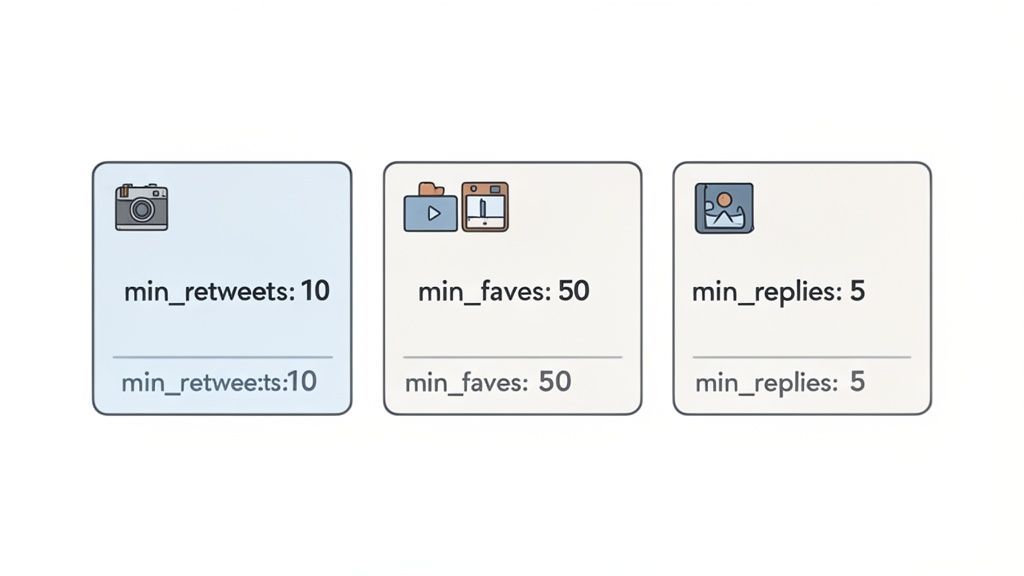
If you want to find content that’s already a proven winner, engagement operators are your secret weapon. They let you set a minimum threshold for likes, replies, or retweets, instantly cutting out anything that hasn't gained traction.
Here are the operators you'll be using constantly:
min_faves:NUMBER: Finds tweets with at least a specific number of likes.min_faves:500shows you only posts with 500+ likes.min_retweets:NUMBER: Same idea, but for retweets. This is perfect for spotting viral content or posts being shared widely.min_replies:NUMBER: My personal favorite for finding real discussions.min_replies:50helps you locate posts where a genuine back-and-forth is happening.
Let's put this into practice. Imagine a marketing agency needs some user-generated content for its client, a popular coffee brand. Instead of just searching the brand's name, they could use: "#BrandCoffee" min_faves:100 filter:images. Just like that, they have a feed of popular customer photos, giving them high-quality, pre-vetted content to potentially feature. Featuring one is a paste-the-URL job if you schedule a retweet by URL from PostFast.
Think of these engagement filters as your shortcut to understanding what "good" looks like in your niche. By studying what already works, you get a clear blueprint for your own content.
This gets even more powerful when you track these metrics over time. By regularly searching for high-engagement tweets in your industry, you can spot emerging trends and get a feel for what’s driving performance. This is the kind of insight you can dig into deeper with PostFast's own social media analytics features.
Focusing on Specific Media Types
Text-only tweets are just one piece of the puzzle. Often, you need to find posts with images, videos, or links to get the full story. That’s where media-specific filters come in handy, letting you narrow your search to the exact format you need.
These are the most useful ones:
filter:images: Shows you only tweets containing an image. Simple.filter:videos: Use this to find tweets that include native video or a link to a video platform.filter:links: Isolates tweets containing a URL. Great for tracking down articles, blog posts, or product pages.
Combining these filters is where the magic happens. A content marketer looking for competitor blog posts could run a quick search like from:CompetitorBrand filter:links. This simple query delivers a clean list of every article their rival has shared. Competitive analysis, done in seconds.
Bringing It All Together in the Real World
The evolution of advanced search has been a huge win for marketers. For instance, by January 2025 in Bulgaria, where 11% of adults use X, these tools allowed teams to dissect engagement with incredible precision. Even with Facebook’s massive 90% market share, the deep filtering on X helps uncover trends other platforms miss. You can discover more insights about these search operators on GitHub.
A tool like PostFast helps you act on these findings. Once you’ve used advanced search to identify a hot topic, you can jump into PostFast's visual calendar to plan and schedule a whole series of posts that tap into that conversation. It turns a simple search into a data-driven content strategy.
Practical Search Recipes for Marketers
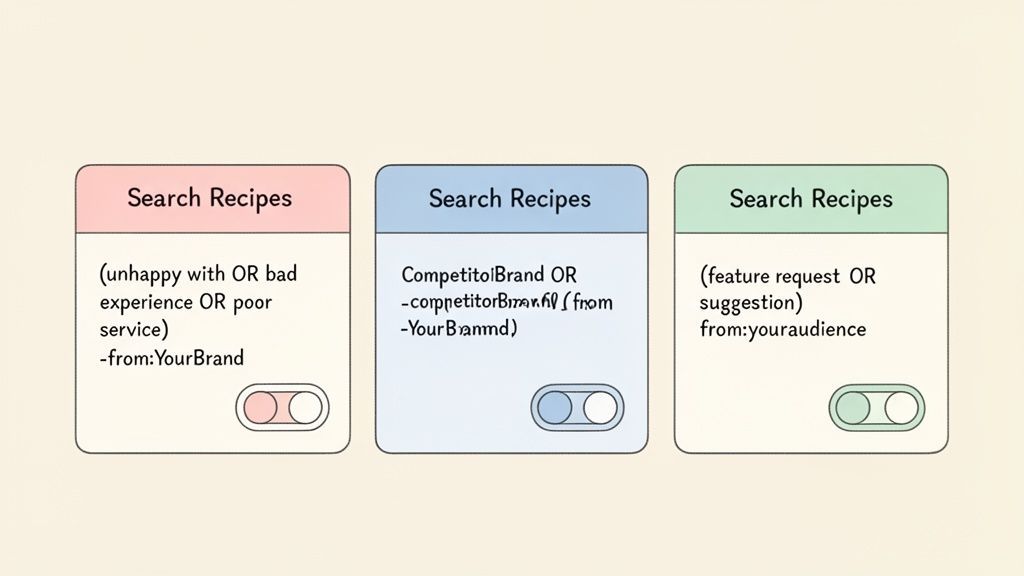
Knowing the operators is one thing, but stringing them together into powerful, practical queries is where you start seeing real results. I like to think of these as "search recipes," simple combinations you can copy, paste, and adapt for your own brand to hit specific marketing goals.
This is all about moving from theory to action. With the right query, you can instantly pull up lists of potential customers, unhappy clients of your competitors, or raving fans. It’s a direct line to the conversations that can genuinely move your business forward.
Uncovering Negative Sentiment About Competitors
One of the best ways to find warm leads is to spot people who are actively unhappy with a competitor. They're already in the market for a solution like yours and are motivated to make a change.
Here’s a search recipe designed to find these exact conversations:
("unhappy with" OR "bad experience" OR "poor service" OR "frustrated with") to:CompetitorBrand -from:YourBrand
- What it does: This query hunts for tweets with common frustration phrases (
"unhappy with","bad experience") sent directly to your competitor's account (to:CompetitorBrand). - Why it works: The
to:operator is key because it targets direct complaints. I've also added-from:YourBrandto ensure your own account's replies don't clutter the results. This leaves you with a clean feed of customer pain points you can potentially solve.
Finding Potential Brand Advocates
On the flip side, you want to find people already saying great things about you, especially those who aren't tagging your account directly. These are your potential brand advocates, and a little acknowledgment can build incredible loyalty.
Use this recipe to find positive, untagged mentions:
"love YourBrand" OR "amazing experience with YourBrand" -@YourBrand -from:YourBrand lang:en
- What it does: It searches for common positive phrases tied to your brand name but specifically excludes any tweets that directly mention your handle (
-@YourBrand). - Why it works: This uncovers authentic, organic praise. The
lang:enoperator also helps filter results to English-language tweets, making the feedback easier to analyze. Once you find these posts, a simple "thank you" can go a long way.
Pro Tip: Don’t just find these conversations and move on. The real value comes from turning monitoring into proactive marketing. When you discover an unhappy competitor's customer, don't just jump in with a sales pitch. Offer a helpful tip or resource first. This builds trust and positions you as a helpful expert, not just another seller.
The efficiency of this whole process is what matters. Finding these opportunities is step one, but you need a system to act on them. Using the right social media tools to improve your workflow in 2025 is essential. For instance, after running these searches, you could use a scheduler like PostFast to plan and queue thoughtful, non-salesy responses, making sure you follow up consistently.
Identifying Customer Questions to Answer
Another fantastic use for twitter advanced search is finding questions people are asking about your industry or product category. Answering them positions you as an authority and gives you incredible fodder for your content calendar.
Try this query to find relevant questions:
("how do I" OR "any tips for" OR "can someone explain") "your industry keyword" ? -filter:links
- What it does: This combines question-based phrases with a relevant industry keyword (like "content scheduling" or "email marketing") and the question mark operator (
?). - Why it works: The
?specifically isolates tweets phrased as questions. Adding-filter:linkshelps remove promotional tweets or blog posts, leaving you with genuine user queries. You get a direct look into your audience's needs, which you can then address in your content.
Common Twitter Advanced Search Recipes
To make things even easier, here are a few more ready-to-use queries. Just swap out the placeholders like 'YourBrand' or 'keyword' with your own terms.
| Goal | Example Search Query |
|---|---|
| Find Influencers | ("keyword" OR #hashtag) min_faves:1000 lang:en |
| Monitor Your Brand | YourBrand OR @YourBrand OR #YourBrand |
| Track Competitors | CompetitorBrand OR @CompetitorBrand -from:CompetitorBrand |
| Discover UGC | from:YourBrand filter:media -filter:retweets |
| Local Customer Service | ("any recommendations" OR "where can I find") "service" near:"city" within:15mi |
| Lead Generation | ("looking for" OR "need a") "your product/service" -filter:links ? |
These recipes are just a starting point. Feel free to mix, match, and modify the operators to fit your exact needs. The more comfortable you get with combining them, the more powerful your searches will become.
Turning Search Insights into a Content Workflow
If the posts you plan from these searches point back to your site, build the links with our free UTM builder so you can see in GA4 which conversations actually drive traffic.
Finding a game-changing insight with twitter advanced search is a great start, but it’s just that—a start. Raw data is noise until you organize it. The real magic happens when you build a system that turns those scattered search results into a proactive content engine.
Instead of guessing what your audience wants, you now have a direct line into their questions, frustrations, and interests. This process transforms tweets into a clear roadmap for what you should create next.
From Discovery to Content Calendar
The first thing to do is start categorizing what you find. When you spot a recurring customer question, don't just answer it once and move on. Treat it like a content pillar. That one question could easily become a thread, a short video tutorial, and a full blog post.
Imagine you're a SaaS company and find multiple tweets asking, "how do I integrate [your software] with [another popular tool]?". That’s a massive green light. It’s time to create a dedicated tutorial. You can then jump into a tool like PostFast to schedule a series of posts promoting it across all your channels, making sure your answer reaches everyone who needs it. For the X posts in that series, aim at the weekday morning windows where both the consensus and 9,339 real scheduled posts concentrate.
Suddenly, your content shifts from being purely promotional to genuinely helpful, which is a much smarter way to build trust.
Creating Ongoing Monitoring Streams
Your best search queries should never be one-offs. X lets you save your most valuable searches, creating persistent feeds you can check daily or weekly to keep a finger on the pulse.
To save a search, just run your query, click the three-dot menu next to the search bar, and hit "Save search." You can save up to 25 searches per account, so make them count.
Here are a few saved searches you should create right away:
- Your Brand Mentions:
YourBrand OR @YourBrand -from:YourBrandto catch every conversation about you that isn't from you. - Competitor Pain Points:
("frustrated with" OR "bad service") to:CompetitorBrandto spot where their customers are unhappy and you can step in. - Industry Questions:
("how to" OR "any tips for") "your keyword" ?to find an endless stream of content ideas.
Checking these saved searches regularly creates a feedback loop that constantly feeds fresh ideas into your content workflow. To get the full picture, pair these insights with a solid understanding of how to see Twitter analytics.
Understanding the Language of Your Customers
One of the most underrated benefits here is learning how your customers actually talk. Pay close attention to the specific words and phrases they use when they describe their problems or what they love about something.
When you mirror your audience's language in your own content, your brand instantly becomes more relatable. You're no longer a corporation talking at them; you're part of their conversation.
This is especially critical in niche or regional markets. For instance, in January 2025, X had an ad reach equivalent to 11.0% of adults in Bulgaria. Among the country's 4.37 million social media users, twitter advanced search is the perfect tool for pinpointing high-value conversations within that specific audience. You can dig into more stats about Bulgaria's digital landscape on DataReportal.
By systematically collecting and analyzing these conversations, you build a powerful foundation for your entire marketing strategy, including analyzing the competition. This data-driven approach ensures your content is always relevant. The final step is to use a platform like PostFast to schedule it all out, turning your hard-won insights into a consistent and engaging social media presence.
Common Questions About Advanced Search
Once you start getting the hang of operators and search recipes, a few questions tend to pop up. Let's tackle the most common ones so you can search with total confidence.
Think of this as your go-to FAQ for getting the most out of X's powerful search tools.
What’s the Real Difference Between Standard and Advanced Search?
The standard search bar is for quick hits. It's perfect when you need to find a specific person or see what's happening with a trending hashtag. But it's a blunt instrument, giving you very little real control over the results.
Advanced Search, on the other hand, is a precision tool. It gives you a dedicated interface with specific fields for dates, users, engagement numbers, and even words you want to exclude. This lets you stack multiple filters at once to find the exact conversation you're looking for, something that’s almost impossible with the basic search bar.
Think of it this way: standard search finds a needle in a haystack by dumping the whole haystack on you. Advanced Search is like a powerful magnet that pulls the needle right out.
Can I Save My Most Useful Searches?
Absolutely, and you definitely should. X lets you save up to 25 searches per account, which is a game-changer if you’re regularly monitoring your brand, competitors, or key industry topics.
After you run a search you want to keep, just click the three-dot menu next to the search bar and hit "Save search." This creates a live feed you can check anytime, turning a one-off query into an ongoing intelligence stream. It's a massive time-saver.
How Do I Find Tweets from a Specific Location?
Finding geo-targeted tweets is one of the most powerful things you can do, especially for local businesses or marketers running regional campaigns. While you can use the dedicated location fields in the interface, you can also run these searches straight from the main search bar using operators.
The syntax is pretty simple:
keyword near:"city": Finds tweets with your keyword posted near a specific city.keyword near:"city" within:15mi: Narrows that search down to a specific radius, in this case, 15 miles.
For example, a café in Sofia could search for “best coffee” near:”Sofia” within:5km to find people nearby looking for a recommendation. It’s a simple way to tap into local conversations and spot opportunities right on your doorstep. Just remember, this only works if users have location services turned on, so it won’t catch every single tweet. But it's an incredibly effective place to start for local marketing.
Finding the right conversations is just the first step. To turn those insights into a consistent, engaging presence, you need a powerful scheduling tool. PostFast helps you plan, schedule, and analyze your content across all major platforms from one simple dashboard, saving you hours every week. Start your free 7-day trial of PostFast today and see how easy it is to build a smarter content workflow.
Related
X scheduling with PostFast
Tweets, images, videos, threads

A Practical Guide to the Twitter Card Validator
Master the Twitter card validator to fix broken link previews on X. This guide shows you how to debug cards, solve common errors, and ensure perfect shares.

How Is Twitter Used: A Practical Guide for Brands and Creators
Discover how is twitter used by leading brands for news, marketing, and community building. Get practical tips to boost engagement and growth.

Best Time to Post on X (Twitter) in 2026: A Practical, Data-Informed Guide
The best time to post on X (Twitter) in 2026: day-by-day windows, when 9,339 real scheduled posts actually publish, and how to find your own peak hours.

Claude for Social Media: Skills, Connectors and What It Can Post
How to use Claude for social media: skills that plan and write posts, a connector that publishes to 11 platforms with your approval, and what Claude can do on each.