Your Guide to Using an Instagram Image Downloader Safely
Learn how to use an Instagram image downloader the right way. Our guide covers safe methods for desktop and mobile, plus legal and ethical considerations.
On this page (6)
An Instagram image downloader is pretty much what it sounds like: a tool that lets you save photos from Instagram onto your device. It's a handy way to back up your own content, see what competitors are up to, or gather user-generated content to share. But, and this is a big one, you absolutely have to respect copyright and Instagram's rules.
Why You Actually Need to Save Instagram Images
Before we get into the how, let's talk about the why. For most creators and marketers I know, saving visuals isn't about hoarding pictures. It’s a key part of a smart content workflow.
Think of it less as a one-off task and more as a foundational piece of a much bigger plan. If you're serious about your social media game, having a solid way to pull visual assets is non-negotiable.
Building a Secure Content Archive
One of the most practical reasons is just to back up your own work. You've poured hours into creating great visuals, writing sharp captions, and building a community. What if your account gets suspended out of the blue, or you somehow lose access? It happens.
Having an offline archive of your posts is your safety net. It guarantees your hard work isn't just gone, and you can repurpose or repost it somewhere else if you need to. This is especially important for creators whose Instagram grid is their entire portfolio.
Analysing Competitor Strategies
Keeping a close eye on what’s working for others in your space is just smart marketing. Saving key images from your competitors lets you build a "swipe file" for inspiration and analysis. You can study their:
- Visual style and branding: What color palettes, filters, and compositions are they leaning on?
- Product photography: How are they showing off their products or services in a way that converts?
- Campaign visuals: What kind of imagery are they using for big promotions or new launches?
Doing this helps you spot trends and sharpen your own visual strategy without endlessly scrolling back through their feed every time you need an idea.
Having a library of competitor visuals helps you spot patterns. You might notice they get huge engagement from behind-the-scenes photos, which could be a signal for you to try a similar approach.
Powering Your Content with UGC
User-generated content (UGC) is gold for building authenticity and trust. When your customers tag your brand in their photos, they're giving you genuine social proof. An Instagram image downloader is the perfect tool for collecting these valuable assets.
This comes with a huge responsibility, though. You must always ask for permission before you reuse someone's photo. Every single time. Once you get the green light, you can feature these images on your own feed, website, or in marketing materials, with proper credit, of course.
This gives you a stream of fresh content and strengthens your community by putting your customers in the spotlight. For teams managing this, keeping track of permissions and organizing all those assets in a central hub, like the one in PostFast, makes the whole process a lot less chaotic.
Navigating Copyright and Instagram's Rules
Using an Instagram image downloader is easy. The tricky part starts the moment you save a photo that isn’t yours. Suddenly, you're dealing with copyright, platform rules, and basic professional courtesy.
Every single image uploaded to Instagram is automatically protected by copyright law. It belongs to the person who created it. It’s a huge and costly mistake to think that just because something is public, it’s free for the taking.
Instagram’s own Terms of Use are crystal clear on this. You can't copy, modify, sell, or distribute any part of their service, and that includes scraping content without getting permission first. While they aren't policing every single download, repurposing someone else’s work without a heads-up puts your account at risk.
Understanding Fair Use and Its Limits
You’ve probably heard of "fair use" (or "fair dealing" in places like the UK and Canada). It's a legal concept that lets you use copyrighted material without permission for specific things like commentary, news reporting, or research. But here’s the catch: fair use is a defense, not a free pass. It's also incredibly subjective.
Here’s what courts look at to decide if your use is fair:
- Purpose: Is it for commercial gain or something non-profit and educational? Using someone's photo in an ad for your product? Almost never fair use.
- Nature: Was the original a highly creative piece, like a photograph, or more factual, like a chart from a news report? Creative work gets much stronger protection.
- Amount: Did you use the whole photo or just a small, cropped piece? Using less is always better.
- Effect on Market: This is the big one. Does your use stop the original creator from making money off their own work? If so, your case for fair use is weak.
Just slapping a filter on someone else’s photo and adding a new caption doesn't cut it. To qualify as fair use, your work needs to be transformative, it has to add a genuinely new meaning or message.
The Golden Rule Ask for Permission
Honestly, the safest and most professional way to handle this is also the simplest: just ask.
A quick DM to the creator asking if you can feature their photo (with credit, of course) is usually all it takes. Be specific about where and how you want to use it. This clarity protects you and shows respect for their work. For teams, managing these permissions can get messy, which is why a shared workspace like the one in PostFast is so useful for organizing user-generated content and keeping track of who gave you the green light.
When you're thinking about the right way to save content, it all comes back to respecting the original creator.
This is especially important in growing markets. Take Bulgaria, for example. Instagram's user base there is expected to hit 1.95 million active users by late 2025, which is 33.2% of the entire eligible population over 13. That's a massive, content-rich community. It creates huge opportunities but also means there are more creators whose work deserves to be treated right. You can dive deeper into these numbers in DataReportal's detailed report.
In the end, whether using an Instagram image downloader is okay comes down to your intent. Saving your own posts as a backup? Totally fine. Grabbing a competitor's visuals for some private market research? Smart move. But taking someone else's creative work and passing it off as your own is where you cross a serious line. And remember, these same ideas apply to other formats, too. You can learn more in our guide on how to view Instagram stories anonymously while still keeping ethics in mind.
Practical Ways to Download Images on a Desktop
When you're on a computer, you've got a few solid options for saving images from Instagram. Each method comes with its own quirks. The best one for you really boils down to how comfortable you are with a bit of code, whether you trust browser extensions, or if you just want a quick web-based tool.
Let's walk through the three main approaches for desktop users. I'll cover everything from digging into the website’s code yourself to using tools that do all the heavy lifting for you.
The Manual Browser Method
If you're the type who likes to see what's happening behind the scenes and you want to avoid installing extra software, this one's for you. It might sound a bit technical at first, but it’s a great way to grab a high-resolution image directly from the source. No third-party tools needed.
Here’s how you can do it:
- Go to the Instagram post you want to save in your web browser.
- Right-click anywhere on the page (but not directly on the image) and select "View Page Source". A new tab will pop open, filled with the website's HTML code.
- Don't get overwhelmed by the wall of text. Just press Ctrl+F (or Cmd+F on a Mac) to bring up the search bar.
- In the search box, type
og:imageand hit enter. Your browser will instantly highlight a line of code containing a URL right aftercontent=. - Carefully copy that entire URL, paste it into a new browser tab, and press Enter. The image will load all by itself, ready for you to right-click and save.
This method gives you total control and means you aren't sharing data with unknown apps. The only downside? It can feel a bit slow if you have a bunch of photos to save.
Using Trusted Browser Extensions
For those who download images more frequently, a browser extension can be a massive time-saver. These little add-ons live right in your browser, often adding a simple download button to Instagram posts. The key here is to choose one that's trustworthy, as some extensions can pose a privacy risk.
Before installing anything, do a quick safety check:
- Check the Reviews: See what other users are saying in the Chrome Web Store or Firefox Add-ons marketplace. A high number of positive reviews is always a good sign.
- Read the Permissions: When you install an extension, it will ask for certain permissions. Make sure it's not asking for more access than it needs to function.
- Look at the Last Update: A recently updated extension suggests the developer is actively maintaining it and patching potential security holes.
Once you find a good one, the process is usually as simple as clicking a button. You get speed and convenience, but you are placing your trust in a third-party developer.
Web-Based Instagram Image Downloader Tools
Online downloader websites are probably the easiest method of all. You just copy the URL of the Instagram post, paste it into a field on the website, and it spits out a download link for the image. There's nothing to install, and it works on any desktop browser.
However, this convenience comes with its own set of warnings. Many of these free sites are plastered with ads, which can be intrusive or even link to sketchy places. Always be careful what you click.
A quick word of caution: When using a web-based tool, be smart about your privacy. Never, ever enter your Instagram login details on one of these sites. A legitimate downloader only needs the public URL of the post.
To help you decide, here’s a quick comparison of the methods we've covered.
Comparing Desktop Instagram Image Download Methods
| Method | Ease of Use | Safety Level | Best For |
|---|---|---|---|
| Manual Browser | Low | High | Users who want full control and avoid third-party tools. |
| Browser Extension | High | Medium | Frequent downloaders who prioritize speed and convenience. |
| Web-Based Tool | Very High | Low-Medium | Quick, one-off downloads without any installation. |
Each approach has its place, but safety and ease of use are often a trade-off.
The decision tree below offers a simple workflow for figuring out if you can even use an image you find.
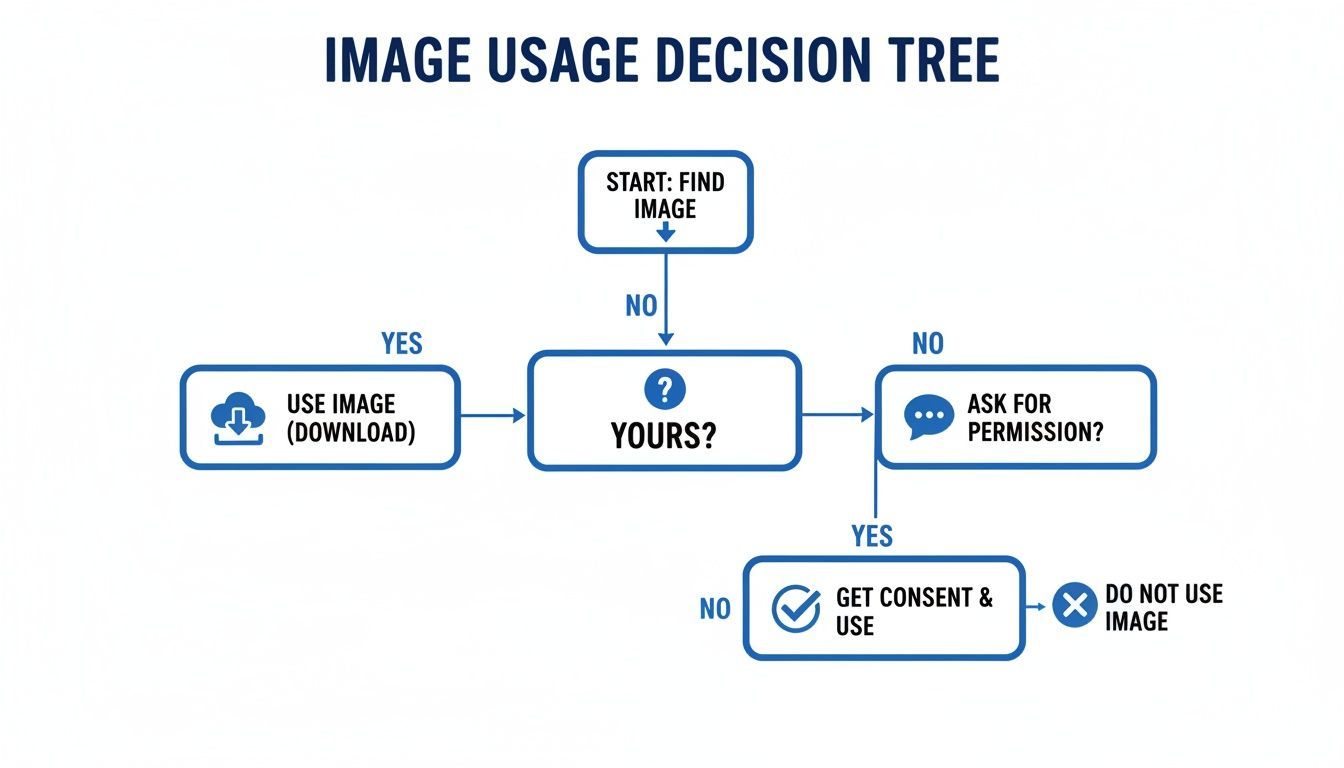
The main takeaway is that ownership is the first and most important question. If the image isn't yours, getting permission is the critical next step.
While these tools are great for the occasional download, constantly saving files to your computer leads to a disorganized mess of assets. For creators and marketers managing a lot of visual content, this manual process becomes a real bottleneck.
A much better long-term strategy is to use a platform like PostFast. You can manage, schedule, and repurpose all your visuals from a central library, skipping the download-and-re-upload cycle entirely. It keeps your workflow clean and your content perfectly organized.
How to Save Instagram Photos on Your Phone
If you’re running your social media from your phone, you need a quick, safe way to grab images on the go. Whether you're on an Android or iOS device, having a reliable method to download photos directly to your camera roll makes curating assets for a scheduler like PostFast so much easier.
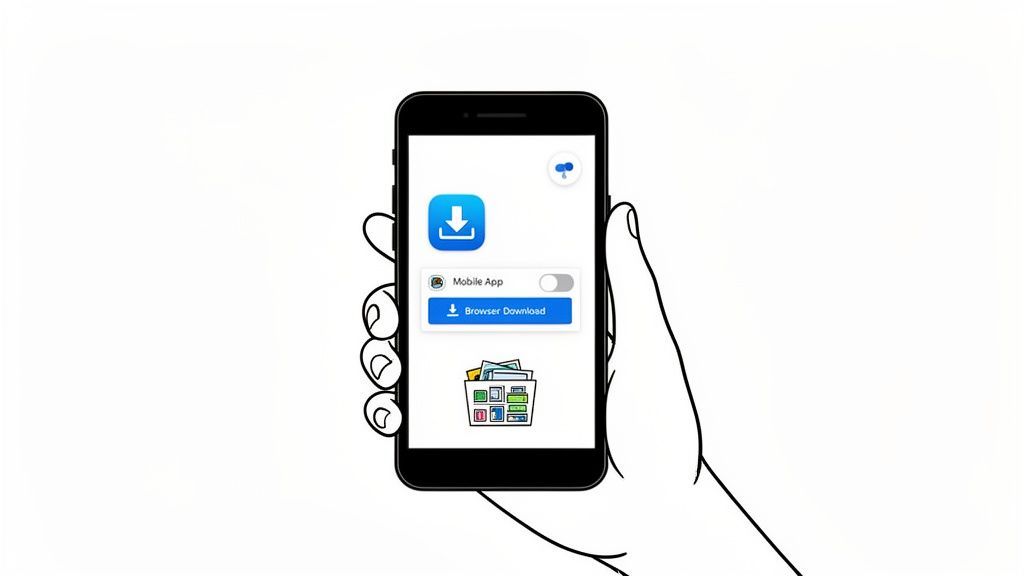
Unlike on a desktop, the mobile world tends to push you towards dedicated apps. This can be super convenient, but it also means you need to be a bit more careful. Let's walk through the best ways to use an instagram image downloader on your phone without compromising on efficiency or security.
Choosing a Safe Mobile Downloader App
A quick search in the Google Play Store or Apple App Store will show you dozens of apps promising easy downloads. Be warned: they are not all created equal. A sketchy app can do a lot more damage than just failing to work, it can put your data at risk.
Before you hit 'Install', do a quick background check:
- Check the reviews and ratings. You're looking for a solid history of recent, positive reviews. A few bad ones are normal, but a consistent pattern of complaints about ads, crashes, or privacy concerns is a huge red flag.
- Review the permissions. Sure, a photo-saving app needs access to your storage. But does it really need your contacts, microphone, or location? Question any permission that doesn't feel essential for its core job.
- Look for a privacy policy. Reputable developers will always have a clear privacy policy explaining what data they collect. If you can't find one, it's a hard pass.
Once you’ve found an app you trust, the process is usually dead simple. You just copy the link to the Instagram post, paste it into the app, and it saves the image right to your phone's gallery.
Using Browser-Based Tools on Mobile
Not keen on installing another app? I get it. Mobile-friendly websites are a fantastic alternative. They work exactly like their desktop versions: you pop open Chrome or Safari, paste the Instagram post URL, and download the image directly.
This approach has some real perks. It doesn't take up any storage space on your phone and completely sidesteps the whole app permissions issue. Just be mindful that many free web tools are plastered with ads, so be careful to tap on the actual download buttons.
A key takeaway for any mobile method: Never, ever give out your Instagram login details. A legitimate tool only needs the public URL of the photo you want. If a tool asks for your password, it’s a phishing scam. Simple as that.
The need for these tools is especially strong in highly engaged markets. Take Bulgarian Instagram demographics, for example. It's a vibrant, youthful audience, with 29.9% of its 1.949 million users falling in the 25-34 age group. With a user base that is 53% female, the platform is a hotspot for visual content that drives shares and conversation, making a reliable instagram image downloader essential. You can dig into more of these audience insights on Statista.
Keeping Your Saved Media Organised
Downloading the images is the easy part. The real challenge, especially for busy creators, is preventing your camera roll from turning into a chaotic mess. A little bit of organization goes a long, long way.
Here are a few quick tips to keep your visual assets in check:
- Create Dedicated Albums: The moment you download an image, move it. Create specific folders like "July UGC," "Competitor Visuals," or "My Content Backups."
- Use a Naming Convention: If your phone's file manager allows it, rename files with a consistent format. Something like
BrandName_UGC_Date.jpgcan be a lifesaver when you're searching for something specific later. - Integrate Cloud Storage: Set up your phone to automatically back up your photos to a service like Google Photos or iCloud. This not only secures your files but makes them instantly accessible on your desktop for editing and scheduling.
By putting a simple system in place, you transform your downloaded images from digital clutter into a ready-to-use content library. This is a game-changer when you need to find the right visuals for your next post. And when you're prepping content, remember that dimensions matter, our guide on the correct Instagram Story size will help make sure everything looks perfect.
A Smarter Way to Manage Your Visual Content
Grabbing a photo with an Instagram image downloader is handy in a pinch, but it’s a quick fix for a much bigger problem. If you're constantly saving files to your desktop or camera roll, you know how quickly it turns into chaos. Pretty soon, you’re staring at a messy folder of random JPEGs, and finding the right one feels like a scavenger hunt.
This download-and-re-upload cycle isn't just disorganized; it's slow. It adds pointless steps to your workflow, creates a bunch of duplicate files, and makes working with a team feel clunky. There’s a much cleaner, more professional way to handle all your visual content.
Beyond Downloading to Content Management
The real goal isn't just to save an image, it's to use that image effectively. This means shifting your mindset from just downloading to actually managing your content in an integrated way. Stop thinking of each image as a separate file you have to chase down. Instead, see your visuals as valuable assets living in one central, organized place.
This is where a platform like PostFast completely changes the game. It gives you a central media library to store, organize, and pull from. Our guide on reposting on Instagram touches on this, explaining why a structured workflow is so important for your overall strategy.
Switching to this approach gives you a few powerful advantages:
- A single source of truth: Your whole team pulls from the same library of approved visuals. No more confusion or brand inconsistencies.
- Effortless organization: Tag, categorize, and sort your images. Finding exactly what you need takes seconds, not minutes.
- No more re-uploading: Once an asset is in your library, you can schedule it across multiple platforms without ever downloading it again.
Building an Efficient Content Lifecycle
An integrated system does more than just hold your photos. It helps you manage the entire lifecycle of your content, from the first spark of an idea to the final performance analysis. When you connect your media library to a content calendar, you can see your entire strategy laid out visually.
A calendar view lets you plan your feed, make sure you have a good mix of content, and spot any gaps in your schedule. It’s a huge leap from a folder full of files named IMG_8765.jpeg. You move from reactive posting to a thoughtful, proactive strategy.
Instead of asking, "What should I post today?" you can glance at your calendar and see your pre-planned, visually cohesive content ready to go. This simple shift frees up a ton of creative energy.
And if you're looking to apply this organized approach more broadly, the core principles are the same: a central hub and a clear workflow are key, whether you’re running one Instagram profile or ten.
Unlocking True Repurposing Power
But the biggest win? How simple it makes content repurposing. An image you post on Instagram is rarely just an Instagram image. It could be part of a carousel, a background for a Story, a key visual in a blog post, or an asset for your next email newsletter.
When your images are stuck on your hard drive, repurposing is a manual, time-sucking chore. You have to find the file, open it in an editor, create a new version, save it, and then upload it all over again. For a quick one-off, our free in-browser image cropper recuts a saved photo to a platform preset without the file ever leaving your machine.
With a platform like PostFast, you just pull an image from your library and adapt it for different formats right inside your workflow. This lets you turn one great visual into multiple pieces of content, stretching its value and reach without cluttering your desktop. It's a smarter, more sustainable way to build your brand’s visual story.
Common Questions About Instagram Image Downloaders
Even with the best methods laid out, you might still have a few questions buzzing around. Dipping your toes into Instagram image downloaders can feel like a bit of a grey area, so let's clear up the most common concerns.
This way, you can move forward feeling confident about how you’re managing your visual content.
Is It Safe to Use an Instagram Image Downloader?
The short answer: yes, but only if you pick the right tool.
A good rule of thumb is to stick with methods that don’t ask for your personal information. Web-based tools and browser extensions that only need the public URL of a post are generally much safer because they have no direct link to your account.
The real danger comes from apps or sketchy websites that ask you to log in with your Instagram details. Never give your password to a third-party tool. That’s a massive security risk and a fast track to getting your account compromised. Always, always check reviews and the permissions an app requests before you even think about installing it.
The safest download tools are the ones that work anonymously. If a service demands your login details just to download a public image, it's a huge red flag. Run the other way.
Will My Account Get Banned for Downloading Images?
It's highly unlikely you’ll get banned for just saving images. This is especially true if it's your own content you're backing up, or if you're using images for personal, private use like a mood board.
Instagram’s main focus is on stopping large-scale copyright infringement and automated scraping that hammers their servers and violates their terms of service.
The trouble really starts when you start re-uploading someone else's content without their permission, particularly if you’re trying to make money from it. That's a clear violation that can get the content taken down. If you keep doing it, you risk getting your account suspended. As long as you're using a downloader responsibly for backups or private research, the risk is incredibly low.
Can I Download Images from Private Accounts?
Nope, and you shouldn't even try.
Any reputable downloader won't be able to access content from private Instagram accounts, and they don't try to. People set their accounts to private for a reason, and any tool that claims it can get around that is almost certainly a scam or malware designed to steal your data.
Respecting a user's privacy settings is non-negotiable. If you really need an image from a private account, the only legitimate way is to send a follow request. If they accept, you can then ask the person directly for the photo.
Managing your social media content should make your life easier, not add another complicated task to your list. While an Instagram image downloader is useful in a pinch, a truly organized workflow comes from having all your visual assets in one central spot.
With PostFast, you can build a clean media library, schedule your posts visually, and repurpose content without the chaos of endless downloads and scattered files. Start your free 7-day trial of PostFast today and see how a smarter system can save you hours every single week.
Related
Instagram scheduling with PostFast
Feed posts, Reels, Stories, carousels
How to Schedule Instagram Posts from Desktop in 2026: Every Method That Works
Three ways to schedule Instagram posts from a desktop in 2026: Meta Business Suite, Instagram's own scheduler, and PostFast. Steps, limits, and a checklist.
A Guide to Instagram Image Download Methods for Any Device
Discover safe and effective methods for an Instagram image download on any device. Learn how to save photos for your content strategy and avoid common pitfalls.
Your Guide to Instagram Video Download HD in 2026
Learn how to master Instagram video download HD on any device. Our guide covers safe methods, quality tips, and smart ways to repurpose content.
How to View Instagram Stories Anonymously: What Still Works
Which anonymous Instagram Story methods still work and which quietly stopped. Third-party viewers, airplane mode, burner accounts, tested and compared.
How to Connect Claude to Instagram: Post, Schedule, Reply
Connect Claude to Instagram so it can schedule posts, Reels and Stories, answer comments and report post stats. Setup steps, prompts that work, and limits.