Download Pinterest Video: Save It Safely (download pinterest video)
Discover how to download pinterest video safely on desktop or mobile and save ideas for later.
On this page (6)
You've stumbled upon the perfect video on Pinterest. Maybe it's a killer workout, a recipe you have to try, or a spark of marketing genius for your next campaign. You want to save it, but there's a catch: Pinterest doesn't have a built-in "download" button to save videos directly to your device.
Don't worry. I'll walk you through a few solid ways to get it done safely and effectively.
Why Bother Downloading a Pinterest Video?
Pinterest is fantastic for discovery, but a saved Pin can easily get lost in your boards. For many of us, especially creators and marketers, downloading a video is about turning that fleeting inspiration into something tangible you can actually work with.
It’s about making ideas actionable. Whether you're building a content strategy or just organizing your personal life, having that video file on hand is a game-changer. It’s no longer just an idea on your feed; it’s an asset you can use whenever you need it.
Build an Inspiration Swipe File
For anyone creating content, inspiration is everything. When you find a video with a slick editing style, a clever narrative, or a cool product demo, saving it helps you build a personal "swipe file." Think of it as your private library of high-quality examples you can pull from when you're brainstorming.
Instead of trying to recall that one video you saw weeks ago, you'll have an organized folder of proven concepts right on your computer, ready to go.
Create Personal Collections for Offline Use
Not everyone is downloading videos for work. Sometimes it's just practical. I've known people who save their favorite workout routines for the gym where the Wi-Fi is terrible, or pull up recipe tutorials in the kitchen without fumbling with the app.
By downloading videos, you build reliable, accessible collections for your hobbies. Your go-to guides for DIY projects, fitness routines, or cooking classes are always there, internet or not.
Streamline Your Content Workflow
If you're a social media manager, efficiency is your best friend. Downloading your own brand's video content from Pinterest is a smart way to repurpose it across other platforms. A video that took off as a Pin could be a fantastic Instagram Reel, TikTok, or YouTube Short.
Here’s how it slots into a professional workflow:
- Repurpose with ease: Quickly edit and reformat your own videos for different channels without starting from scratch.
- Archive your assets: Keep a local backup of your best-performing videos for future campaigns or your portfolio.
- Schedule and automate: Upload the downloaded files into a content scheduler to plan out your posts across multiple platforms from one central hub.
For example, once you download a Pinterest video, you can drop it straight into a tool to manage your content calendar. If you're curious about how that works, our guide on PostFast's Pinterest integration shows you just how smooth the process can be. It’s a simple step that saves a surprising amount of time and keeps your content strategy consistent everywhere.
Using Third-Party Tools to Download Videos Safely
The quickest way to download a Pinterest video is usually with a third-party tool. These are websites built for one job: you paste in a Pinterest URL, and they spit out a downloadable video file. It’s a popular route because it's fast and doesn't require any technical know-how.
The workflow is dead simple. Find a video on Pinterest, copy the link, and pop it into the downloader's website. The site processes it for a moment and then gives you a download link, sometimes with a few quality options.
But here’s the catch: convenience can come at a cost. Not all of these tools are safe. The web is littered with sites that look legit but are really just there to spam you with aggressive ads or, worse, compromise your device. Choosing the right tool is everything.
How to Spot a Trustworthy Downloader
You don’t need to be a security expert to vet a downloader site. A few quick checks can tell you whether a tool is reliable or if you should close the tab immediately. Good services are clean and transparent, while sketchy ones give themselves away with some classic red flags.
Here’s what to look for:
- A Clean and Simple Interface: Reputable tools don't need a lot of fluff. Their sites are usually clean, focused on the task, and easy to navigate without clutter.
- Minimal and Non-Intrusive Ads: Free tools often run ads to stay afloat, and that's fine. But if you’re getting slammed with pop-ups, misleading "Download" buttons, or random redirects, just leave.
- No Personal Information Required: A video downloader has zero reason to ask for your email, name, or other personal details. If a site demands you sign up or log in, that’s a hard pass.
- No Forced Software Installation: The entire process should happen in your browser. Be extremely wary of any site that insists you download an extension or program. That’s a common trick to sneak in malware.
A safe downloader does one job well: it turns a URL into a video file. Any tool that complicates this simple exchange with requests for data or software installs is likely not worth the risk.
Think of it like choosing a coffee shop. You’d go to the one with a clean counter and a clear menu. You wouldn't stick around if the lights were flickering and the barista asked for your passport to make a latte. Apply that same gut feeling online.
To make things clearer, here’s a quick comparison of the download methods we've discussed.
Comparing Methods for Downloading Pinterest Videos
This table gives you a side-by-side look at different ways to download Pinterest videos, highlighting their ease of use, quality options, and security considerations.
| Method | Ease of Use | Best For | Security Risk |
|---|---|---|---|
| Third-Party Sites | Very Easy | Quick, one-off downloads without technical skill. | High (if not vetted carefully) |
| Browser DevTools | Moderate | Users comfortable with browser tools who want direct downloads. | Low |
| Screen Recording | Easy | Capturing any video, especially stubborn or protected ones. | Very Low |
| Mobile Apps | Easy | Saving videos directly to your phone for offline viewing. | Medium (vet app permissions) |
Ultimately, third-party sites are fast but require caution, while methods like screen recording offer a safer, albeit less direct, alternative.
The Rise of Mobile Downloader Apps
The demand for saving Pinterest content has also led to a boom in mobile apps. A quick search on any app store shows dozens of Pinterest video downloaders, many with high ratings and thousands of reviews.
Apps like PinSaver and PinGrab have become popular for saving and organizing Pinterest content on the go. The fact that some of these apps have ratings as high as 4.5 out of 5 stars and receive regular updates shows that people are actively using them.
When looking at mobile apps, the same rules apply. Always check the reviews and ratings. Look for recent, positive feedback. Before you hit "Install," check the app's permissions. If a simple video downloader wants access to your contacts or location, find another one.
What to Do When a Tool Fails
Even the best tools can hit a snag. Sometimes a downloader will throw an error, often because Pinterest updated something on their end and the tool hasn't caught up yet. If that happens, the easiest fix is to just try another reputable downloader.
If you’re still stuck, or if you’d rather avoid third-party sites altogether, you have other options. For instance, when direct downloading fails, turning to the best free screen capture tools is an effective workaround. This lets you record whatever is playing on your screen, giving you a foolproof backup plan for any video.
A Technical Method Using Browser Developer Tools
If you'd rather keep things in-house and aren't afraid to look under the hood of your web browser, there's a great way to download a Pinterest video without any third-party sites. Using your browser's built-in developer tools gives you a direct line to the video file itself, ensuring you get the highest quality available. It’s a bit more hands-on, sure, but it's completely secure and surprisingly easy once you get the hang of it.
This technique essentially lets you peek behind the curtain to see all the files your browser is loading when you play a video on Pinterest. Buried among all the code and text files is the actual video, and you can just grab it directly. Think of it like walking into the kitchen to get the recipe yourself instead of asking a server to bring it to you.
Finding the Video File in Your Browser
This process works almost identically across modern browsers like Chrome, Firefox, and Edge, with only minor differences in button labels. The goal is simple: open the developer panel, watch the network activity, and pinpoint the video file.
First up, go to the Pinterest Pin with the video you want to save. Once the page is fully loaded, just right-click anywhere and select "Inspect" from the menu that pops up. This opens a new panel, usually docked to the side or bottom of your screen, filled with what looks like a lot of intimidating code. Don't worry, you only need to focus on one specific tab.
In this new panel, look for a tab labeled "Network". Give that a click. This tab shows you every single file your browser requests from Pinterest's servers to build the page you're seeing: images, scripts, and most importantly, the video.
Now, go ahead and play the video on the Pinterest page. As it starts, you’ll see a list of new files popping into the Network tab. To cut through the noise, look for a filter option, often labeled "Media" or something similar. Clicking this will hide everything that isn't a media file, making your target much easier to spot.
How to Isolate and Download the Video
With the filter active, you should see a file with an extension like .mp4 or a "Type" listed as "media." That’s the video file you're looking for. Sometimes Pinterest loads a few different versions for various resolutions, so you might even see more than one to choose from.
Once you’ve found the .mp4 file:
- Right-click on the file name in the list.
- Hover over "Open in new tab" and click it.
- The video will open all by itself in a new browser tab, totally stripped of the Pinterest interface.
- From here, you can simply right-click on the video and choose "Save video as..." to download it straight to your computer.
This method guarantees you get the original file without any watermarks or extra compression added by third-party downloaders.
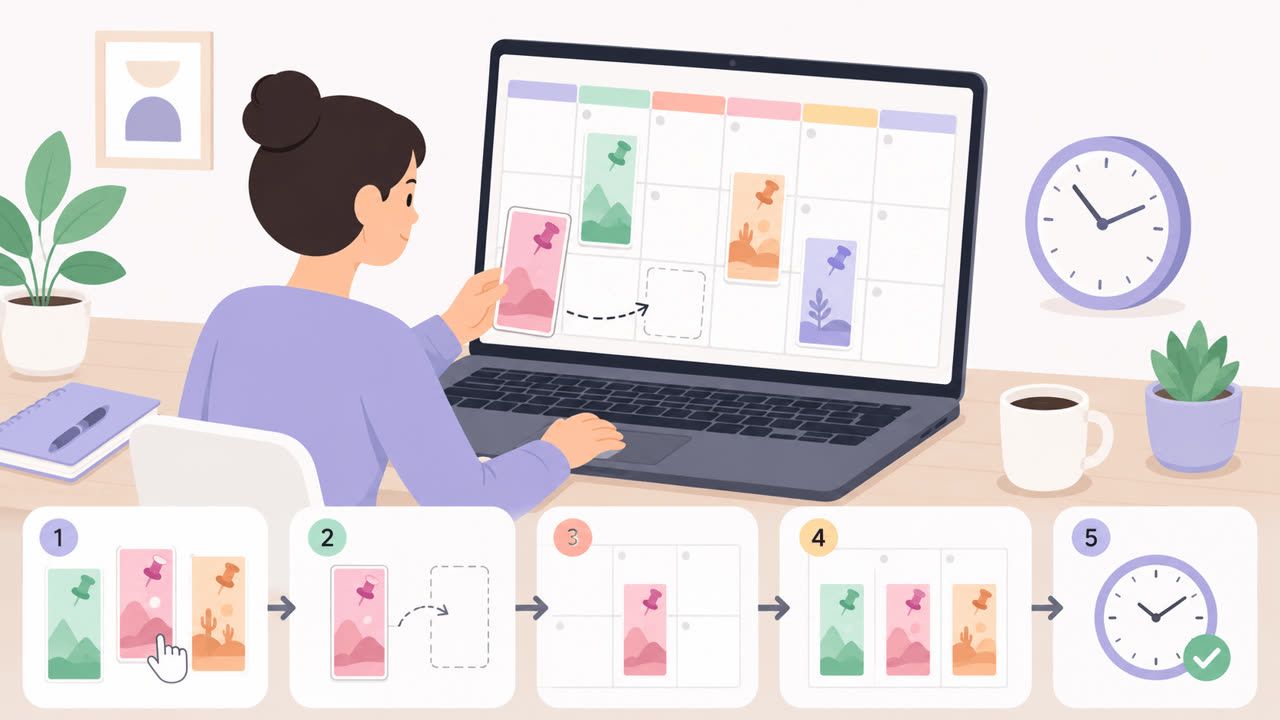
This visualization breaks down the basic idea behind most download methods, whether you're using a tool or finding the file yourself.
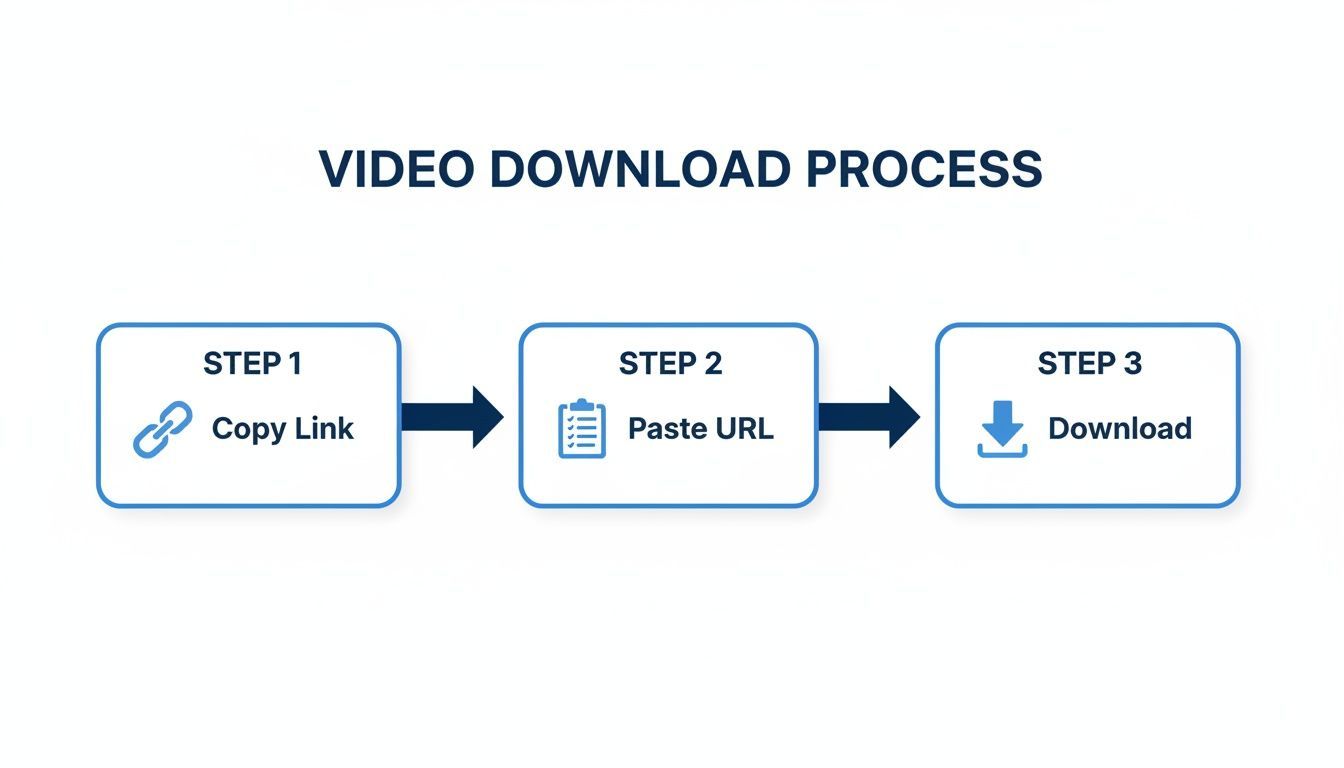
The core steps always boil down to identifying the source, accessing it, and then saving the file locally.
Using developer tools is the cleanest way to download a Pinterest video because it bypasses external services entirely. You're interacting directly with the source content, which means better security and often higher quality.
While this approach involves a few more clicks than just pasting a link into a website, the benefits are huge. You skip the ads, avoid potential security risks from sketchy sites, and have total control over the entire process. It's a fantastic skill for any content creator or social media manager to have in their back pocket.
After downloading a video, you're probably thinking about how to manage and repurpose it. For those looking to slot these assets into a broader content strategy, you can learn more about managing Pinterest Pins programmatically in our detailed API guide. This can help automate parts of your workflow, especially when you're handling a large volume of content for platforms like PostFast. This technical approach pairs nicely with the control you get from using developer tools.
How to Download Pinterest Videos on Mobile
Since most of us are scrolling Pinterest on our phones, it makes sense to save videos directly to your camera roll. It doesn't matter if you're on an iPhone or Android; the process is pretty simple once you know the tricks. The most common route is using a mobile-friendly downloader website, which works great on any device.
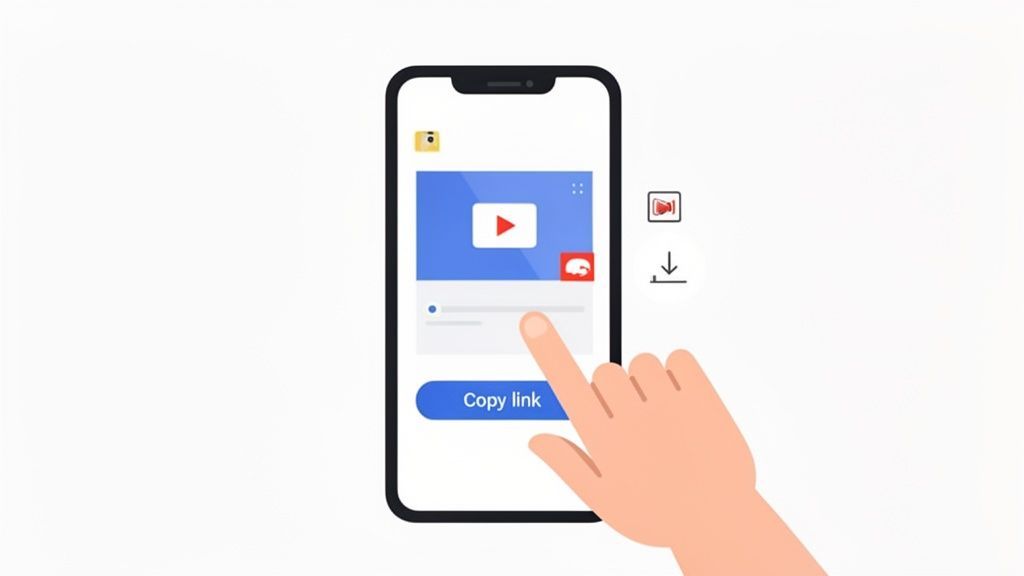
It's a straightforward process. In the Pinterest app, find the video you want, tap the three-dots icon (...), and hit "Copy Link." Once that link is on your clipboard, you just paste it into a trusted downloader site in your mobile browser.
This method is popular because you don't have to install another app, which saves phone storage and helps you avoid sketchy software. It’s the perfect in-and-out solution for grabbing a video you like on the fly.
A Quick Method for iPhone Users
If you're on an iPhone and would rather not deal with third-party websites, you have a powerful tool already built-in: Screen Recording. It’s a fantastic workaround for capturing any video, especially if a downloader site is acting up.
First, you need to make sure the Screen Recording button is in your Control Center. If it isn’t, add it by going to Settings > Control Center and tapping the green plus icon next to Screen Recording.
Once it's ready, here’s what you do:
- Swipe down from the top-right corner of your screen to open the Control Center.
- Tap the record button (the solid circle inside another circle). A three-second countdown will start, and then your phone will be recording everything on the screen.
- Jump back to the Pinterest app and play the video you want to save in full-screen.
- When the video is done, pull down the Control Center again and tap the red record button to stop.
The recording saves directly to your Photos app. From there, you can use the built-in editor to trim the beginning and end, cutting out the parts where you started and stopped the recording. You're left with a clean, perfect clip.
Screen recording is a reliable backup plan. It captures exactly what you see, making it a universal solution for saving any video content without relying on external tools.
This approach gives you a perfect copy of what you just watched, ready to view offline or repurpose.
Finding a Good Downloader App for Android
Android users have a ton of downloader apps to choose from on the Google Play Store. While they can be super convenient, you have to be a bit picky. With so many options out there, the quality and safety can be all over the place.
Before installing an app to download a Pinterest video, do a quick bit of digging. A trustworthy app usually has lots of positive reviews and a recent update history, which shows the developer is still actively supporting it.
More importantly, check the permissions the app asks for when you install it. A video downloader has no business asking for access to your contacts, location, or microphone. If an app wants more access than it needs to function, that's a huge red flag. Stick with apps that only ask for access to your files or storage, which is necessary to save the video.
Once you find a solid app, the workflow is incredibly smooth. You copy the video link from Pinterest, open the downloader, and it often automatically detects the link and asks if you want to download. The saved video will pop up in your phone's gallery, ready to go. For social media managers, this is a great way to quickly grab brand assets on the move before uploading them to a scheduling platform like PostFast to plan out future content.
Understanding Copyright and Fair Use
Knowing how to download a Pinterest video is a handy technical skill. But what you do with that video file afterwards is where things get serious. Navigating the world of online content means being a good digital citizen and knowing a few ground rules about copyright.
Think of every video on Pinterest as someone's creative property. Just like you wouldn't grab a painting from a gallery, you can't just take a video and pass it off as your own. The moment someone creates something original, like a video, it's automatically protected by copyright. This gives them the exclusive right to decide how their work is shared and used.
Personal Use Versus Public Republishing
The crucial difference here is between personal use and public distribution.
If you’re downloading a video to watch on your commute, saving a recipe tutorial for your own kitchen, or keeping a workout routine for the gym, you’re generally in the clear. This is considered personal use, and it almost never causes problems.
The trouble starts when you take that downloaded video and re-upload it. Sharing it on your own social media, using it in a marketing campaign, or embedding it in a blog post without permission is a direct violation of the creator’s copyright.
Simply put: downloading for your private collection is usually fine. Republishing it for everyone else to see is where you cross the line into potential copyright infringement.
This isn't just a Pinterest thing; it's a basic principle of how creative content works on the internet. Respecting this helps keep the community healthy and makes creators feel safe sharing their work.
What Is Fair Use?
You’ve probably heard the term "fair use." It's a legal concept that allows for the limited use of copyrighted material without getting permission first. But it’s a tricky and highly specific doctrine, usually applying to things like commentary, criticism, news reporting, and education.
Fair use typically hinges on a few factors:
- The purpose: Is your use commercial, or is it non-profit and educational?
- The nature of the work: Was the original highly creative or more factual?
- The amount used: Did you use a small clip or the entire video?
- The market effect: Does your use stop the original creator from making money from their work?
Trying to claim "fair use" for re-uploading an entire Pinterest video is a risky bet. Most of the time, it just won't apply. The safest approach is always to assume the content is protected. If you want to use someone's video, just reach out and ask for permission.
For anyone managing a brand account, this is non-negotiable. If you're handling content from Pinterest or any other platform, you have to know the rules. Our guide on how to download videos from YouTube also digs into these considerations, as the same principles apply everywhere. Always, always get consent before you repurpose.
Common Questions About Downloading Pinterest Videos
When you start saving video files from Pinterest, a few questions almost always pop up. It’s natural to wonder if you’re staying on the right side of the law or just how to get the best possible quality. Getting clear answers makes the whole process feel much safer.
Let's tackle some of the most common queries.
Is It Legal to Download Videos From Pinterest?
This is the big one, and the answer isn’t a simple yes or no. Downloading a video from Pinterest for your own personal, offline viewing is generally fine. Think of it like a private mood board.
The trouble starts if you republish, share, or use that content for commercial purposes without permission from the original creator. Every video is their intellectual property. Re-uploading their work to your own channels or using it in an advert without a clear green light is almost certainly a copyright violation.
The best rule of thumb is to always assume content is protected. Only use it for your own private reference unless you've been given explicit consent.
Can I Get a High-Quality Version of a Pinterest Video?
Absolutely. The quality of the video you download really comes down to two things: the quality of the original upload and the method you use to save it.
Most of the better third-party downloader sites will offer a choice of resolutions, often going up to 1080p if the source file supports it.
If you want the best possible version, the browser developer tools method is excellent. It lets you find and save the direct source file, the very same .mp4 that Pinterest streams to your screen. This is typically the highest quality available. Screen recording is the one method where you might see a drop in quality, as the final video's resolution is limited by your device's display.
Why Are Some Pinterest Videos Not Downloading?
It’s frustrating when a download fails, but there are usually a few common culprits.
Sometimes, the issue is the downloader tool itself. If Pinterest updates its site, some older tools might break. In this case, simply trying a different, more up-to-date website often solves the problem instantly.
Another possibility is that the video is pinned to a private board. These aren't publicly accessible, so downloader tools can't "see" them to grab the file. Finally, the problem could be on your end, a spotty internet connection or a browser extension that's interfering with the process. A good first step is to always try a different tool and temporarily disable your browser extensions.
If you consistently face issues with a specific video, it might be protected or on a private board. Trying a different method, like screen recording, can be a reliable workaround when direct downloads fail.
How Can I Repurpose My Brand's Downloaded Videos?
This is where the real efficiency comes in. Once you download videos that your own brand created and owns, they become incredibly useful assets for your wider content strategy.
You can take these files and upload them directly into a social media scheduling platform to plan their distribution across all your other channels.
For example, a vertical video that did well on Pinterest can easily be scheduled as an Instagram Reel, a TikTok, or a YouTube Short. This tactic saves a massive amount of time and helps your best content connect with a much broader audience. You can also edit these downloaded files to create new content, like highlight reels or compilation videos, all managed from a single content calendar.
By bringing your own brand’s assets into a central hub, you create a more cohesive and efficient workflow. PostFast is designed for exactly this, letting you upload your downloaded videos and schedule them across all your social platforms in just a few clicks. Learn more and start your free trial at https://postfa.st.
If you also publish on Pinterest, how to schedule Pinterest Pins covers Pinterest's built-in scheduler, its 30-day limit, and scheduling Pins weeks ahead.
Related articles

Best Time to Post on Social Media in 2026: 61,008 Posts Scored Against Their Own Normal
61,008 posts with clean metrics, each scored against its account's normal: Instagram 3 PM local, Facebook 3 to 5 PM, YouTube 1 PM or evenings, TikTok flat.

PostFast MCP Server for Claude, ChatGPT and Cursor: Launch Notes and Changelog (2026)
The launch note for PostFast's MCP server: npm release March 2026, ChatGPT and Claude connectors June 2026, inbox tools August 2026. Setup, tools and changelog.
Can You Schedule Posts on Bluesky? How to Schedule Bluesky Posts in 2026
Yes, with a scheduling tool: Bluesky's own app has no scheduler. What Bluesky offers, the 300-grapheme and media limits, and how to schedule with PostFast.

Can You Schedule Posts on LinkedIn? How to Schedule LinkedIn Posts for Profiles and Pages in 2026
Yes. LinkedIn schedules posts 10 minutes to 3 months ahead (1 hour on Pages). Desktop, mobile, and Page steps, plus where PostFast goes further.
How to Schedule Pinterest Pins in 2026: Pinterest's Scheduler vs PostFast, Step by Step
Two ways to schedule Pinterest Pins: Pinterest's own scheduler (30 days ahead, 10 Pins queued) and PostFast for image, video, and multi-image Pins from desktop.

Best Social Media Schedulers in 2026: 11 Tools Compared on Price, Platforms, and Automation
Eleven social media schedulers compared on September 2026 pricing, platforms, auto-publishing, and API or MCP automation, using each vendor's own pricing page.