A Practical Guide to Using Social Media Icons
Learn how to find, customize, and place social media icons to create a cohesive brand experience and drive real engagement on your platforms.
On this page (5)
Social media icons are those little logos for Facebook, Instagram, and X that you see on almost every website. But they are more than just simple graphics; they are a direct line to your brand's community, acting as a visual bridge between your website and your social hubs.
Why Your Social Media Icons Matter More Than You Think
Let’s be honest, social media icons often feel like an afterthought in website design. We tend to tuck them away in a footer and just forget about them.
But these tiny graphics are actually powerful tools. They serve as instant, recognizable shortcuts, guiding your visitors from your website straight to your social channels with a single click.
When someone lands on your site and spots the familiar logos for Instagram or LinkedIn, they do not just see a link. They see an invitation. These icons instantly build a sense of trust and legitimacy, signaling that your brand is active, engaged, and accessible beyond its own digital walls. It creates a much smoother journey for your audience, encouraging them to connect where they already spend their time.
Guiding Users and Building Trust
Think of your icons as digital signposts. They offer a clear, low-effort way for people to learn more about your brand’s personality, see how you interact with customers, and stay in the loop with your latest news. A well-placed icon removes friction, making it ridiculously easy for someone who just enjoyed your blog post to become a new follower.
This connection is a crucial part of your overall Social Media Marketing Strategies and plays a huge role in brand recognition. For many potential customers, seeing an active and professional social media presence is a key trust signal they look for before making a purchase or even sending an inquiry.
Tapping into a Growing Audience
The importance of this connection gets even bigger in growing markets. In Bulgaria, for example, there are now 4.50 million active social media users, which is a massive 67.1 percent of the entire population. This highlights a huge opportunity for brands to connect with new audiences. Understanding these local trends is crucial if you are looking to expand your reach. You can find out more about the growth of social media in Bulgaria.
The real magic happens when visitors arrive to find a stream of engaging, consistent content. Getting them to your profile is only the first step.
Keeping that stream of content fresh is where many brands get stuck. This is where a scheduling tool becomes invaluable. Using a platform like PostFast ensures that when new visitors click through from your website, they are greeted with a vibrant and active profile, making them far more likely to hit that "Follow" button.
Where to Find and How to Customize Your Icons
Finding the right social media icons can feel like digging through a digital junk drawer. You need something that looks sharp, professional, and most importantly feels like your brand. Luckily, there are some fantastic resources out there, from massive free libraries to premium, artist-designed packs.
For most people, a free and open-source library is the perfect place to start. These collections are packed with high-quality vector icons that will not get blurry when you resize them, and they are incredibly easy to use.
Sourcing Your Social Icons
One of the go-to choices for free icons is Font Awesome. It has a gigantic library with logos for pretty much every social network you can imagine. The free plan is more than enough for most projects, giving you simple ways to pop the icons right into your website’s code.
Premium marketplaces like Flaticon or Envato Elements are great when you need something more unique. Here, you will find millions of icons designed by independent artists, often bundled into themed packs. This is a huge time-saver if you want to keep a consistent style across your entire site and stand out from the crowd.
The goal is not just to find an icon; it is to find the right icon. Your choice should reinforce your brand's personality, whether that is minimalist and modern or colorful and playful.
Comparing Popular Sources for Social Media Icons
To help you decide, here’s a quick breakdown of the leading icon libraries, comparing their cost, licensing, and customization features. It is all about finding the perfect fit for your brand's needs and budget.
| Icon Source | Best For | Cost Model | Licensing Type | Customization Level |
|---|---|---|---|---|
| Font Awesome | Quick, code-based implementation on websites | Freemium | Open-source (SIL OFL 1.1) | High (via CSS/SVG) |
| Flaticon | Massive variety & artist-designed packs | Freemium (attribution required) | Custom license | Moderate (on-site editor) |
| Envato Elements | All-in-one creative subscription | Subscription | Commercial license | High (with design software) |
| Icons8 | Consistent styles & multiple formats | Freemium (attribution required) | Custom license | High (with their app) |
| The Noun Project | Diverse, minimalist icons for specific concepts | Freemium (attribution required) | Custom license | Moderate (basic edits) |
Ultimately, whether you pick a free library or a premium subscription depends on how much originality you need. For most, a free source like Font Awesome is plenty, but a premium service can give you that extra edge.
Customizing Icons for Your Brand
Once you have got your icons, it is time to make them your own. Do not just drop the default blue Facebook icon onto your site unless it happens to match your brand palette perfectly. A little customization goes a long way.
Here are a few things to tweak:
- Color Matching: This is the big one. Change the icon colors to match your brand’s primary or secondary palette. It is a small change that makes the icons feel like they truly belong on your site.
- Style Consistency: Are your icons outlined, filled, or full-color? Pick one style and stick with it. A consistent look is clean, organized, and professional.
- Size and Spacing: Make sure your icons are big enough to be instantly recognizable but not so huge they dominate the page. Getting the scale right is crucial for a polished finish, just like ensuring your Facebook profile image size is spot-on.
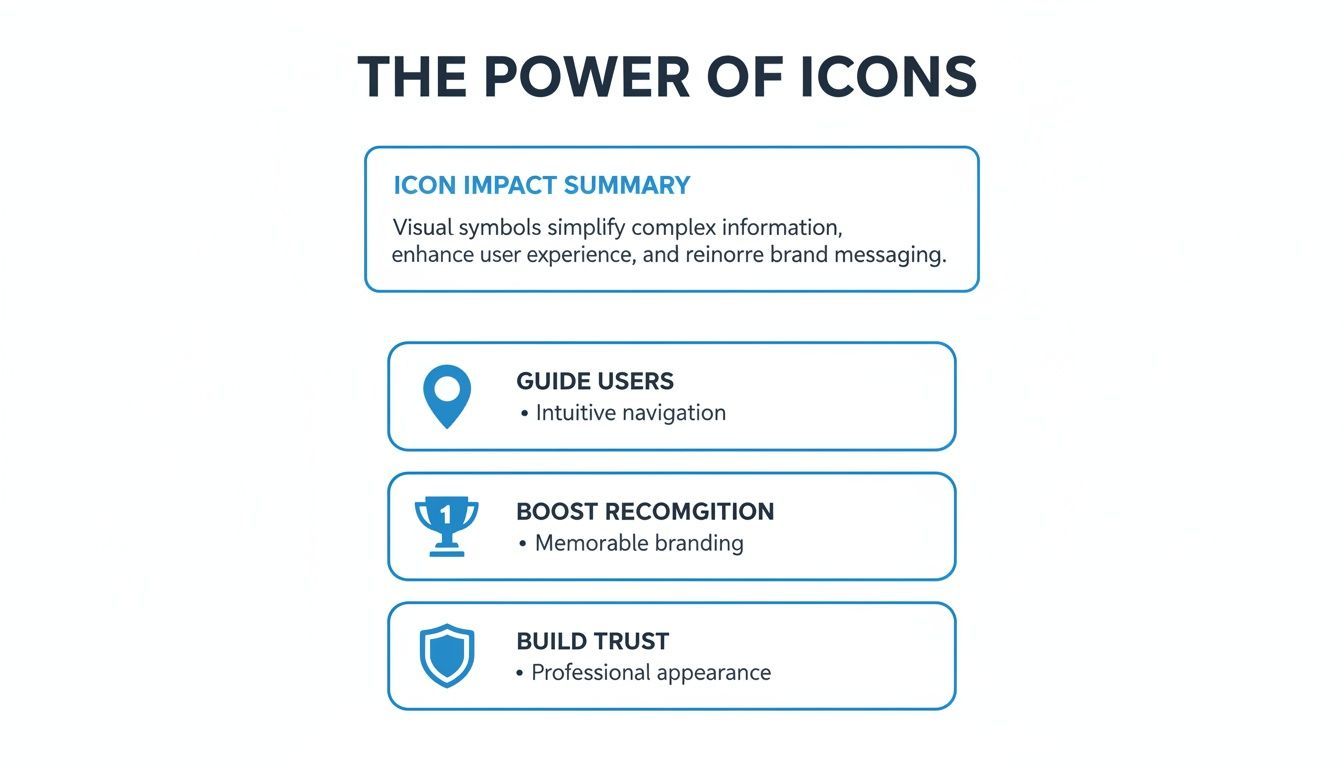
These tiny graphics do a lot of heavy lifting. They guide visitors, reinforce who you are, and build a sense of trust at a glance.
Taking a few minutes to source and customize your social media icons is a small effort that pays off big time in brand consistency. It is an attention to detail that tells your audience you care about the small stuff, reinforcing your visual identity everywhere they find you.
Okay, you have got your custom social media icons looking sharp. Now, where do you put them so people actually see and click on them?
The obvious spots are your website's header and footer. People instinctively glance there for contact info and social links, so that is prime real estate. But do not stop there. Your email signature is another surprisingly powerful place to get more engagement.
The whole point is to weave these icons into the user's journey so seamlessly they feel like a natural next step, not an interruption.
Getting Icons onto Your WordPress Site
Adding icons to a WordPress site is pretty straightforward, and you have got a few ways to do it depending on your theme.
Most modern themes have a built-in spot for social links, usually hiding in the Customizer. You just find the social media section, paste in your profile URLs, and the theme does the heavy lifting, pulling in the right icons and styling them to match. Easy.
If your theme does not play nice, a dedicated plugin is your best friend. Something like "Social Icons Widget & Block by WPZOOM" is a solid choice. It gives you a simple block or widget that you can drag and drop pretty much anywhere, like footers or sidebars. This means you get total control without having to wrestle with code.
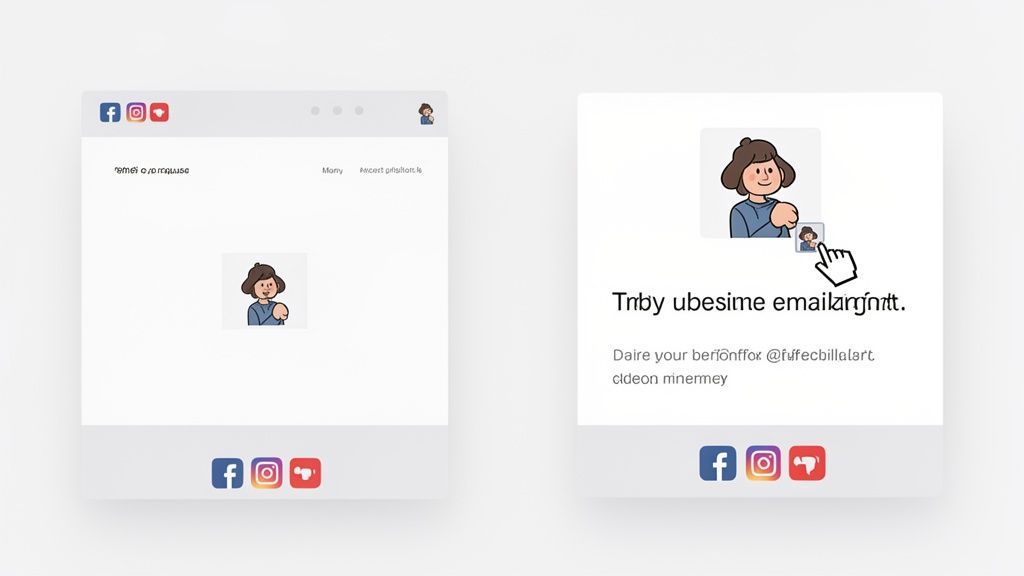
As you can see, these plugins are built to be intuitive. You can add new networks, tweak the colors, and drag the icons into whatever order you like, all from a simple visual editor.
How to Add Icons on Shopify and Squarespace
Platforms like Shopify and Squarespace are designed for people who do not want to mess with code, so they have made this process incredibly simple.
- For Shopify: Jump into your theme editor and look for a "Social media" section, usually under "Theme settings." Drop your profile links for Facebook, Instagram, Pinterest, and others in there, and the icons will pop up in your footer automatically.
- For Squarespace: This platform is all about blocks. You will use a "Social Links Block" which you can add to any page, header, or footer. Just add the block, feed it your profile URLs, and Squarespace generates the icons, making sure they fit your site's design.
Do Not Sleep on Your Email Signature
Seriously, your email signature is one of the most underrated marketing tools you have. Think about it: every single email you send is a chance to point people toward your social channels. Adding those little icons is a small touch that looks professional and quietly works to grow your audience.
An email signature with social icons turns every conversation into a potential connection. It is a simple, passive way to grow your audience with people you are already talking to.
It works pretty much the same way for email clients like Gmail and Outlook:
- Head into your signature settings.
- Use the editor's "Insert Image" tool to upload your icon files one by one.
- Click on each icon and use the "Link" tool to paste in the correct social profile URL.
Done. Now every message you send includes a direct path to your online community.
Knowing which icons to feature is also part of the strategy. For example, if you are targeting a Bulgarian audience, you would want to know that YouTube is the top platform with 4.37 million active users, with Facebook not far behind at 3.50 million. This kind of data tells you exactly which icons deserve the most prominent placement.
Once you have all your profiles linked up, you can make your workflow more efficient by learning how to add social accounts in PostFast and manage everything from one place.
Smart Design and Placement Strategies
Placing your social media icons is just the start. To make them count, you have to think like a designer and a strategist. The goal is simple: make them visible and inviting, but without screaming over your main content or slowing down your website.
It is a balancing act. Your icons need to be big enough for someone on a phone to tap easily, but not so large they become a noisy distraction. A good rule of thumb is to make them at least the size of your body text, usually around 16 pixels, and give them enough breathing room.
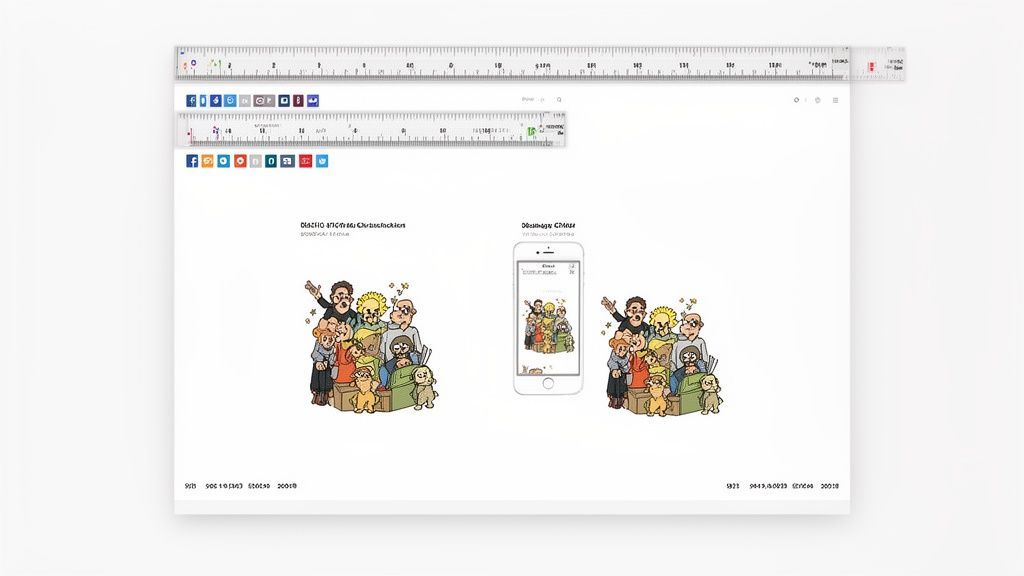
This kind of detail makes your icons feel like a natural part of the design, not just an afterthought. Consistency is everything here; use the same size and style across your entire site for a clean, professional look.
Choosing the Right Locations
Where you put your social media icons directly affects whether people click them. While there is no single magic spot, some locations just work better than others based on years of user behavior.
The website footer is the most common and expected place. It is where people naturally look for contact info, privacy policies, and, you guessed it, social links. Putting your icons here meets user expectations and keeps your prime real estate at the top of the page clear.
Your website header is another solid option, especially if social media is a big part of how you connect with your audience. This gives your profiles maximum visibility on every single page. Just be careful not to overcrowd your main navigation.
Think about the user’s journey. After someone finishes an amazing blog post, an author bio with social links is the perfect next step. It is a natural invitation to connect.
Other smart spots to place them include:
- A dedicated contact page: It just makes sense to group them with all your other contact methods.
- Your blog's sidebar: This keeps them in view as readers scroll through your articles.
- The "About Us" page: Once you have told your brand's story, invite people to follow it as it unfolds on social media.
Performance and Accessibility Matter
Do not overlook the technical side. Your design choices affect your site's speed and how accessible it is to everyone, details that can make or break the user experience.
For performance, file format is key. SVG (Scalable Vector Graphics) is the best choice for icons, hands down. SVGs are incredibly lightweight files that will not bog down your page load times. Better yet, they scale perfectly to any size without losing quality, so they look crisp on everything from a tiny phone screen to a massive monitor.
Accessibility ensures your site works for everyone, including people who use screen readers. Every icon needs descriptive alt text. Instead of a generic "Facebook icon," write something clear like "Follow PostFast on Facebook." This tiny bit of text provides crucial context and tells users exactly where that link is going.
Measuring Your Icon Performance and Engagement
So, you have got your social media icons looking sharp and placed perfectly across your site. Great. But are they actually doing anything? The only way to know if all that effort is paying off is to measure what happens when people click them. It is time to connect those clicks to real results.
The best way to do this is with UTM parameters. They sound technical, but they are really just little snippets of text you add to the end of your social media profile URLs. They do not change where the link goes, but they give your analytics software a ton of context about where that visitor came from.
This means you can see in a tool like Google Analytics that someone did not just land on your Facebook page, they got there by clicking the specific social media icon in your website's footer. That kind of data is gold for understanding how people are actually using your site.
Setting Up Your Tracking Links
Building these links is surprisingly easy. Google has a free Campaign URL Builder that handles all the heavy lifting for you. You just need to fill in a few fields to tag the traffic source.
This screenshot gives you a clear idea of how it works. For your social icons, you might set the source as "website-footer" and the medium as "social-icon" to get super-specific tracking. If you want to dive deeper, you can play around with our simple UTM builder tool.
Once you have this tracking in place and the data starts rolling in, you can see which icon placements are working hardest. Maybe you will discover the icons in your author bio get way more clicks than the ones in your header. That is the kind of insight that lets you optimize your layout based on real user behavior. And if you are serious about tracking, looking into the best social media reporting tools can really level up your analytics game.
From Clicks to Followers
Getting someone to click is only half the job. What happens next, when they land on your social profile, is what determines whether they stick around and become a follower. This is all about retention.
A click is just a visit. A follow is a commitment. Your profile's first impression is what bridges that gap.
An active, vibrant profile filled with fresh content is what turns that initial click into a lasting connection. Think about it: if someone clicks through and sees your last post was from three months ago, why would they follow you? They will just bounce.
This is exactly why consistent content scheduling is non-negotiable. Using a tool like PostFast helps you maintain an active presence without being chained to your desk. By planning and scheduling content ahead of time, you can guarantee that every visitor clicking from your website is greeted by a dynamic feed that makes them want to hit "Follow". That is how your social media icons transform from simple links into powerful engines for audience growth.
Common Questions About Social Media Icons
Even with your icons perfectly placed and tracked, a few practical questions almost always come up. I get these a lot, so here are some quick answers to help you lock in the final details.
What Is the Best File Format for Social Media Icons?
For nearly any website, SVG (Scalable Vector Graphics) is your best bet. SVGs are tiny files, so they will not slow down your pages one bit. They also scale up or down to any size without getting blurry, which means your icons will look perfectly sharp on everything from a small phone to a massive high-resolution monitor.
If you run into a situation where you cannot use an SVG, PNG is a solid plan B. It is particularly useful if you need a transparent background so the icon can sit cleanly on top of a colored or textured part of your design.
Should My Social Media Links Open in a New Tab?
Yes, they absolutely should. It is a standard and expected user experience to have external links, especially links to social profiles, open in a new browser tab. The magic behind this is a simple bit of HTML: target="_blank".
The real win here is you do not send people away from your website. They can check out your profile, but your site stays open in their browser. It is a small touch that improves the user experience and can help keep your site's bounce rate in check.
How Often Should I Update My Social Media Icons?
You need to swap out your icons the moment a platform rebrands. Think about when Twitter became 'X'. Using an old logo makes a brand feel dated and a little out of touch, so it is a quick, important fix.
Beyond that, it is smart to do a quick icon audit once or twice a year. This is a great time to check for broken links and just make sure the icons still match your website's overall design, especially if you have recently updated your branding or theme.
Where Is the Best Place to Put Social Media Icons on a Website?
The two most common and effective spots are your website footer and header. The footer is where people instinctively look for contact details and social links, so it’s a must-have. Sticking them in the header gives them great visibility, making them easy to find from any page on your site.
A few other spots work really well, too:
- In an author bio at the end of a blog post, so readers can connect with your writers.
- On your contact page, right alongside your email and phone number.
- Inside a 'follow us' sidebar widget that stays on screen as people scroll.
The trick is to be consistent. Put them where people expect to find them, and make sure they are easy to spot without cluttering the page.
Ready to turn those icon clicks into a loyal following? With PostFast, you can schedule weeks of content in minutes, ensuring new visitors are always greeted by an active, engaging profile. Start your free 7-day trial of PostFast today and see how easy it is to grow your audience.
Related articles
Best Time to Post on Social Media in 2026: 61,008 Posts Scored Against Their Own Normal
61,008 posts with clean metrics, each scored against its account's normal: Instagram 3 PM local, Facebook 3 to 5 PM, YouTube 1 PM or evenings, TikTok flat.

PostFast MCP Server for Claude, ChatGPT and Cursor: Launch Notes and Changelog (2026)
The launch note for PostFast's MCP server: npm release March 2026, ChatGPT and Claude connectors June 2026, inbox tools August 2026. Setup, tools and changelog.
Can You Schedule Posts on Bluesky? How to Schedule Bluesky Posts in 2026
Yes, with a scheduling tool: Bluesky's own app has no scheduler. What Bluesky offers, the 300-grapheme and media limits, and how to schedule with PostFast.
Can You Schedule Posts on LinkedIn? How to Schedule LinkedIn Posts for Profiles and Pages in 2026
Yes. LinkedIn schedules posts 10 minutes to 3 months ahead (1 hour on Pages). Desktop, mobile, and Page steps, plus where PostFast goes further.
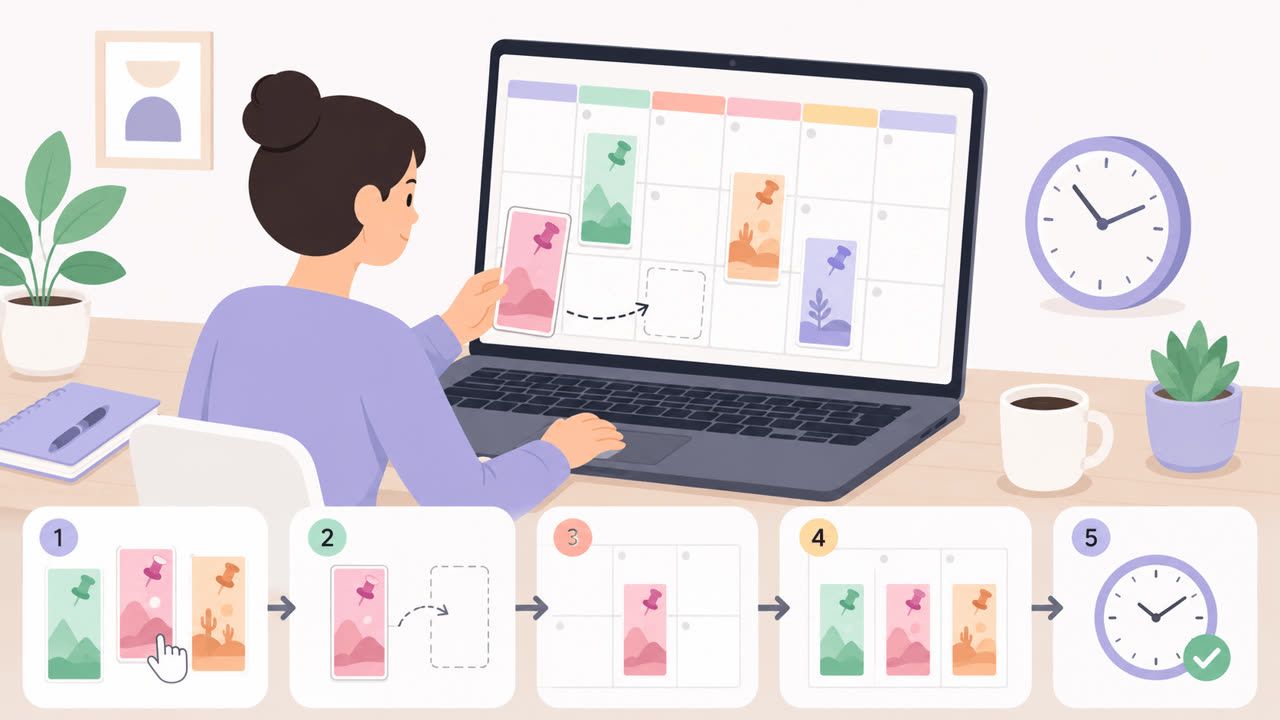
How to Schedule Pinterest Pins in 2026: Pinterest's Scheduler vs PostFast, Step by Step
Two ways to schedule Pinterest Pins: Pinterest's own scheduler (30 days ahead, 10 Pins queued) and PostFast for image, video, and multi-image Pins from desktop.
Best Social Media Schedulers in 2026: 11 Tools Compared on Price, Platforms, and Automation
Eleven social media schedulers compared on September 2026 pricing, platforms, auto-publishing, and API or MCP automation, using each vendor's own pricing page.