How to Automate Social Media Posting with n8n (Free Templates + Verified Node)
Automate social media posting with n8n: install the verified PostFast node, start from free templates, upload media, schedule carousels, and add approval.

On this page (8)
Social media automation is one of the most popular things people build with n8n, and one of the most frustrating to get working end to end. Writing content with AI is the easy part. Actually publishing it, to the right accounts, on multiple platforms, with media attached and a schedule that makes sense, is where most workflows stall.
This guide shows the fastest reliable path: n8n for the workflow logic, PostFast as the posting layer. You will install the verified PostFast community node, start from free templates in the official n8n gallery, learn the patterns for media uploads and scheduled posts, and add a human approval step so nothing goes live without your sign off.
Why n8n is a great fit for social media automation
n8n gives you the building blocks that social media content pipelines actually need:
- Schedule triggers that run your workflow every morning or every Monday, so content goes out on a rhythm without you touching it
- AI nodes for OpenAI and other models, so captions, hashtags, and even images can be generated inside the workflow
- Google Sheets, Notion, and Airtable nodes, so a content calendar your team already maintains can become the source of truth
- Branching and error handling, so one failed post does not silently kill the rest of the batch
- Self hosted or cloud, so you choose where your credentials and content live
That combination is why the n8n template gallery has hundreds of social media workflows. The pattern is always the same: something triggers the run, content gets written or fetched, and then posts get published.
Three workflow shapes that cover most real use cases
Almost every social automation people actually keep running falls into one of three shapes:
- Calendar driven: a Google Sheet, Notion database, or Airtable base holds the plan, and the workflow publishes whatever is marked ready. The content is human written, the schedule is automated. This is the agency and team favorite because approval lives where the content lives.
- Generator driven: AI writes a batch on a schedule, a week of posts every Monday, or one image post three mornings a week. Great for keeping accounts alive with consistent output while you spend your attention elsewhere.
- Event driven: something happens in your business, a new blog post, a product update, a new customer story, and the workflow turns it into platform sized announcements. This one compounds nicely because it runs off work you were doing anyway.
All three end at the same publishing step, which is why getting that step right once, with one posting layer, pays off across every workflow you build afterwards.
Where it gets painful: the platform APIs
The publishing step is where builders lose entire weekends, and it has nothing to do with n8n itself. Each social network has its own API rules:
- TikTok has no node in n8n core, so posting there means implementing TikTok's upload API and OAuth flow by hand with HTTP Request nodes
- Instagram goes through the Meta Graph API, which requires a Business or Creator account, container based uploads, and access tokens that expire and need refreshing
- X (Twitter) needs a specific authentication setup before image uploads work
- Every platform has different rules for media formats, video sizes, and text limits
Multiply that by five or six platforms and the "quick automation" becomes a maintenance project. The practical fix is to put a posting layer between n8n and the networks: one node, one API key, one consistent way to upload media and schedule posts, while the platform specific handling happens on the other side. That is exactly what the PostFast node does across 11 platforms: Instagram, TikTok, Facebook, X, LinkedIn, YouTube, Threads, Pinterest, Bluesky, Telegram, and Google Business Profile.
What you need before you start
Three things, all of them quick:
- A PostFast account with an API key. Sign up at postfa.st, connect your social accounts, then create an API key under Settings > API. PostFast has a 7 day free trial with no credit card required, so you can build and test the whole workflow before paying anything.
- An n8n instance. Either n8n Cloud or self hosted, both work with the verified node.
- Optional extras for the templates. An OpenAI API key if you want AI written posts and images, and a free Telegram bot if you want approval buttons on your phone.
If you would rather build against the raw REST API instead of a node, that path is covered in our API automation guide. For everything else, the node is the faster route.
Install the verified PostFast community node
The node is called n8n-nodes-postfast and appears in the editor as PostFast - Social Media Management. It is a verified community node, which means n8n has reviewed it and it can be installed directly from the nodes panel, including on n8n Cloud.
On n8n Cloud
- An instance owner enables Verified Community Nodes in the Admin Panel (it is a one time toggle)
- Open any workflow, open the nodes panel, and search for PostFast
- Install it, then create a credential by pasting your PostFast API key
On self hosted n8n
- Go to Settings > Community Nodes
- Choose Install a community node and enter
n8n-nodes-postfast(also on npm) - Restart is handled by n8n, then add your API key as a credential the same way
Once installed, the node exposes the three operations every posting workflow needs: list your connected social accounts, get signed upload URLs for media, and create posts as drafts or scheduled publications. Account IDs come straight from the node, so there is nothing to copy out of dashboards by hand.
Start with a free template
You do not have to build from scratch. There are official PostFast templates in the n8n gallery, reviewed and published by the n8n team, and they cover the three most common automation shapes. Import one, add your credentials, and adapt it.
1. Schedule weekly social media posts with OpenAI
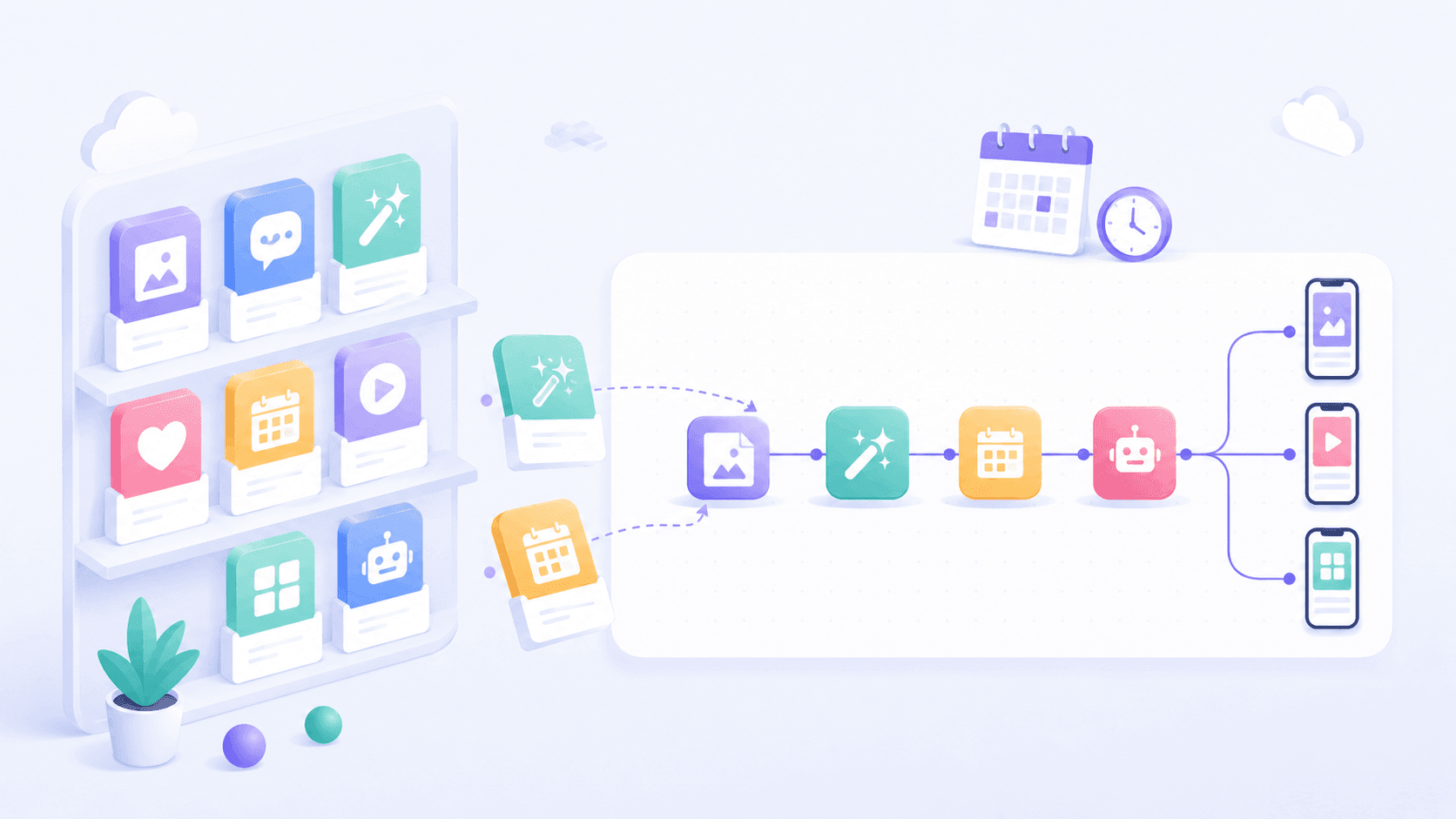
This template runs every Monday morning, pulls your connected accounts from PostFast, has OpenAI write a week of posts in your brand voice, and schedules each one at a data backed best time slot. The time slots come from PostFast's own analysis of tens of thousands of real posts, which you can read about in our best time to post research. Best for: text friendly platforms like X, LinkedIn, Facebook, Threads, Bluesky, and Telegram, where a consistent weekly cadence matters more than anything.
2. Generate branded captions and images with OpenAI
This template adds media to the mix. OpenAI writes a caption and an image prompt, gpt-image-1 renders the image in your brand style, and the workflow uploads one copy per account through signed URLs before scheduling. It is the template to study if you want to understand how media upload works in a real workflow, because image posts are what Instagram and TikTok require.
3. Schedule posts from a Google Sheets content calendar
This template contains no AI at all, which is exactly why agencies like it. Your sheet holds four columns: content, date, account ID, and status. Every morning the workflow reads rows marked ready, schedules them through PostFast, and writes the status back so nothing is ever posted twice. Your approval process stays in the spreadsheet, where clients can see it.
All current templates are collected on the PostFast creator profile, and a fourth one, AI generated Instagram carousels with a Telegram approval step, is in review as this article goes live.
Whichever template you start from, plan ten minutes of making it yours before activating: put your real brand voice and topics into the configuration node, tighten the AI prompt with one or two example posts you are proud of, match the posting schedule to when your audience is actually online, and run it once manually to check the output in your PostFast dashboard. A template is a starting point, and the difference between generic output and posts that sound like you is entirely in that configuration pass.
Build your own posting workflow
When you outgrow the templates, the underlying pattern is always the same four steps. This is the part worth learning properly.
Fetch accounts and pick targets
Start with the PostFast node's Get All Social Accounts operation. It returns every connected account with its platform, name, ID, and connection status. Filter that list in a Code node: keep only accounts whose status is connected and whose platform matches what this workflow should post to. Two rules save real debugging time later:
- Check connection status before posting. A disconnected account rejects scheduled posts, and it is the single most common reason automated posts fail. Drafts are still allowed, so you can queue content for an account that needs reconnecting.
- Never hardcode account IDs if you can fetch them. When you reconnect or add accounts, the workflow keeps working.
Upload media with signed URLs
Media upload is a clean three step handshake:
- Ask the node's file resource for upload URLs, telling it the content type (for example image/png) and how many you need. You get back up to 8 signed URLs per request, each with a storage key.
- Upload each file with an HTTP Request node: method PUT, the signed URL, and a Content-Type header that matches exactly what you requested. A mismatched content type is the classic silent failure here.
- Keep the returned keys. They are what you attach to posts.
One subtlety from the templates: if the same image should go to five accounts, upload five copies and give each post its own key. Each post owns its media.
Create and schedule posts
The create post operation takes the account ID, the text content, and optionally media items and a schedule. The fields that matter:
- Status:
SCHEDULEDpublishes automatically at the time you set,DRAFTsaves the post for manual review in PostFast. Scheduled posts need ascheduledAttime in ISO format, set in the future. - Media items: each one is a key from the upload step plus a type (IMAGE or VIDEO) and a sortOrder. Multiple images on one post become a carousel on Instagram and a photo slideshow on TikTok, with sortOrder controlling the slide order.
- Batching: posts can be created in batches, so one workflow run can schedule a whole week across all accounts.

Handle errors without losing the whole batch
When one post out of twenty fails, the other nineteen should still go out. Three n8n settings make that happen:
- Enable Continue on Fail (or an error output branch) on the posting node, so a rejected post becomes data you can route instead of a crashed execution
- Collect failures at the end of the run and send yourself one summary message, via Telegram or email, listing which account and which post needs attention
- For media uploads, a simple retry once on the HTTP Request node absorbs the occasional transient network error without any extra logic
The most common failure you will route this way is a disconnected account, which is worth an alert of its own: reconnecting takes a minute in the PostFast dashboard, but only if you know about it before the next scheduled batch.
Platform rules the node handles for you
Text only posts work on some platforms and are rejected on others, so build your platform filter with this table in mind:
| Platform | Text only posts | Notes |
|---|---|---|
| X, LinkedIn, Facebook | Yes | Images and video optional |
| Threads, Bluesky, Telegram | Yes | Images and video optional |
| No, media required | Feed, Story, or Reel via publish type control | |
| TikTok | No, media required | Video, or multiple images as a slideshow |
| No, media required | Pin image plus optional destination link | |
| YouTube | No, video required | Shorts flag and thumbnail supported |
| Google Business Profile | Media or text with CTA | Supports call to action buttons |
Beyond media rules, the node exposes per platform controls where they genuinely matter: Instagram publish type (feed, Story, Reel), a TikTok toggle to auto add music to photo posts, a TikTok AI generated content label you should enable when posting AI made media, a first comment field on the platforms that support it, and call to action settings for Google Business Profile posts.
Keep a human in the loop
Full autopilot is the wrong default for a brand account. AI output needs a glance before it represents you in public, and the difference between a workflow you trust and one you quietly turn off is usually a single approval step. There are two good ways to add one.

Telegram approval with Send and Wait
n8n's Telegram node has a Send and Wait for Response operation that pauses the workflow until you tap a button. The pattern: generate the content, send yourself a preview (photos first, then the approval message with Approve and Decline buttons), and connect the approved branch to the upload and schedule nodes. The workflow can wait hours or days, and a declined run simply ends without posting anything.
Two setup details that trip almost everyone up the first time:
- After creating your bot with @BotFather, open a chat with it and press Start. Bots cannot message you first, and until you do this every send fails with a chat not found error.
- To find your chat ID, forward any message to @myidbot (IDBot) and it replies with your numeric ID. That number goes into the workflow configuration.
The approval step also gives you a free safety net while building: run the workflow for real and tap Decline. You get a complete end to end test, previews included, with zero risk of publishing.
Or approve inside PostFast
If Telegram is not your style, set the post's approval status to pending approval instead. Posts land in your PostFast dashboard waiting for review, and nothing publishes until someone approves it there. This works especially well for teams where one person builds automations and another owns the content calendar, and it needs zero extra nodes in the workflow.
Good habits for reliable automation
A few practices separate workflows that run for months from workflows that break in week two:
- Start every new workflow with drafts. Set status to DRAFT for the first runs, check the results in the PostFast dashboard, then switch to SCHEDULED.
- Schedule a safety margin ahead. Set scheduledAt at least a few minutes into the future. A timestamp in the past is rejected.
- Label AI content where platforms ask for it. TikTok has an explicit AI generated content flag in the node's controls. Use it when your media is AI made.
- Watch your connections, not just your workflow. Most posting failures are a disconnected account, not broken logic. Fetch accounts at the start of every run and alert yourself if an expected account shows up disconnected.
- Do not blast identical text everywhere. The platforms and your audiences differ. The weekly template's approach of writing per platform beats copy pasting one caption eleven times.
- Keep credentials out of the workflow. The node stores your API key as an n8n credential. Nothing sensitive should live in Code nodes or expressions.
For deeper detail on any API behavior mentioned here, the PostFast documentation is the source of truth, and the n8n integration page tracks what the node supports as it evolves.
If your workflow talks to an AI assistant rather than a webhook, PostFast also ships an official MCP server for social media scheduling on every plan, so Claude, ChatGPT or Cursor can create the same scheduled posts without an n8n node in between.
FAQ
Is the PostFast n8n node an official, verified node?
Yes. n8n-nodes-postfast is in n8n's verified community nodes registry, which means it has been reviewed by n8n and can be installed from the nodes panel, including on n8n Cloud once an instance owner enables verified community nodes. On self hosted instances it installs under Settings > Community Nodes.
Can n8n post to TikTok?
Not with a core node, n8n does not ship one for TikTok. The two options are implementing TikTok's API manually with HTTP Request nodes, or using a posting layer. Through the PostFast node, TikTok posting works like every other platform: video posts, photo slideshows, auto added music, and the AI content label, all with one credential.
Can I post Instagram carousels from an n8n workflow?
Yes. Attach multiple image media items to one post and set their sort order. On Instagram the post publishes as a carousel, and on TikTok the same structure becomes a photo slideshow. The upload step hands out signed URLs, so the images can come from anywhere in your workflow, including AI image nodes.
Do the free templates require OpenAI?
Two of them use it: the weekly posts template writes text with OpenAI, and the branded images template also generates pictures with gpt-image-1. The Google Sheets content calendar template uses no AI at all, it schedules exactly what your spreadsheet says, which makes it the right starting point for agencies and approval heavy teams.
How do I test a posting workflow safely?
Two mechanisms, use either or both. Create posts as drafts, so everything lands in the PostFast dashboard for review instead of publishing. Or add the Telegram approval step and tap Decline, which exercises the entire workflow, previews included, without posting. Nothing goes live until a human explicitly approves or you switch the status to scheduled.
Ready to build? Connect your accounts, grab an API key, and import a template: with the verified node, the distance from empty canvas to a scheduled week of posts is about fifteen minutes. PostFast comes with a 7 day free trial, no credit card required.
Related
The PostFast MCP server for Claude and ChatGPT
Claude, ChatGPT, Cursor
Which Social Media Scheduler Has an API and an MCP Server for Claude and ChatGPT? PostFast, on Every Plan
PostFast: REST API and official MCP server on every plan, trial included. OAuth connector for ChatGPT and Claude, npx server for Claude Code and Cursor.

How to Connect Claude to LinkedIn: Connector Setup, Posts, PDF Carousels
Connect Claude to LinkedIn with a connector: schedule posts to your profile or company page, attach PDF carousels, and approve before anything publishes.

How to Connect Claude to TikTok: Connector Setup, Videos, Photo Posts and Drafts
Connect Claude to TikTok with a connector: schedule videos and photo posts, pick a sound, send posts to TikTok drafts and answer comments from a chat.

How to Automate Social Media Posts: The Practical Guide
Learn how to automate social media posts the right way: what to automate, what to keep human, a step by step afternoon setup, and where AI helps or hurts.

How We Work Remotely And Boost Productivity From Anywhere
Discover how we work remotely with proven strategies, tools, and workflows. Learn to empower your team and boost productivity from anywhere.
Can ChatGPT Post to Instagram and Facebook? Yes, Here Is How
Yes, with a connected app. Use PostFast to schedule Instagram and Facebook posts, Reels and Stories from ChatGPT, with approval before publishing.