How to Schedule Pinterest Pins in 2026: Pinterest's Scheduler vs PostFast, Step by Step
Two ways to schedule Pinterest Pins: Pinterest's own scheduler (30 days ahead, 10 Pins queued) and PostFast for image, video, and multi-image Pins from desktop.
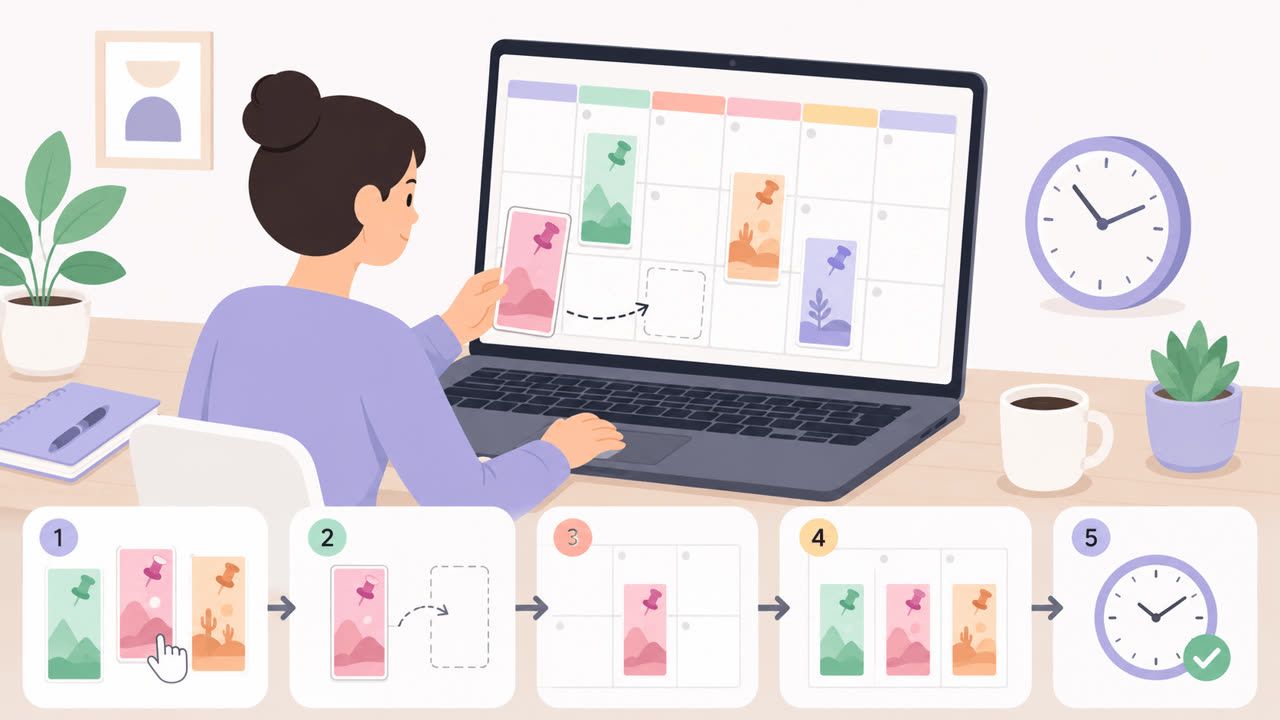
You can schedule Pinterest Pins two ways in September 2026: with Pinterest's built-in scheduler, which queues one Pin at a time up to 30 days ahead with a cap of 10 scheduled Pins, or with a scheduling tool such as PostFast, which publishes image Pins, video Pins, and multi-image Pins to any board, weeks or months ahead, from a desktop browser. This guide covers both, step by step, with the limits that trip people up and the Pin specs that publish cleanly.
Every product fact below was checked on September 2, 2026 against Pinterest's Business help center and PostFast's documentation.
What you can schedule on Pinterest
A Pin needs a board and an image or video. It carries a title (up to 100 characters), a description (up to 800), and, optionally, a destination link. The formats:
- Standard Pins: one image, ideally 1000 by 1500 pixels (2:3)
- Video Pins: a vertical video, with a cover frame
- Multi-image Pins: 2 to 5 images that viewers swipe through
- Secret boards: boards where only you and invited collaborators see the Pins, which PostFast's Pinterest page suggests for seasonal campaigns and client previews
Pinterest's native scheduler handles single image or video Pins on desktop (each uploaded image becomes its own Pin) and stitches multiple images into one video Pin in the app. PostFast schedules all three formats to public or secret boards and sets the title, description, and link for each Pin.
Method 1: Pinterest's built-in scheduler
Pinterest documents its scheduler in the Business help center, so the steps below assume a business account.
The limits first
- Schedule a Pin up to 30 days in advance
- One Pin at a time, and no more than 10 scheduled Pins waiting at once
- After scheduling you can change the publish date, title, board, description, and link, but not the image or video
On desktop
- Click Create (with a business account: the hamburger icon, then Create, then Create Pin).
- Upload an image or video. You can select up to 10 images, but each image becomes its own Pin; combining images and videos into one video Pin needs the app.
- Fill in the title, description, board, and link.
- Select Publish at a later date and choose the day and time.
- Finish creating the Pin. Scheduled Pins appear on your profile, above your published Pins, after a few minutes.
In the app
Tap the plus icon, choose Pin, select one or more images or videos (several are stitched into a single video Pin), tap Next, edit if you want, open Schedule date, pick the date and time, tap Done, then Schedule and confirm. To delete a scheduled Pin, open the ellipsis menu on it and choose Delete.
The 30-day window and the 10-Pin queue are the real constraints. A seasonal campaign planned six weeks out, or a daily Pin cadence for a month, does not fit.
Method 2: Schedule Pins with PostFast
PostFast connects to Pinterest Business accounts (a personal account converts to Business for free in Pinterest's settings) and runs in the browser.
- Connect Pinterest and let PostFast pull in your boards, including secret boards.
- Create a post and choose Pinterest. Pick the board the Pin belongs to.
- Add the media: one image, one video, or 2 to 5 images for a multi-image Pin.
- Write the title and description. The first line becomes the Pin title (up to 100 characters) and the rest the description (up to 800 characters).
- Add the destination link so clicks land on your page.
- Pick a cover for a video Pin if you want one: PostFast supports a custom cover frame or cover image on video Pins.
- Pick the date and time and schedule. You can schedule up to a year ahead on every plan.
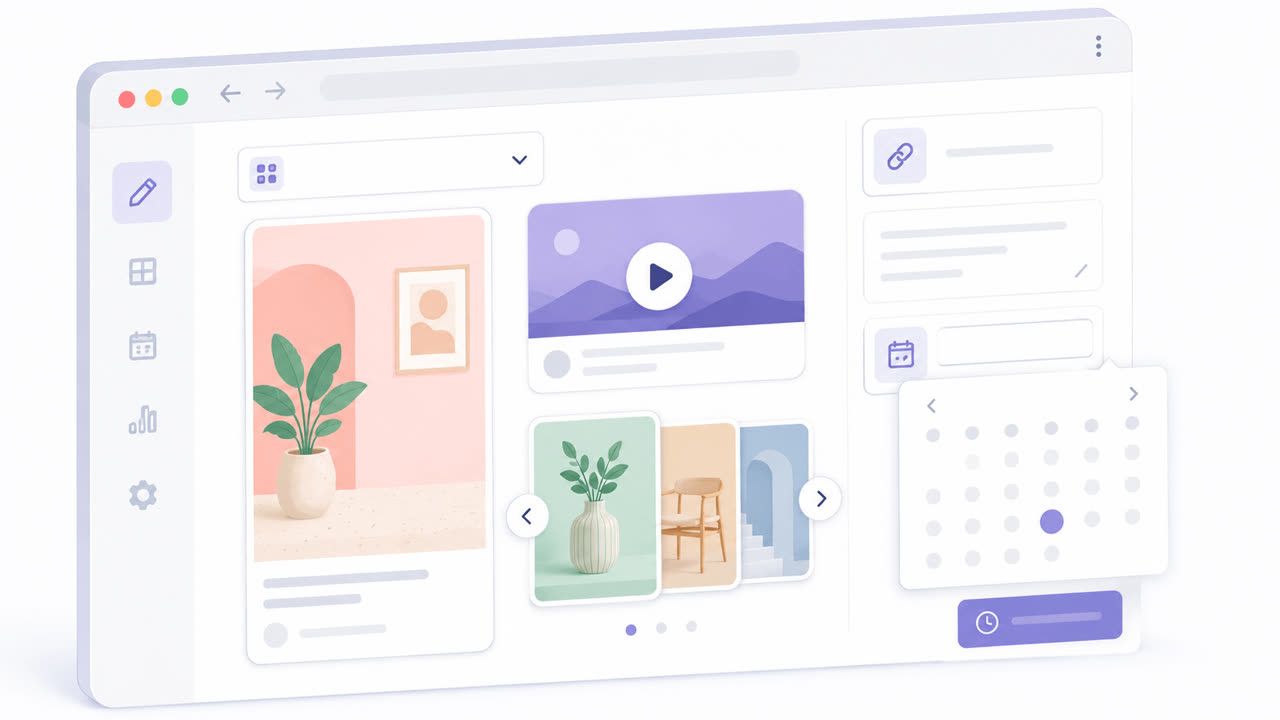

For a batch, upload and schedule many Pins across different boards in one sitting. The public API accepts up to 15 posts per request, and the MCP server lets an AI assistant create Pins for you. The same creative can go to Instagram and Facebook from the same editor with per-platform captions. Plans start at €12 a month (€10 on yearly billing) with a 7-day free trial.
Pin sizes and formats that publish cleanly
| Format | Recommended size | Notes |
|---|---|---|
| Standard Pin | 1000 × 1500 px, 2:3 | Taller than 2:3 may get cut off in the feed. Pinterest allows 20 MB on desktop and 32 MB in the app; PostFast accepts images up to 10 MB, and under 5 MB is recommended |
| Video Pin | 1080 × 1920 px, 9:16 | Custom cover frame or image; PostFast's general cap is 250 MB per video |
| Multi-image Pin | 2 to 5 images | Static images only; no video inside a multi-image Pin |
Keep the Pinterest Pin size guide open while you export; a 2:3 canvas is the one habit that avoids cropped Pins.
A weekly pinning rhythm you can keep
A rhythm that works for most brands, and that most can sustain:
- Batch on one day. Design 5 to 10 Pins from the week's content, all at 2:3, and write titles with the words people search.
- Spread them out. One or two Pins a day beats ten on Monday. Vary the boards so each board keeps moving.
- Plan seasons early. Seasonal searches tend to start well before the season, so queue seasonal Pins 30 to 45 days out. That is exactly where the native 30-day window runs out and a scheduler takes over.
- Repin your best content to a second relevant board a few weeks later with a fresh title.
Tracking what works
If you publish through PostFast, each Pin is tracked in the PostFast dashboard: impressions, reactions, comments, Pin clicks, outbound clicks, and saves over a rolling 90-day window (Pinterest's API does not expose lifetime saves), plus video metrics such as MRC views and average watch time. Data refreshes every 6 hours for Pins under 14 days old and daily after that, up to 60 days.
Frequently Asked Questions
How far in advance can you schedule Pins on Pinterest?
Pinterest's built-in scheduler allows up to 30 days in advance, one Pin at a time, with a maximum of 10 scheduled Pins waiting. PostFast schedules weeks or months ahead depending on your plan.
Can I schedule several Pins at once in Pinterest?
Not in one go. On desktop you can select up to 10 images, but each becomes a separate Pin that you schedule individually, and the queue holds 10 scheduled Pins. Bulk scheduling across boards is what a tool like PostFast adds.
Can I schedule video Pins?
Yes. Pinterest's scheduler supports video Pins, and PostFast schedules video Pins with a custom cover frame. Multi-image Pins are limited to static images.
Do I need a Pinterest business account to schedule Pins?
Pinterest's scheduling help article sits in its Business help center and its steps refer to a business account, and PostFast connects to Pinterest Business accounts. Converting a personal account is free in Pinterest's settings.
Can I edit a Pin after scheduling it?
In Pinterest's scheduler you can change the publish date, title, board, description, and link, but not the image or video. To change the media, delete the scheduled Pin and create it again.
Queue the month, then design the next one
Pinterest content tends to keep working long after it is published, and consistency is what compounds. Queue the next month of Pins in PostFast, keep every canvas at 2:3, and spend the saved time on the designs.
Related
Pinterest scheduling with PostFast
Pins, boards, video pins
Download Pinterest Video: Save It Safely (download pinterest video)
Discover how to download pinterest video safely on desktop or mobile and save ideas for later.
Schedule TikTok Drafts and Carousels the Simple Way
Schedule TikTok drafts and carousels with PostFast. Batch a week, auto add music for photo sets, and cross post to Instagram, Facebook, and YouTube Shorts.
Can You Schedule Posts on Bluesky? How to Schedule Bluesky Posts in 2026
Yes, with a scheduling tool: Bluesky's own app has no scheduler. What Bluesky offers, the 300-grapheme and media limits, and how to schedule with PostFast.
Social media tools to improve your workflow
A quick guide to the best social media tools. See how social media tools fit your daily workflow without wasting time.
Can ChatGPT Post to Instagram and Facebook? Yes, Here Is How
Yes, with a connected app. Use PostFast to schedule Instagram and Facebook posts, Reels and Stories from ChatGPT, with approval before publishing.