Can You Schedule Posts on TikTok? How to Schedule TikTok Posts on Desktop and Phone in 2026
Yes, you can schedule TikTok posts. TikTok's desktop Video Scheduler (Business accounts, up to 10 days ahead) vs PostFast for videos, carousels, and drafts.

Yes, you can schedule posts on TikTok, and in September 2026 there are two documented ways: TikTok's own Video Scheduler on the web upload page, which needs a Business account and takes posts 15 minutes to 10 days ahead, or a scheduling tool such as PostFast, which publishes videos and photo carousels from any browser, weeks or months ahead, and can also drop a video into your TikTok inbox as a draft when you want the in-app tools for the final edit.
This guide covers both step by step, the limits TikTok documents, the specs that upload cleanly, and a weekly rhythm you can keep. Every product fact was checked in early September 2026 against TikTok's own published guide and PostFast's documentation.
What you can schedule on TikTok
- Videos: vertical 9:16 is the native format; 1:1 and 16:9 upload but play with black bars or get cropped in the feed
- Photo carousels (Photo Mode): several images that viewers swipe through, with background music
- Captions: in PostFast up to 2,200 characters when a video is attached, 4,000 for a photo carousel, plus a 90-character title for carousels
- Settings that travel with the post: who can comment, Duet, and Stitch; a paid-partnership or own-brand disclosure; an AI-generated content label
PostFast schedules one video or up to 10 images per TikTok post. Per PostFast's carousel size guide, TikTok's Photo Mode accepts up to 35 images, so a 10-image carousel sits comfortably inside the limit.
Method 1: TikTok's Video Scheduler on desktop
TikTok documents its scheduler in a TikTok For Business guide. The rules it states:
- You need a Business account to see desktop scheduling (Settings, then Account, to switch)
- The guide places the scheduler on the web upload page and does not describe an in-app flow
- You can schedule 15 minutes to 10 days ahead
- After scheduling, you cannot edit the video, caption, or time; delete the scheduled post and upload again
- The time zone defaults to your computer's setting, and TikTok sends a push notification when the post goes live
The steps
- Log in at tiktok.com in a desktop browser and click the upload (cloud) icon in the top right.
- Upload the video, write the caption with hashtags, pick a cover, and set who can view it and whether people can comment or Duet.
- Toggle Schedule and choose the date and time.
- Click Schedule. The post appears with your drafts in the Profile view and shows on both web and app.

If the Schedule toggle is missing, the account type is the first thing to check: switch to a Business account and reload the upload page.
The 10-day window and the no-edit rule are the constraints that push people toward a tool. A month of content, a caption typo, or a time change all mean deleting and re-uploading.
Method 2: Schedule TikTok posts with PostFast
PostFast runs in the browser, with a responsive layout on mobile, so the whole flow works on a desktop or a phone.
- Connect your TikTok account in PostFast.
- Create a post and choose TikTok. Upload one video, or up to 10 images for a photo carousel.
- Write the caption. Captions run to 2,200 characters with a video and 4,000 for a carousel, and a carousel also takes a title of up to 90 characters.
- Set the TikTok options: allow or block comments, Duet, and Stitch; mark the post as your own brand promotion or as branded content; add the AI-generated label if the clip was generated. Videos use your account's default privacy.
- Pick the sound. On photo carousels PostFast's sound picker has three modes: no sound, let TikTok pick one, or choose a trending track from TikTok's Commercial Music Library, filtered by genre and trending period. On videos you keep the original sound or choose a trending track, which plays at 50% volume over your video's own audio. Sounds apply when the post publishes directly, not on drafts.
- Choose publish or draft. Publish posts the video at the scheduled time. Draft sends it to your TikTok inbox so you can add subtitles, effects or a different sound in the app before posting.
- Add a first comment for a call to action or a follow-up: up to 1,200 characters, with comments enabled on the post.
- Schedule. Tick Instagram Reels and Facebook Reels in the same editor if the clip should go there too, with a caption adjusted per platform.
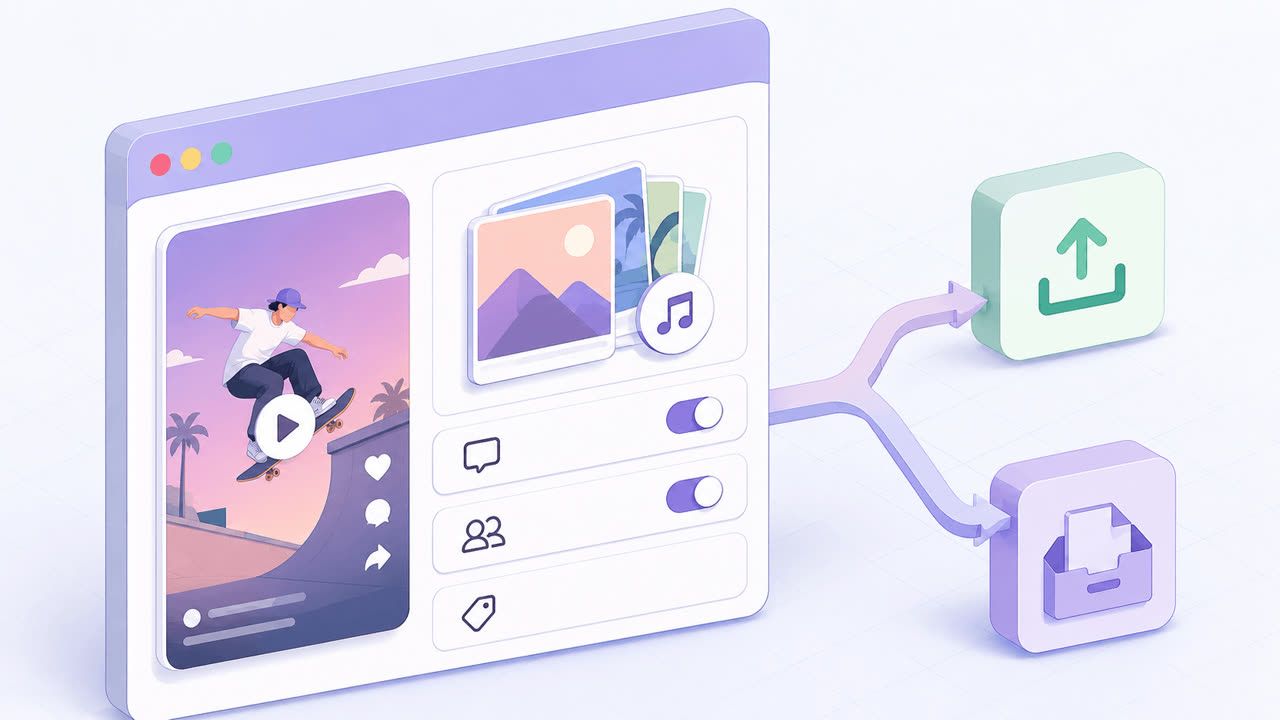

You can schedule up to a year ahead on every plan. The public API accepts up to 15 posts per request, and the MCP server lets an AI assistant create and schedule TikTok posts for you. Plans start at €12 a month (€10 on yearly billing) with a 7-day free trial.
Publish or draft: when the in-app tools matter
Two situations call for the draft route rather than direct publishing:
- You want a sound outside the trending list. PostFast attaches trending tracks from TikTok's Commercial Music Library at publish; for anything else, schedule the clip as a draft, open it from your TikTok inbox, add the sound in the app, and post.
- You rely on TikTok's own captions, effects, or text overlays. Same flow: draft, finish in the app, post.
When you publish a draft from the inbox (drafts from the last 30 days), PostFast detects it within 12 hours, links it to the scheduled post, and tracks views, likes, comments, and shares from there, the same as a directly published post. The drafts and carousels guide walks through the inbox side in detail.
Specs that upload cleanly
| Format | Size | Length and weight | Notes |
|---|---|---|---|
| Video | 1080 × 1920 px, 9:16 | 3 seconds to 10 minutes recorded in the app, uploads up to 60 minutes; the web uploader takes up to 4 GB per the size guide, PostFast up to 250 MB per video | 1:1 and 16:9 play letterboxed or cropped |
| Photo carousel | 1080 × 1920 px per image, 9:16 | Up to 10 images per post in PostFast (Photo Mode allows up to 35 per the size guide); PostFast images up to 10 MB each, 500 MB total per carousel per the size guide | 1:1 and 4:5 accepted, vertical looks best |
The TikTok video size guide and the carousel size guide list the full specs.
A weekly TikTok rhythm you can keep
- Batch on one day. Cut five to seven vertical clips, export at 1080 by 1920, and write the captions in one sitting.
- Mix formats. One or two photo carousels a week alongside videos gives the feed variety and costs less to produce.
- Spread posts across the week at the windows from the best time to post on TikTok guide, then move slots by your own analytics.
- Reuse the clips. Every vertical video can go to Instagram Reels and Facebook Reels from the same PostFast post; the Instagram from desktop guide covers that side.
- Check the numbers after 48 hours. TikTok reports watch time and completion about a day or two after publishing; PostFast refreshes every 6 hours for two weeks, then daily.
Frequently Asked Questions
Can you schedule posts on TikTok?
Yes. TikTok's Video Scheduler on the web upload page schedules a post 15 minutes to 10 days ahead for Business accounts. A scheduling tool such as PostFast publishes videos and photo carousels weeks or months ahead and can send a video to your TikTok inbox as a draft.
Can you schedule TikTok posts from your phone?
TikTok's published guide describes the scheduler on the desktop web upload page. PostFast runs in the browser with a responsive mobile layout, so you can schedule from your phone and the post publishes on its own.
How far in advance can you schedule a TikTok?
With TikTok's own scheduler, 15 minutes to 10 days. With PostFast, up to a year ahead on every plan.
Can I edit a scheduled TikTok post?
Not in TikTok's scheduler: the video, caption, and time are locked once scheduled, so you delete the post and upload it again.
Do I need a Business account to schedule TikTok posts?
For TikTok's own desktop scheduler, yes, per TikTok's guide. PostFast connects your TikTok account and publishes on its behalf.
Can I use trending sounds on a scheduled TikTok?
Yes, on photo carousels and videos. PostFast's sound picker lets you choose a trending track from TikTok's Commercial Music Library (on photo carousels you can also let TikTok pick one), and TikTok attaches it when the post publishes directly. On a video the track plays at 50% volume over the video's original sound. Sounds are not applied to drafts.
Queue the week, keep the app for the fun part
Scheduling handles the consistency, and trending sounds now go on at publish. Put the week's videos and carousels into PostFast, keep drafts for the clips that need in-app effects, and spend the time you save on the next batch.
Related
TikTok scheduling with PostFast
Videos, photo carousels, drafts
Schedule TikTok Drafts and Carousels the Simple Way
Schedule TikTok drafts and carousels with PostFast. Batch a week, auto add music for photo sets, and cross post to Instagram, Facebook, and YouTube Shorts.
How to Connect Claude to TikTok: Connector Setup, Videos, Photo Posts and Drafts
Connect Claude to TikTok with a connector: schedule videos and photo posts, pick a sound, send posts to TikTok drafts and answer comments from a chat.
How to Avoid TikTok Shadow Bans and Grow Your Audience
How to avoid TikTok shadow bans in 2026. Practical tips on visibility, community guidelines, and cross-posting strategies to grow your TikTok audience.

How to Get More TikTok Followers in 2026 (Real Tactics, No Bots)
Discover how to get more TikTok followers with proven strategies for content, engagement, and analytics. This guide has actionable tips for real growth.
Best Time to Post on Social Media in 2026 (All 11 Platforms)
Find the best time to post on social media in 2026. Data-backed timing for Instagram, Facebook, TikTok, X, LinkedIn, YouTube, and 5 more platforms.

Can ChatGPT Post to Instagram and Facebook? Yes, Here Is How
Yes, with a connected app. Use PostFast to schedule Instagram and Facebook posts, Reels and Stories from ChatGPT, with approval before publishing.