How to Connect Claude to Pinterest: Create and Schedule Pins from a Chat
Connect Claude to Pinterest in four steps, free to start: schedule image, video and multi-image Pins to any board with a link, and read each Pin's stats.
On this page (14)
Claude can write a Pin title and a keyword-rich description in seconds, but on its own it cannot put a Pin on your boards. To create and schedule Pins, it needs a connector that can publish to Pinterest.
This guide shows how to connect Claude to Pinterest with PostFast, what Claude can set on a Pin, what it cannot do, and prompts that work. The Claude menus and plan rules come from Anthropic's help center, the Pin rules from Pinterest's own help and developer pages, and the PostFast details from PostFast's documentation, all checked in November 2026.
Quick setup: connect Claude to Pinterest in four steps
- Connect your Pinterest account to PostFast. It has to be a Pinterest Business account.
- Add PostFast in Claude. Open claude.ai/directory/postfast, or click Plugins in Claude's sidebar (Customize until Anthropic's November 2026 update reaches your account) and find PostFast. Click Connect and sign in on PostFast's own screen.
- Switch PostFast on in a chat. Click + in the chat box, hover over Connectors and turn PostFast on.
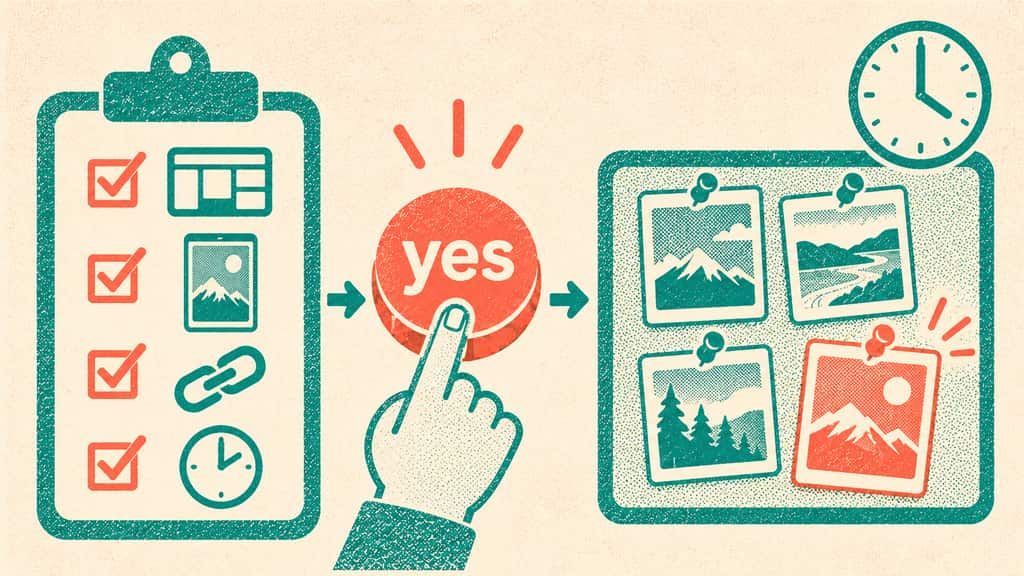
- Ask Claude for a Pin. Claude shows the board, the image, the link and the time, and schedules the Pin only after you say yes.
Is it free? Anthropic makes connectors available to all Claude users, including the Free plan. PostFast has a 7-day free trial with no credit card, then plans start at €15 per month, or €12.50 per month on yearly billing.
Each step, plus the Team, phone and Claude Code routes, is explained in detail below.
Can Claude post to Pinterest? The short answer
Yes, with a connector. Claude has no built-in way to publish to Pinterest. A scheduling tool that publishes through Pinterest's API can be added to Claude as a connector, and PostFast is one of them.
Once PostFast is connected, Claude can:
- create an image Pin, a video Pin or a multi-image Pin and schedule it for a date and time
- choose the board, including a secret board
- write the title and description and set the destination link
- set a cover image on a video Pin
- post the same image to Instagram and Facebook in the same request, each with its own text
- read back impressions, saves, Pin clicks and outbound clicks once the Pin is out
Every Pin waits for your yes. Claude shows you the board, the time and the text first, and nothing is published until you confirm.
"Connect Pinterest to Claude" means three different things
Search for it and you will find three kinds of tools under the same words:
- Ads data. Reporting connectors pull your Pinterest Ads numbers into Claude so you can ask about spend and results. Several data companies sell exactly that.
- Organic analytics. Other connectors bring your account's organic numbers into Claude for reports. They read; they do not publish.
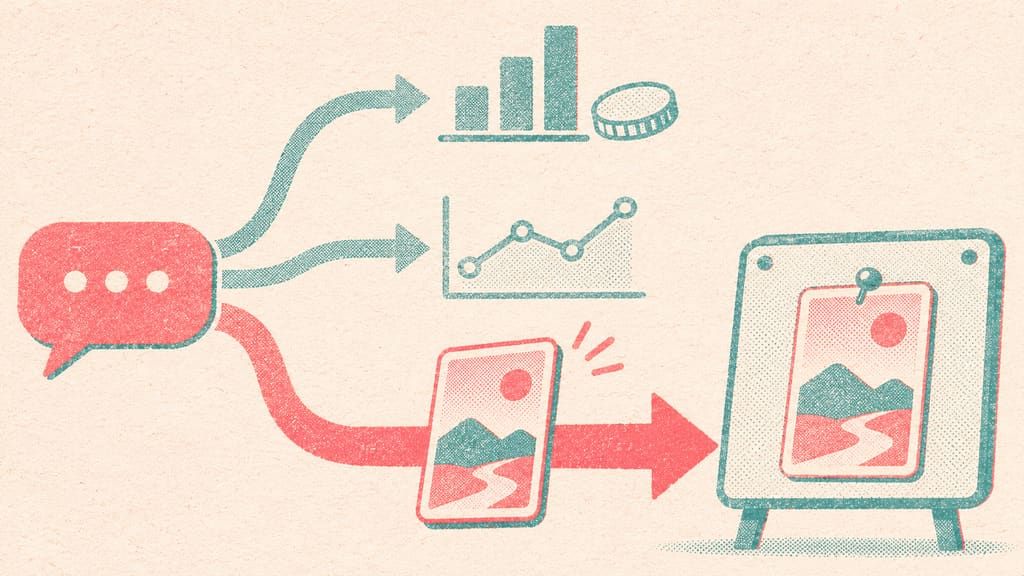
- Creating and scheduling Pins. A connector that publishes Pins to your boards. That is what this guide covers.
They work side by side: a data connector for a monthly ads report, PostFast for publishing what you made and reading how each of those Pins did.
Is there a Pinterest connector or a Pinterest MCP for Claude?
A connector is how Claude's interface labels an MCP server. The Model Context Protocol is the standard every Claude connector is built on, so a "Pinterest MCP for Claude" and a "Pinterest connector for Claude" are the same thing seen from two sides.
Pinterest has announced its own MCP server, and in November 2026 it is not open yet. Pinterest's developer site says it is "aiming to launch soon" and offers a sign-up for updates. As Pinterest describes it, the server gives access to selected Pinterest Ads data, analytics, audience and keyword insights and trends, and it needs a Pinterest developer app that is approved plus an OAuth token. It is aimed at teams that run Pinterest Ads and at developers.
In Claude's connector directory, dozens of connectors mention Pinterest. We have not found one published by Pinterest itself. PostFast's connector is listed there, and it is the kind that publishes: it creates and schedules Pins with no developer app and no API key. The Claude for social media guide explains connectors, skills and what they drive on every network.
What you need before you start
- A Pinterest Business account. PostFast connects Business accounts. A personal account converts to Business for free in Pinterest's settings.
- At least one board. Every Pin belongs to a board, and Claude chooses from the boards your account already has.
- A Claude account. Anthropic lists web connectors as available to all users on Claude, Cowork, Claude Desktop and the Claude mobile apps. On Team and Enterprise plans, an Owner has to enable a connector for the organization before members can connect it.
- A PostFast account with Pinterest connected. PostFast has a 7-day free trial with no credit card, and the Claude connector works on every plan. The Pinterest integration page covers what PostFast publishes to Pinterest.
- A finished image or video. PostFast publishes the file you give it; it does not design Pins. Claude fetches the file from a direct link (a share or preview page will not work) or, where your Claude app passes attached files to connectors, from a file you attach in the chat.
How to connect Claude to Pinterest with PostFast
You connect Pinterest once inside PostFast, then connect PostFast to Claude. With your PostFast account and Pinterest connection in place, adding the connector takes about two minutes.
Step 1: Connect your Pinterest account to PostFast
Create your PostFast account, add Pinterest as a channel and sign in on Pinterest's own screen, where you approve the access PostFast asks for. PostFast then pulls in your boards, including secret boards. If you run several Pinterest accounts, connect each one; Claude can then ask "which account?" when you create a Pin.
Step 2: Add PostFast from Claude's connector directory
Open PostFast in Claude's directory at claude.ai/directory/postfast, or click Plugins in Claude's sidebar, filter the list to connectors and find PostFast. Anthropic renamed this page from Customize in November 2026, and Enterprise plans get the new name on November 30, so you may still see Customize with a Connectors tab. Click Connect, then sign in on PostFast's own login screen and approve access.
You never paste a password or an API key into the chat. The sign-in uses OAuth, the same "Sign in with" flow you know from other apps, and PostFast never sees your Pinterest password: Pinterest handled that login in step 1.
Step 3: Turn PostFast on in a conversation
In the chat box, click the + button in the lower left (or type /), open Connectors and switch PostFast on for that conversation. Claude can now use it whenever your request needs it.
Step 4: Ask for your first Pin
Give Claude a direct link to the image and ask:
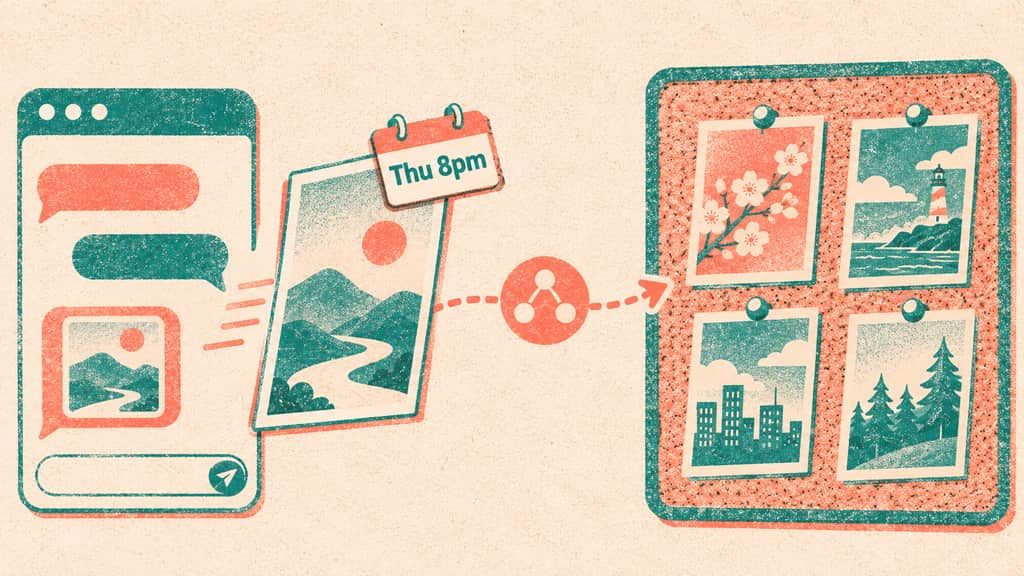
"Create a Pin from this image on my Meal Prep Ideas board for Thursday at 8pm. Title: 5 make-ahead lunches under 20 minutes. Write a description from my notes below and link it to https://yourblog.com/meal-prep-lunches."
Claude uploads the image to PostFast, looks up your boards, writes the description and schedules the Pin on hold. It then shows you the account, the board, the time, the title, the description and the link. Say yes and the Pin is approved; on Thursday at 8pm PostFast publishes it to Pinterest.
On a Team or Enterprise plan
An Owner or Primary Owner first opens the Connectors page in Organization settings, clicks Browse connectors, selects PostFast and chooses Add to your team. Enabling it does not connect anyone automatically: each person then connects PostFast and signs in with their own PostFast login. Members who cannot add connectors themselves can select Request on the connector's directory page, which is on by default on Team plans.
Prefer to add it by URL?
You can add the same connector as a custom connector. On your own plan, open Plugins (or Customize > Connectors), click Add and pick the custom connector option. Paste https://mcp.postfa.st/mcp as the server URL, continue, and sign in when asked. Anthropic allows custom connectors on Free, Pro, Max, Ultra, Team and Enterprise plans, with one custom connector on the Free plan, and on Team and Enterprise plans an Owner adds them for the organization. Anthropic's own note applies here: a custom connector reaches a service Anthropic has not verified, so connect only servers from organizations you trust.
In Cowork and on your phone
Anthropic lists connectors as available in Cowork as well as in Claude, Claude Desktop and the mobile apps, so a connector you add once is there when Cowork plans your month of Pins. Installing connectors directly in the mobile apps is still in beta; connect PostFast on the web or in Claude Desktop and use it from the Claude app on iOS or Android.
In Claude Code
If Claude Code is logged in with the same claude.ai account, connectors you added in Claude appear in Claude Code automatically. Run /mcp and PostFast is listed with your other claude.ai connectors. If it says it needs authentication, select it and sign in.
If you have not added PostFast in Claude, add it from the terminal once:
claude mcp add --scope user --transport http postfast https://mcp.postfa.st/mcp
Then run /mcp, choose postfast, select Authenticate and approve the sign-in in your browser.
For a folder of images on your own computer, PostFast's open-source MCP package for Claude Code uploads a local file by its path. It runs with a PostFast API key and publishes as you ask, without the approval hold, so it suits scripts and batches rather than a yes before every Pin.
What Claude can set on a Pin
Everything in the table is set in the same request that creates the Pin. Claude asks when something is missing, such as which board, and fills in what you leave to it, such as the description.
| Setting | What Claude can do | Good to know |
|---|---|---|
| Board | Pick one of your boards by name | Required on every Pin. Secret boards work like public ones |
| Title | Write it or use yours | Up to 100 characters. In PostFast the first line of the text becomes the title |
| Description | Write it from your notes | Up to 800 characters: everything after the first line |
| Destination link | Set the page a click leads to | Optional, and the reason most Pins exist |
| Image Pin | Publish one image | Pinterest recommends 1000 x 1500 pixels (2:3). PostFast takes images up to 10 MB |
| Multi-image Pin | Publish 2 to 5 images people swipe through | Static images only |
| Video Pin | Publish one video | Up to 250 MB in PostFast. Pinterest asks for 4 seconds to 5 minutes |
| Video cover | Set a cover image you provide, or a frame from the video | An image you provide takes precedence over a picked frame |
| Time | Schedule it up to a year ahead, or save a PostFast draft | Claude repeats the time back before you approve |
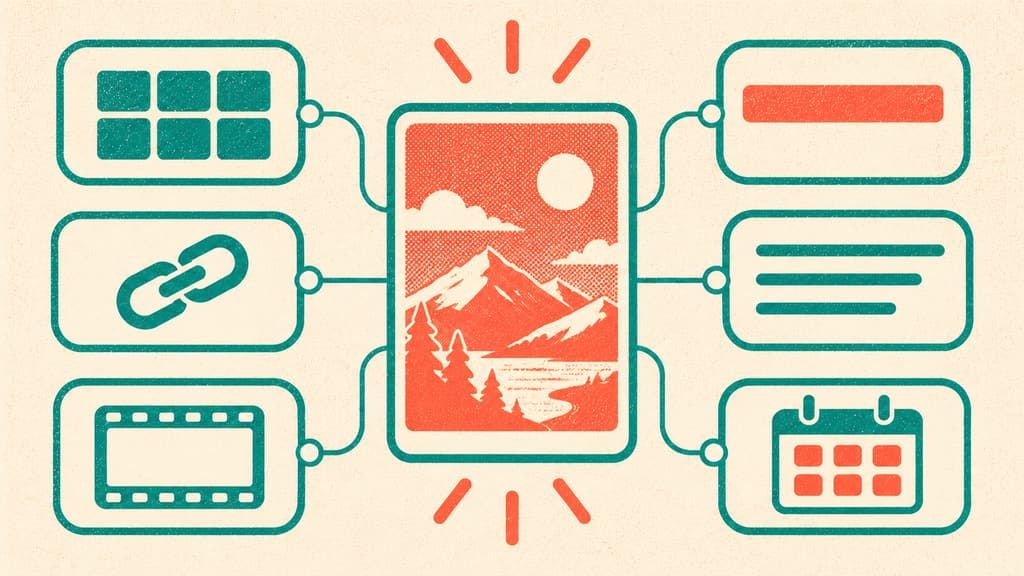
Boards, including secret ones
Pinterest requires a board on every Pin, so Claude looks up your boards first and matches the name you gave. Say "my Fall Recipes board" and it finds it; if two boards have similar names, tell it which one.
PostFast reads your boards when you connect the account. A board you create later does not appear on its own: click Sync boards in PostFast and it is there the next time Claude looks. Claude cannot create a board, rename one or move a Pin between boards; that stays in Pinterest.
Secret boards are useful here. Schedule a seasonal campaign or a client preview to a secret board, look at the Pins on Pinterest, and create them on the public board once you are happy.
Titles, descriptions and the link
Pinterest allows a title of up to 100 characters and a description of up to 800. Pinterest's own guidance is that the first 40 characters of a title may be all that shows in the feed, and that descriptions do not show in the feed but are used to decide who sees the Pin. So ask Claude for a title that leads with the words people search and a description that says plainly what the page behind the Pin offers.
In PostFast the first line of the text becomes the title and the rest becomes the description. You do not have to think about that: tell Claude the title you want and it places it on the first line.
The destination link is the part worth checking before you say yes. A Pin keeps sending clicks for a long time, so a wrong link is expensive. If you track campaigns, the UTM builder for Pinterest makes a tagged link you can hand to Claude.
Image, video and multi-image Pins
A Pin always needs media, even as a draft, so have the image or video ready. A single image works best at 2:3; taller images may be cut off in the feed. A multi-image Pin takes 2 to 5 static images and cannot include a video. A video Pin takes one video, and Claude can set a cover from an image you provide or from a moment in the video.
Claude does not design Pins. It works with the files you give it, from a design tool, a photo shoot or your blog. The Pinterest Pin size guide has the dimensions before you export.
The same image on Instagram and Facebook
One request can send the same image to Pinterest, Instagram and Facebook, each with its own text: "Post this image as a Pin on my Home Office board with a link to the article, and as an Instagram post with a shorter caption, both on Saturday at 10am." The board and the link apply to the Pin only, and every post still waits for your yes. The Instagram guide covers what changes on the Instagram side.
Prompts to try
- "Create a Pin from this image on my Small Garden Ideas board for tomorrow at 7pm, linking to
https://yoursite.com/raised-beds. Write a title under 60 characters and a description with the words people would search." - "Here are five image links from this week's blog post. Schedule one Pin a day at 8pm from Monday to Friday on my Weeknight Dinners board, each with its own title and the same link."
- "Make a multi-image Pin from these four images on my Capsule Wardrobe board for Sunday at 11am."
- "Put these three Pins on my secret Holiday 2026 board for Friday so I can look at them before they go public."
- "Which of my Pins from the last 30 days got the most outbound clicks, and what do their titles have in common?"
For the manual route and Pinterest's own scheduler, see how to schedule Pinterest Pins.
Every Pin waits for your yes
Pins created through PostFast's connector in Claude are held for approval. Claude shows you what will go out, where and when, and approves the Pin only after you say yes. If you change your mind before it publishes, ask Claude to delete the post.
PostFast publishes up to 15 Pins a day per Pinterest account. A month of daily Pins fits easily; a few hundred Pins in one afternoon does not.
What comes back after it publishes
Ask Claude how a Pin is doing and it reads PostFast's numbers for it: impressions, reactions and comments, Pin clicks (opens of the close-up view) and outbound clicks (visits to your link). Saves and save rate cover a rolling 90 days, because Pinterest's API does not give lifetime save totals. Video Pins add views, average watch time and the views that reached 95% of the video.
PostFast refreshes these every 6 hours for the first 14 days after publishing, then daily until 60 days. The numbers cover Pins published through PostFast; Pins you created elsewhere are not imported. Claude can also read your account's follower history, captured once a day from the first daily capture after you connect.
What it cannot do
- Design the Pin. Claude works from the image or video you provide.
- Create or rename boards. Claude picks from the boards you have. New boards are made in Pinterest and synced in PostFast.
- Change a Pin after it is published. Edits to a live Pin happen in Pinterest.
- Remove a live Pin from Pinterest. Deleting a post in PostFast removes it from PostFast; a Pin that is already published stays on Pinterest until you delete it there.
- Browse Pinterest. The connector does not search Pins, read other people's boards or save Pins to yours.
- Run or report on ads. Pinterest Ads and catalogs are managed in Pinterest's own tools.
- Answer comments on Pins or add a first comment. PostFast's comment inbox covers TikTok, Instagram, Facebook Pages and Threads, and its first comment is not available on Pinterest.
Is it safe to connect Claude to Pinterest?
The connection is built so that Claude never holds your Pinterest password:
- You sign in on PostFast's own screen using OAuth. No password or API key goes into the chat, and the Pinterest login happens on Pinterest.
- It publishes through Pinterest's API, the route Pinterest provides for apps, not by driving your browser.
- Permissions stay with you. PostFast checks your workspace permissions on every request, so Claude can only do what your PostFast user can do.
- You can disconnect at any time, from the Plugins page in Claude, from PostFast, or by removing PostFast's access under Security in your Pinterest settings. If you installed PostFast's plugin, removing the plugin does not disconnect the connector; disconnect it separately.
- Admins can limit actions. On Team and Enterprise plans, Owners can limit which actions a connector can take across the organization, for example allowing it to read while blocking changes.
In Claude's directory, PostFast's listing carries the Community label rather than Verified.
Does this work in ChatGPT?
Yes. PostFast also has a ChatGPT connector in ChatGPT's plugin directory, and it is the same connector, so everything above applies there too: a board on every Pin, a title within 100 characters, images and video from your files, and a Pin that waits for your yes. The page linked here has ChatGPT's current steps.
Frequently Asked Questions
Can Claude post to Pinterest?
Not on its own. With a connector that publishes through Pinterest's API, such as PostFast, Claude can create and schedule image, video and multi-image Pins with a board, a title, a description and a link, and every Pin is approved only after you confirm.
Is there a Pinterest connector for Claude?
We have not found one published by Pinterest in Claude's directory. Pinterest has announced its own MCP server, which in November 2026 is not open yet and needs an approved Pinterest developer app. PostFast's connector is in Claude's directory and publishes Pins without a developer app.
Is there a Pinterest MCP for Claude?
A Claude connector is an MCP server, so PostFast's connector is a Pinterest MCP for Claude that creates and schedules Pins. Pinterest's own MCP server, announced for Ads data, analytics and trends, says it is aiming to launch soon.
Can Claude read a Pinterest board?
Through PostFast, Claude can list your own boards, secret ones included, so it can put a Pin on the right one. It does not read the Pins on a board or other people's boards.
Can I connect Pinterest to Claude for free?
Anthropic makes connectors available to all Claude users, including the Free plan, which allows one custom connector. On the PostFast side, the 7-day trial needs no credit card and the connector works on every plan.
Do I need a Pinterest Business account?
Yes. PostFast connects Pinterest Business accounts, and a personal account converts to Business for free in Pinterest's settings.
Can ChatGPT post to Pinterest?
Yes, the same way. PostFast's connector is in ChatGPT's plugin directory, and it creates and schedules Pins with a board, a link and your approval before anything is published.
Let Claude queue the Pins, keep the final say
Pins keep working long after they are published, so the habit that pays is a steady queue. Give Claude the week's images and links, read what it proposes, and say yes. You can start with PostFast's 7-day free trial.
Related
Pinterest scheduling with PostFast
Pins, boards, video pins
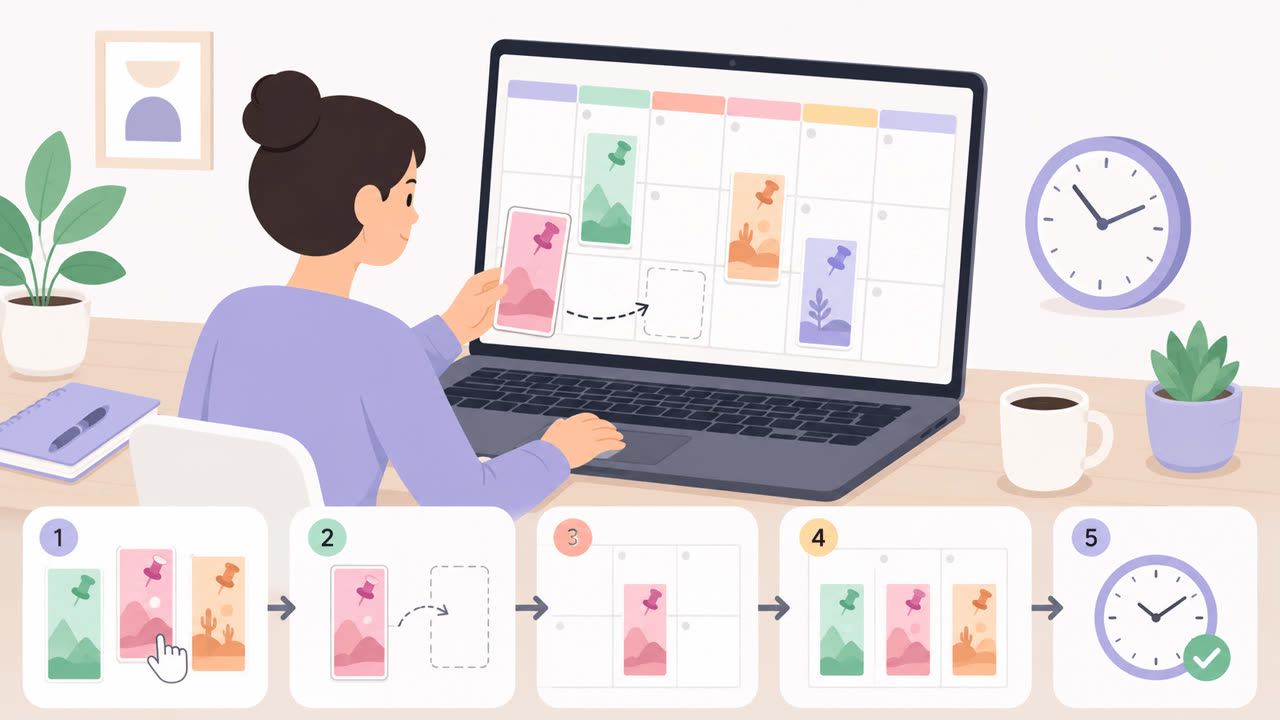
How to Schedule Pinterest Pins in 2026: Pinterest's Scheduler vs PostFast, Step by Step
Two ways to schedule Pinterest Pins: Pinterest's own scheduler (30 days ahead, 10 Pins queued) and PostFast for image, video, and multi-image Pins from desktop.
The PostFast MCP server for Claude and ChatGPT
Claude, ChatGPT, Cursor
Download Pinterest Video: Save It Safely (download pinterest video)
Discover how to download pinterest video safely on desktop or mobile and save ideas for later.
How to See Who Views Your Instagram Profile Explained
Learn how to see who views your Instagram profile, what Instagram's tools can show you, and why third-party apps are a risk to your account's safety.
Can ChatGPT Post to Instagram and Facebook? Yes, Here Is How
Yes, with a connected app. Use PostFast to schedule Instagram and Facebook posts, Reels and Stories from ChatGPT, with approval before publishing.
How to Connect LinkedIn to ChatGPT: Plugin Setup, Posts, PDF Carousels
Connect LinkedIn to ChatGPT in three steps, free to start: schedule posts and PDF carousels to your profile or company page, each approved by you first.