How to Schedule Social Media Posts from WhatsApp
Schedule Instagram, TikTok, LinkedIn, and 8 more platforms directly from WhatsApp. Set up OpenClaw with PostFast in 5 minutes and manage social media from chat.

On this page (10)
What if you could schedule an Instagram post, a LinkedIn update, and a TikTok video without ever opening a browser? Just by sending a message on WhatsApp?
That is exactly what happens when you combine OpenClaw with PostFast. OpenClaw is an open-source AI personal assistant that lives inside your chat apps. PostFast is a social media scheduling platform with a full API. Put them together and you can schedule, cross-post, and manage content across 11 social platforms, all from a WhatsApp conversation.
No dashboard. No tab switching. Just type what you want and your AI handles the rest.
What You'll Learn
- Why WhatsApp is a surprisingly effective place to manage social media
- What OpenClaw is and how it connects to your chat apps
- How to set up social media scheduling from WhatsApp in under 5 minutes
- Real examples of scheduling posts to Instagram, TikTok, LinkedIn, and more through chat
- Every platform and feature available through this setup
- How security works when scheduling posts from a chat app
Why Schedule Social Media from WhatsApp
Social media managers, founders, and content creators share the same problem: too many dashboards. You write content in one place, upload it in another, set the schedule in a third, and repeat for every platform. That workflow eats hours every week.
WhatsApp is where most of us already spend our time. Over two billion people use it daily. It is always open on your phone. It is fast, familiar, and requires zero learning curve.
The idea is simple: instead of going to a scheduling tool, bring the scheduling tool to you. Send a WhatsApp message describing what you want to post, which platforms to publish on, and when. Your AI assistant reads the message, calls the PostFast API, and confirms the schedule. Done.
No Dashboard Required
Traditional social media schedulers assume you are sitting at a desk with a browser open. But most content ideas happen on the go — during a commute, after a meeting, while scrolling through your phone. A chat-based workflow lets you act on those ideas immediately, from wherever you are.
Instead of bookmarking a post idea and logging into a scheduler later, you send a WhatsApp message and move on. The friction between having an idea and scheduling it drops to almost zero.
Works on Any Device
WhatsApp runs on phones, tablets, and desktops. Since the scheduling happens through a conversation, you get the same experience on every device. There is nothing extra to install beyond what you already have.
This is especially useful for teams where different people create content on different devices. A designer can send a photo from their phone, a copywriter can send captions from their laptop, and both go through the same simple chat interface.
Natural Language Instead of Forms
With a traditional scheduler, you fill out forms — pick a platform, set a date, choose a time, write the caption, upload media, configure settings. With a chat-based approach, you describe everything in a single message. "Post this to Instagram as a Reel tomorrow at 9am" contains the same information, but takes seconds instead of minutes.
What Is OpenClaw
OpenClaw is an open-source AI personal assistant with over 157,000 stars on GitHub. It runs locally on your device — Mac, Windows, or Linux — and connects to more than 50 messaging platforms including WhatsApp, Telegram, Slack, Discord, Signal, and iMessage.
What makes OpenClaw useful for social media is its skill system. Skills are plugins that teach the assistant how to use specific tools and APIs. The ClawHub marketplace hosts community-built skills, and PostFast is one of them.
Once you install the PostFast skill, OpenClaw knows how to call every endpoint in the PostFast API. It can look up your connected accounts, upload media files, schedule posts with platform-specific settings, and check what is already on your calendar. All through natural conversation.
How the Pieces Fit Together
The setup has three parts:
- WhatsApp — where you type your instructions
- OpenClaw — the AI assistant that understands your request and translates it into API calls
- PostFast — the scheduling platform that receives the API calls and publishes your posts on time
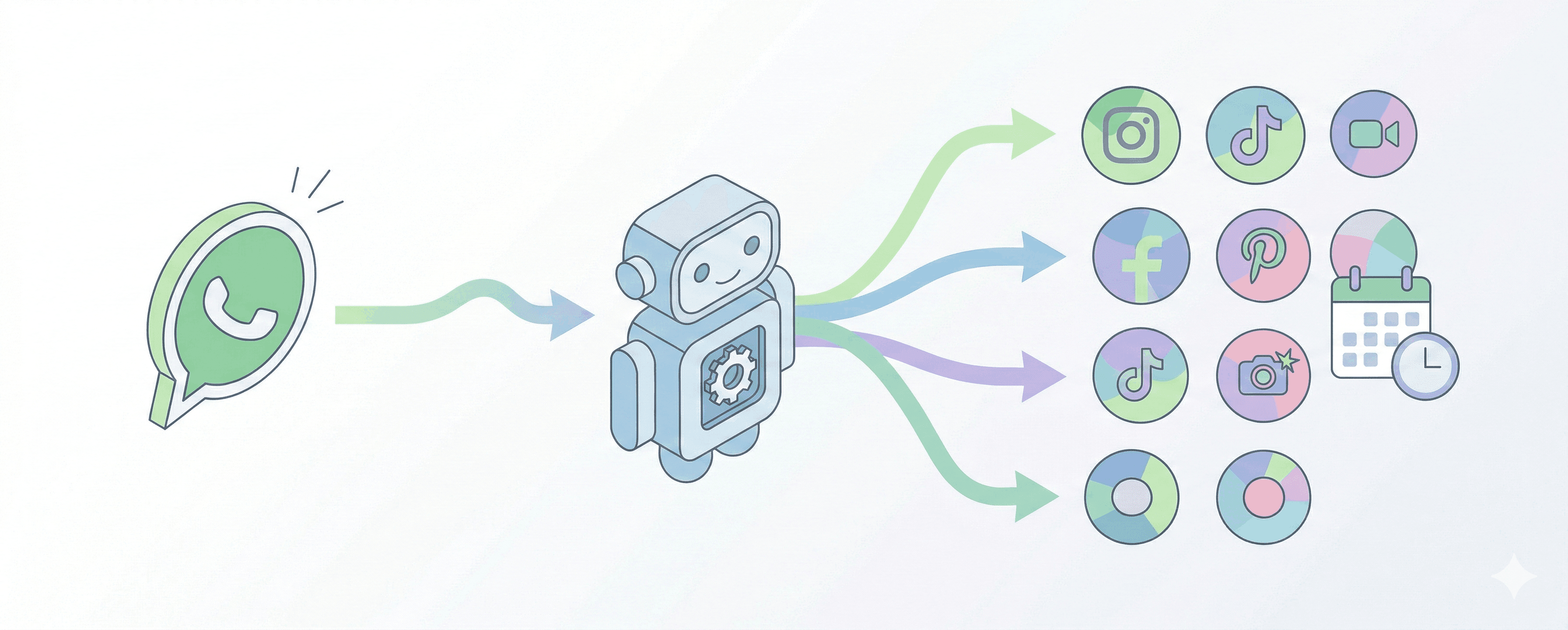
You talk to OpenClaw through WhatsApp. OpenClaw talks to PostFast through the API. PostFast talks to Instagram, TikTok, LinkedIn, and every other platform through their official publishing APIs. The entire chain is automated — you only interact with the first step.
How to Set Up Social Media Scheduling from WhatsApp
The entire setup takes about five minutes. You need a PostFast account, OpenClaw installed on your computer, and WhatsApp connected to OpenClaw.
Prerequisites
- A PostFast account (7-day free trial, no credit card required)
- At least one social media account connected in your PostFast dashboard
- OpenClaw installed on your Mac, Windows, or Linux device (download from openclaw.ai)
- WhatsApp connected to OpenClaw (follow the OpenClaw WhatsApp setup guide)
Step 1: Install the PostFast Skill
Open your terminal and run:
clawhub install postfast
This downloads the PostFast skill from ClawHub and makes it available to your OpenClaw assistant.
Step 2: Get Your PostFast API Key
- Log in to PostFast
- Go to API in the sidebar
- Click Generate API Key
- Copy the key
Your API key is tied to a single workspace and gives access only to the social accounts connected within that workspace. You can regenerate it at any time from the same settings page.
Step 3: Configure the Skill
Set your API key so OpenClaw can authenticate with PostFast:
clawhub config postfast POSTFAST_API_KEY your-api-key-here
Step 4: Verify the Connection
Open WhatsApp and send a message to your OpenClaw assistant:
"Show me my connected social media accounts"
If everything is configured correctly, your assistant will list all the social accounts from your PostFast workspace — with their platform, username, and display name. This data comes from the GET /social-media/my-social-accounts endpoint in the PostFast API.
You are ready to schedule your first post.
Real Examples: Scheduling Posts from WhatsApp
Here is what actual conversations look like when scheduling posts from WhatsApp through OpenClaw and PostFast. Every example below uses real PostFast API capabilities.

Schedule a LinkedIn Post
"Schedule a LinkedIn post for tomorrow at 9am: We just shipped our biggest update yet. Here is what changed and why it matters."
OpenClaw calls POST /social-posts on the PostFast API with your content, the correct socialMediaId for your LinkedIn account, and the scheduledAt timestamp in UTC. You get a confirmation with the post ID.
Cross-Post to Multiple Platforms
"Post this to Instagram, X, and Threads at 3pm today: Quick tip — batch your content creation into one session per week. You will save hours. Trust me."
One message, three platforms. OpenClaw creates a post for each target platform in a single API call. The posts array in the request body contains one entry per platform, each with the matching socialMediaId. PostFast handles the differences between platforms automatically.
Schedule a TikTok Video
"Upload this video and schedule it as a TikTok for Friday at 6pm. Set it to public and enable stitches."
OpenClaw handles the three-step media upload flow behind the scenes:
- Calls
POST /file/get-signed-upload-urlsto get a pre-signed S3 URL - Uploads your video file to storage (up to 250 MB per video)
- Calls
POST /social-postswith the media key, schedule time, and TikTok-specific controls liketiktokAllowStitch: trueandtiktokPrivacy: "PUBLIC"
You do not need to know about signed URLs or S3 uploads. The skill handles the entire process from a single message.
Post a LinkedIn Document
"Upload this PDF and post it to LinkedIn with the title 'Q1 Marketing Playbook' and the caption: Our complete Q1 strategy in 12 slides. Save this for later."
PostFast supports LinkedIn document posts with PDF, DOC, DOCX, PPT, and PPTX files up to 60 MB. The skill uploads the file and uses the linkedinAttachmentKey and linkedinAttachmentTitle controls to create the post.
Schedule an Instagram Reel
"Post this video as an Instagram Reel tomorrow at noon. Add the caption: Morning routine that changed everything. Tag @mycollaborator as a collaborator."
The skill sets instagramPublishType: "REEL" and instagramCollaborators: ["mycollaborator"] in the controls. PostFast supports Instagram timeline posts, Stories, Reels, and Carousels — all accessible through a single conversation.
Add a First Comment
"Schedule an Instagram post for tomorrow at noon with the caption 'New collection dropping Friday' and add a first comment: 'Link in bio for early access!'"
PostFast supports automatic first comments that post roughly 10 seconds after your content goes live. The firstComment field works on Instagram, Facebook, YouTube, X, and Threads. First comments are a proven engagement strategy, and the skill makes them a single line in your message.
Check Your Schedule
"What do I have scheduled for next week?"
OpenClaw calls GET /social-posts with date range filters (from and to parameters) to pull your upcoming posts. You can also filter by platform or status — for example, "show me all my Instagram drafts" or "list my failed posts from last month."
Create a Draft for Review
"Create a draft LinkedIn post about our new feature launch. Do not schedule it — I want to review it first."
Posts created with status: "DRAFT" appear in your PostFast dashboard for review. When you are ready, schedule them manually from the dashboard or ask your AI to set a time.
Pin to a Pinterest Board
"Post this image as a Pinterest pin to my 'Marketing Tips' board with a link to postfa.st/blog"
Pinterest requires a board ID. OpenClaw fetches your boards via GET /social-media/:id/pinterest-boards, finds the right one by name, and includes pinterestBoardId and pinterestLink in the controls.
How It Works Under the Hood
For the technically curious, here is what happens behind a single WhatsApp message like "Schedule a TikTok video for Friday at 6pm."
The API Flow
-
Message received — WhatsApp delivers your message to OpenClaw running on your device. OpenClaw parses the intent: schedule a post, TikTok platform, video media, Friday 6pm.
-
Account lookup — The skill calls
GET /social-media/my-social-accountson the PostFast API athttps://api.postfa.st/to find the TikTok account ID in your workspace. Authentication uses apf-api-keyheader with your workspace API key. -
Media upload — Since the post includes a video, the skill calls
POST /file/get-signed-upload-urlswithcontentType: "video/mp4"andcount: 1. PostFast returns a pre-signed S3 URL. The skill uploads your video directly to storage using an HTTP PUT request to that URL. -
Post creation — The skill calls
POST /social-postswith a request body containing the posts array. Each post object includescontent(caption text),socialMediaId(the TikTok account),scheduledAt(Friday 6pm in UTC), andmediaItems(the S3 key from step 3). Platform-specific settings go in thecontrolsobject — things liketiktokPrivacy,tiktokAllowDuet, andtiktokAllowStitch. -
Confirmation — PostFast returns a
201 Createdresponse withpostIds. OpenClaw formats a confirmation message and sends it back to you on WhatsApp.
The entire flow takes a few seconds. You see a single reply confirming the schedule.
Rate Limits
The PostFast API counts rate limits per endpoint, per workspace API key, so calls to one endpoint never use another's budget. Any window an endpoint doesn't set itself uses the defaults: 72 requests per minute, 180 per 5 minutes, 360 per hour and 2,400 per day. POST /social-posts and POST /file/get-signed-upload-urls each allow 180 per minute and 420 per day. For most users scheduling posts through chat, these limits are more than enough.
Supported Platforms and Capabilities
PostFast connects to 11 social media platforms. Every one of them is accessible through the WhatsApp + OpenClaw setup.
| Platform | Content Types | Notable Controls |
|---|---|---|
| Posts, Stories, Reels, Carousels | Publish type, collaborators, post to grid | |
| TikTok | Videos, Carousels | Privacy, duet/stitch toggles, draft mode, branded content |
| Posts, Documents | PDF/PPT uploads, document title | |
| X (Twitter) | Posts, Quote Tweets, Retweets | Communities, first comments |
| Posts, Stories, Reels | Reel collaborators | |
| YouTube | Shorts, Videos | Title, tags, playlists, categories, privacy, Shorts toggle |
| Threads | Posts, Carousels | — |
| Bluesky | Posts | — |
| Pins, Carousel Pins | Board selection, destination link | |
| Telegram | Channel & Group posts | — |
| Google Business Profile | Updates, Events, Offers | Location, call-to-action button, event dates, offer coupon code |
Full Capabilities from Chat
- Schedule posts to any of the 11 platforms with a specific date and time
- Cross-post the same content to multiple platforms at once
- Upload media — images (up to 10 MB), videos (up to 250 MB), and documents (up to 60 MB for LinkedIn)
- Add first comments that post automatically after publishing (Instagram, Facebook, YouTube, X, Threads)
- Create drafts for human review before scheduling
- Schedule retweets and quote tweets on X
- List connected accounts to see what is available in your workspace
- Check your schedule with date, platform, and status filters
- Delete posts you have changed your mind about
- Set platform-specific controls — TikTok privacy settings, YouTube playlists and categories, Pinterest board selection, Instagram publish type, and more
Also Works from Other Chat Apps
WhatsApp is just one option. OpenClaw connects to more than 50 messaging platforms. The same PostFast skill works identically from Telegram, Slack, Discord, Signal, iMessage, and many more. Use whichever app you already have open.
Security and Privacy
Security matters when you are connecting social media accounts through a chat app. Here is how this setup handles it.
OpenClaw runs locally. It executes on your own device, not on a remote server. Your PostFast API key is stored locally and never sent to ClawHub or any third party.
PostFast API keys are workspace-scoped. Each key is tied to a single workspace and can only access the social accounts connected within that workspace. You can regenerate your key at any time from your PostFast dashboard.
All API communication uses HTTPS. Every request from OpenClaw to PostFast travels over encrypted connections to https://api.postfa.st/.
No intermediaries. The data flow is direct: your device runs OpenClaw, which calls the PostFast API. WhatsApp delivers your messages to OpenClaw on your device. No data passes through ClawHub or any middleman service.
You control access. If you want to revoke access, regenerate your API key in PostFast. The old key stops working immediately. You can also uninstall the skill at any time with clawhub uninstall postfast.
Frequently Asked Questions
Can I really schedule social media posts from WhatsApp?
Yes. OpenClaw connects to WhatsApp and the PostFast skill gives it full access to the PostFast scheduling API. You type a message describing what to post and when, and OpenClaw handles the API calls to schedule it across any of the 11 supported platforms.
What social media platforms can I schedule from WhatsApp?
All 11 platforms that PostFast supports: Instagram, TikTok, LinkedIn, X (Twitter), Facebook, YouTube, Threads, Bluesky, Pinterest, Telegram, and Google Business Profile.
Is OpenClaw free?
OpenClaw is open source and free to use. The PostFast skill on ClawHub is also free. You need a PostFast account to schedule posts — PostFast offers a 7-day free trial with no credit card required.
Do I need to be technical to set this up?
You need to be comfortable running a few terminal commands to install OpenClaw and the PostFast skill. The setup takes about five minutes and the commands are straightforward: clawhub install postfast and clawhub config postfast POSTFAST_API_KEY your-key. After that, everything happens through chat.
Can I upload images and videos from WhatsApp?
Yes. Send media files in your WhatsApp message and tell OpenClaw to use them. The skill handles the multi-step upload process — getting a signed URL from PostFast, uploading to storage, and attaching the media to your post. Images can be up to 10 MB and videos up to 250 MB.
Can I post to multiple platforms at once?
Yes. Just tell OpenClaw which platforms and when. For example: "Schedule this to LinkedIn, X, and Instagram for tomorrow at 9am." It handles cross-posting automatically through the PostFast API.
Is my data safe?
OpenClaw runs on your device. Your PostFast API key stays local. All communication with PostFast uses HTTPS. No data passes through ClawHub or any third party. You can revoke access at any time by regenerating your API key.
What is the difference between this and the PostFast MCP integration?
MCP (Model Context Protocol) is for AI coding tools like Claude, Cursor, and VS Code. OpenClaw is for messaging apps like WhatsApp, Telegram, and Slack. Both connect to the same PostFast API — choose based on where you prefer to work.
Start Scheduling from WhatsApp
Getting started takes about five minutes:
- Sign up for PostFast — free 7-day trial, no credit card required
- Connect your social accounts in the PostFast dashboard
- Install OpenClaw and connect it to WhatsApp
- Install the skill:
clawhub install postfast - Set your API key:
clawhub config postfast POSTFAST_API_KEY your-key - Send a message — ask your AI to schedule your first post
Stop switching between dashboards. Start scheduling from the app you already have open.
You can learn more about the PostFast + OpenClaw integration from the official integration guide or explore the full API documentation.
PostFast helps creators, brands, and agencies schedule and publish content across 11 social media platforms from one dashboard. Start your free trial or explore the API.
Related

How to Get More TikTok Followers in 2026 (Real Tactics, No Bots)
Discover how to get more TikTok followers with proven strategies for content, engagement, and analytics. This guide has actionable tips for real growth.

Can You Schedule Posts on LinkedIn? How to Schedule LinkedIn Posts for Profiles and Pages in 2026
Yes. LinkedIn schedules posts 10 minutes to 3 months ahead (1 hour on Pages). Desktop, mobile, and Page steps, plus where PostFast goes further.
How to Schedule Threads Posts and Carousels in 2026: Native Scheduler vs PostFast
Schedule Threads posts two ways: the app's built-in scheduler and PostFast for text, image, video, and carousel posts from desktop, with Instagram cross-posts.

Influencer Marketing Trends: 6 Must-Follow Strategies
Influencer marketing continues to evolve, and 2025 brings exciting developments. Below are six key influencer marketing strategies to keep your brand relevant and engaging.

10 Creative Strategies for Finding Perfect Names for a Business in 2026
Struggling to find great names for a business? Explore our 10 proven strategies, with real examples and practical tips to help you find the perfect fit.
Can ChatGPT Post to Instagram and Facebook? Yes, Here Is How
Yes, with a connected app. Use PostFast to schedule Instagram and Facebook posts, Reels and Stories from ChatGPT, with approval before publishing.